Three methods add a working domain search to a WordPress hosting site. Choose a standalone plugin, an embedded registrar or reseller widget, or a theme's built-in search module. MaxHost ships the third option by default: a front-end block that hands off to WHMCS's own domain-search engine, no separate plugin required.
This guide compares all three methods on setup effort, cost, and search type. Then it walks through MaxHost's five-step setup: install the WHMCS template, add the search block, and test a live result.
How to Add Domain Search to WordPress: Your 3 Options
Three real methods add a domain-availability search box to a WordPress site, each trading setup effort for control over the result. This means a domain registration lookup, not a site-content search plugin, and not connecting an existing domain to WordPress. Readers newer to registration can start with what a domain name actually is before comparing methods.
| Method | Setup Effort | Needs WHMCS? | Search Type | Cost |
|---|---|---|---|---|
| Domain Search for WHMCS (plugin) | Install, add your WHMCS URL, place a shortcode | Yes | Redirects to the WHMCS cart, no inline AJAX | Free |
| Void Visual WHMCS Element (plugin) | Install, drag the Domain Searcher block onto a page | No, checks an external API | True inline AJAX on the page | Free tier available |
| GoDaddy Reseller Store (registrar widget) | Create a GoDaddy Reseller account, install the plugin, place the widget | No | Redirects through GoDaddy's own cart | Free plugin, reseller account required |
| MaxHost's built-in module | Drag the Domains Register Block, point it at your WHMCS cart | Yes | Redirects to WHMCS's own domain-search engine | Included in the $49 Regular License |
The honesty distinction is real. Domain Search for WHMCS states plainly it makes no external API calls, while Void Visual WHMCS Element checks a live third-party API for its result.
Other recognized options exist too. WP24 Domain Check adds a shortcode or widget checker, and WHMPress runs the WHMCS lookup inline inside WordPress. The table's four rows cover the setups most hosting sites actually reach for.
MaxHost bundles the fourth row's setup directly into the theme, with no separate plugin to manage. Here is how to set it up in MaxHost.
Before You Begin: What You Need in MaxHost
MaxHost's domain search works identically on every license: no feature-gated plan tier exists. Both the $49 Regular License and the $2,950 Extended License include the same module. The only real choice is use rights, not features.
Before Step 1, confirm you have:
- WHMCS installed separately (versions 8.0.x through 9.0.x), connected to a domain registrar
- The MaxHost theme and its matching WHMCS template purchased and downloaded
- A hosting demo imported as your starting point
- WPBakery or Elementor active, since the search block ships in both builders
MaxHost ships this domain-search module by default, part of the wider WHMCS integration this theme builds on. MaxHost bundles it into every hosting demo, so it is already on the page once you import one.
Install MaxHost and import a demo before Step 1 if you have not already. New to WHMCS? See what WHMCS is and how it works before wiring up the search.
See the live search in action on MaxHost's demo before you install anything. See MaxHost's domain search running live.
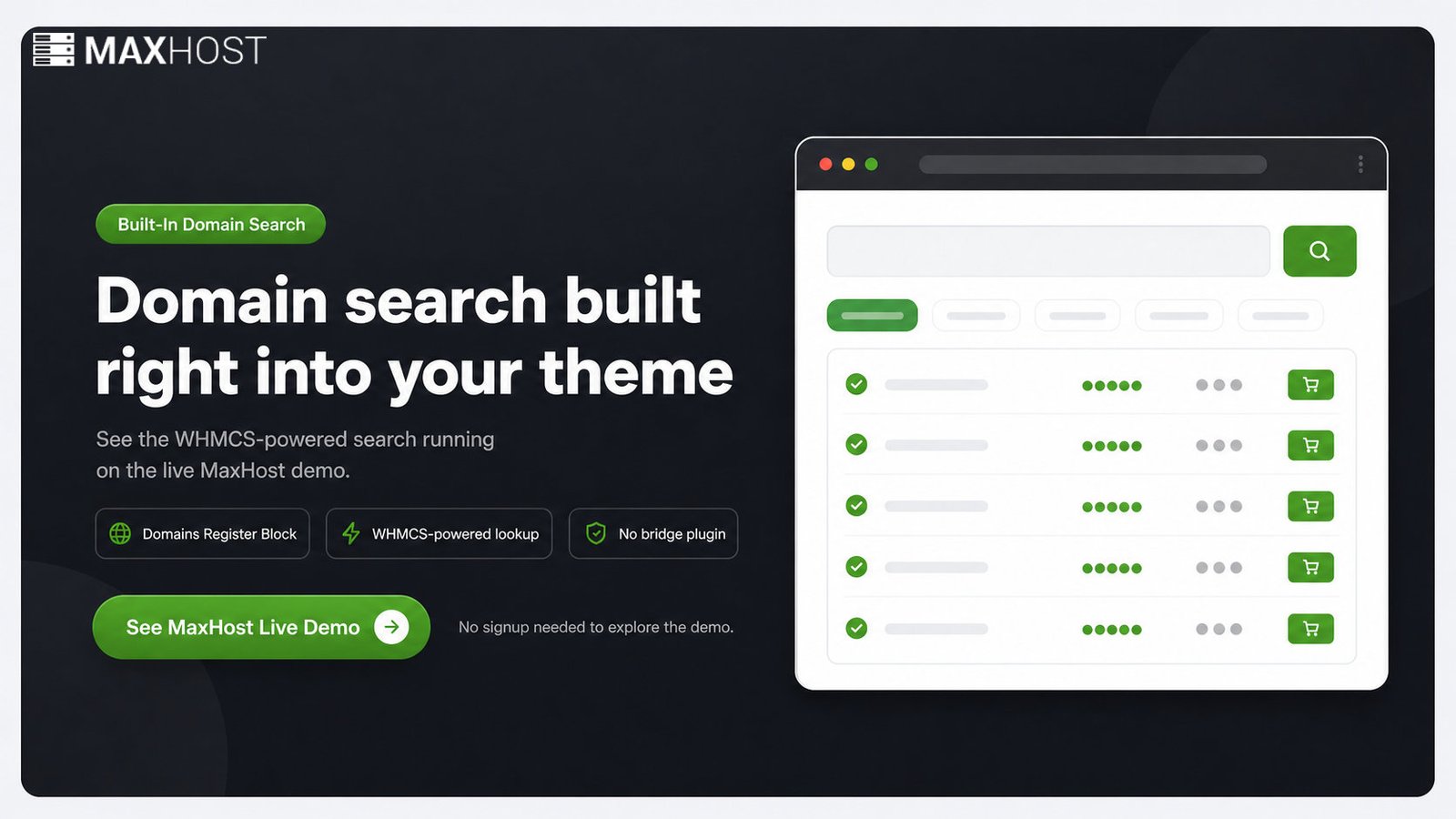
How to Add a Live Domain Search to Your MaxHost Site: Step-by-Step
Five steps set up MaxHost's domain search, whichever builder you use.
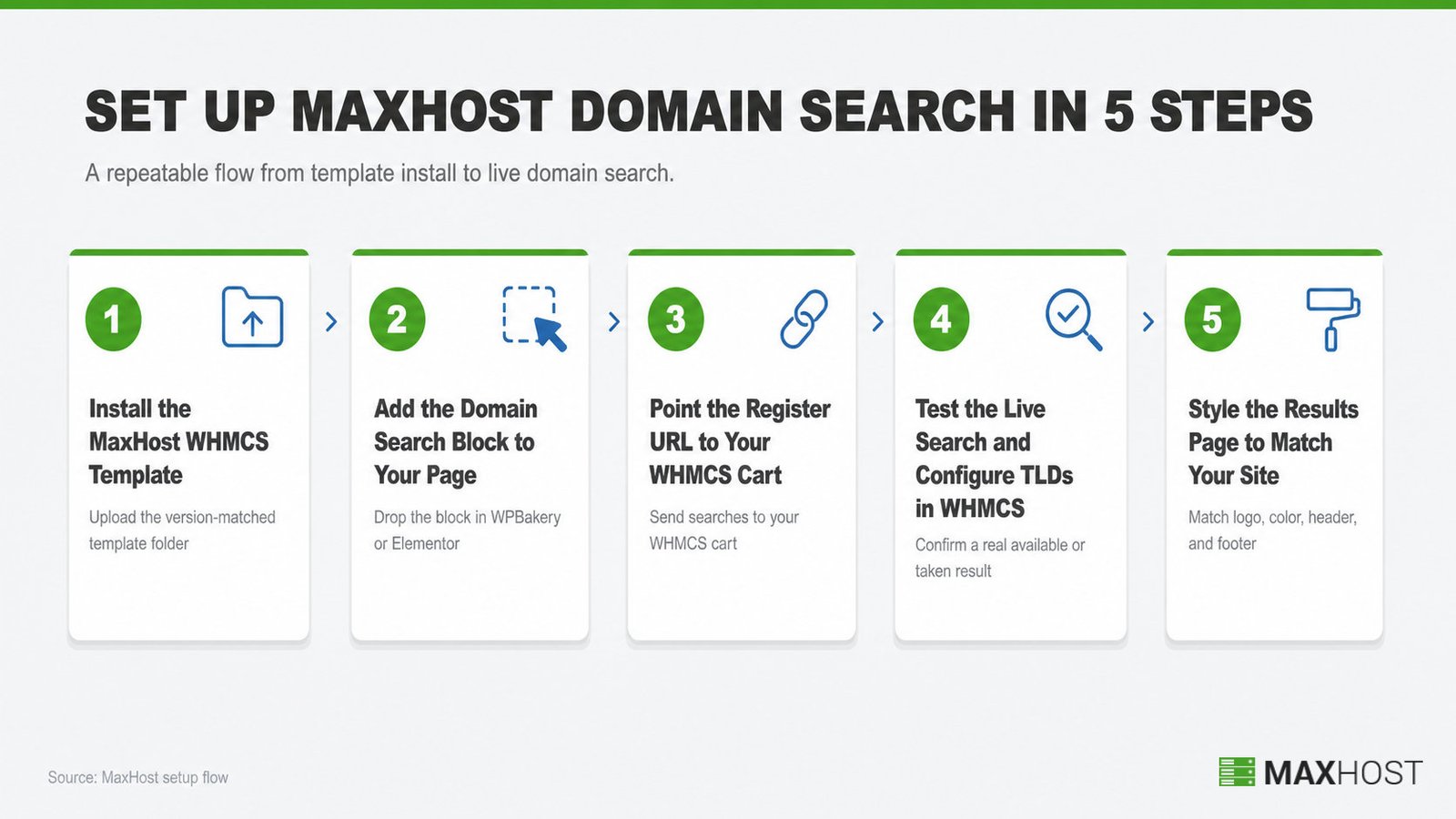
Step 1: Install the MaxHost WHMCS Template (This Powers the Live Search)
This step installs the WHMCS template that actually powers the live search results. Without it, the search box still works, but the results page will not match your WordPress site.
In WHMCS Admin, identify your exact WHMCS version first. Pick the matching template folder, for example maxhostaltv90-tw for WHMCS 9.0 and later. Upload that folder to your WHMCS install's /templates directory by FTP or cPanel File Manager.
Go to System Settings > General Settings > General tab, open the Template dropdown, and select Maxhost-Alt-Style-2. Click Save Changes. Then open the Ordering tab and set Standard Cart as your order form, since the Domains Register Block hands off to that exact cart page.
Done looks like WHMCS Admin showing Maxhost-Alt-Style-2 as the active template, with Standard Cart set as the order form.
This is the step readers skip. They then wonder why the search does not work. Without the template active, the widget's Register URL still points somewhere. But the results page will not match your WordPress front end.
For the complete template-by-version list, see MaxHost's WHMCS template setup guide. This template step is one piece of the larger question of how to integrate WHMCS with WordPress; this guide covers the domain-search piece specifically.
Step 2: Add the Domain Search Block to Your Page
This step places the search block on your page, in whichever builder you use. Done looks like the block appearing in your builder's live preview.
In WPBakery: go to Pages > Add New, open WPBakery Page Builder, then Frontend Editor. Click Add Element, select the by Fluent-Themes Shortcodes tab, and choose Domains Register Block.
In Elementor: open the Elementor editor and scroll to the Maxhost Elements panel at the bottom of the widget list. Drag the Domain Search Block onto your page.
Done looks like the block rendering with its search field, Heading field, and TLD buttons visible in your builder's preview.
Pick whichever builder the rest of your site already uses. Both blocks do the same job, so builder choice here is about consistency, not capability. Still deciding? See Elementor vs WPBakery for the full comparison.
Step 3: Point the Register URL to Your WHMCS Cart
This step tells the block where to send a search. Done looks like a test domain redirecting to a live WHMCS cart page, not a 404.
In the Domains Register Block's settings panel, find the Register URL field. Enter your actual WHMCS install's cart address in this exact format: YOUR_WHMCS_PAGE_URL/cart.php?a=add&domain=register.
Fill in the Heading field and the Domain 1 through Domain 5 fields. These set the fixed top-level domain (TLD) buttons, such as .com or .net, shown next to the search box. See MaxHost's Domains Register Block documentation for the complete field reference.
Use your live WHMCS install's URL here, not the theme demo's. A common first-setup mistake is leaving the demo's cart address in place. Every test search then redirects to MaxHost's own demo instead of yours.
Step 4: Test the Live Search and Configure TLDs in WHMCS
This step confirms the search actually returns a real result. Done looks like a real keyword returning an available or unavailable message, with pricing attached.
Search a domain you know is registered, then one you know is free. Each should return a message like "is available" or "is unavailable," pulled straight from WHMCS's own domain-search engine.
TLD coverage and New, Transfer, and Renewal pricing are configured in WHMCS's Domain Pricing settings, not in MaxHost. MaxHost's block only presents the entry point, and WHMCS does the actual lookup and pricing.
On MaxHost's own demo cart, a search returns 33 or more TLDs with pricing. Each TLD lists New, Transfer, and Renewal pricing, plus a CAPTCHA step before results appear, per MaxHost's live WHMCS demo.
Be precise about what "live" means here. The check itself runs inside WHMCS against your connected registrar, not through a MaxHost-built API. Saying so plainly, in your own site copy, builds more trust than implying MaxHost ships its own registrar integration.
This also keeps setup simple. Some competing tools need WHMCS API keys, and inline bridges run the lookup inside WordPress. MaxHost's block needs only the Register URL, with no API URL, secret, or identifier key.
Step 5: Style the Results Page to Match Your Site
This step makes the WHMCS results page look like part of your WordPress site, not a separate system. Done looks like matching logo, color, and header and footer style on both pages.
The header and footer HTML you copied into header.tpl and footer.tpl during Step 1 is what accomplishes this. If you skipped that copy step, revisit it now. Edit only inside the section marked for your theme's header and footer code. Content above that marker is what breaks the template on a future WHMCS update.
If the cart page still looks like default WHMCS after this step, the template most likely is not activated. Go back to Step 1 and confirm Maxhost-Alt-Style-2 is selected and saved.
MaxHost Features That Make Domain Search More Complete
MaxHost pairs its search block with two capabilities most bare widgets skip. The first is pricing tables next to the search box. The second is a documented GoDaddy Reseller Store backend for domain-focused resellers.
Domain Pricing Tables Alongside the Search Box
MaxHost's Domains Register Table and Domain Package Box widgets show New, Transfer, and Renewal pricing next to the search block, on the same page. Add either widget from the same by Fluent-Themes Shortcodes panel used for the search block itself. A visitor then sees availability and price together, instead of hunting for pricing afterward.
GoDaddy Reseller Store as an Alternative Backend
GoDaddy Reseller Store is a documented compatibility, not a MaxHost-built feature. MaxHost's product page lists compatibility with version 2.2.6 of GoDaddy's official plugin, current release 3.0.1 as of this writing, per the plugin's own listing.
Running it requires a separate GoDaddy Reseller account, plus the [rstore_domain_search] shortcode from the plugin itself, not MaxHost's Register URL field. A companion plugin, Reseller Intent, can track which domains visitors search and take to cart on that storefront. Building a domain-focused storefront, rather than adding a search box to an existing hosting site? See how to become a domain reseller first.
Add hosting pricing tables next. See how to add hosting pricing tables in WordPress for the full walkthrough.
Tips for a Domain Search That Converts in MaxHost
The single most impactful tip is honesty about the mechanism. Tell visitors the check runs through WHMCS, not a proprietary MaxHost API. It builds trust and heads off support tickets before they start.
- Say where the check actually happens. Tell visitors upfront that availability runs through WHMCS, not a proprietary MaxHost API. This builds trust and avoids a support ticket the first time someone asks "is this real-time?"
- Test both a taken domain and a free one before launch. A misconfigured Register URL shows the same generic result either way. Testing both catches a broken cart link before a customer does.
- Confirm the client's WHMCS instance before handoff, on the Extended License. If you are building this for a paying client, point the Register URL at their live WHMCS install, not the theme demo, before you hand the site over.
- Put the search block where visitors land first. Place the Domains Register Block in your hero or above the fold. Search-box visibility is the strongest driver of whether visitors run a search at all.
- Track which domains visitors actually search. WHMCS logs every domain lookup, so review that data to spot demand for specific TLDs. On a GoDaddy Reseller backend, a companion plugin like Reseller Intent surfaces the same searched-and-carted data.
FAQs
Does MaxHost's domain search work without WHMCS installed?
No. The block is a front-end entry point only. The actual availability lookup runs on WHMCS's side, so WHMCS 8.0.x through 9.0.x must already be installed and connected to a domain registrar.
Do I need the Extended License to add domain search on a client's hosting site?
Yes, if the client will be charged for the finished site. The Regular License ($49) covers a single non-charged use. The Extended License ($2,950) covers resale or any charged use, a licensing distinction, not a feature difference.
Can I use Elementor instead of WPBakery for the domain search block?
Yes. MaxHost ships an equivalent widget for both builders: WPBakery's Domains Register Block and Elementor's Domain Search Block. The choice comes down to which builder the rest of your site already uses.
Why does my domain search redirect to WHMCS instead of showing results inline?
That is expected behavior, not a bug. MaxHost's block hands the search off to WHMCS's own domain-search engine at cart.php?a=add&domain=register, which returns availability and pricing on the WHMCS side. Inline-in-WordPress alternatives do exist, using an external API or a WHMCS-API bridge, but MaxHost chooses the cart handoff for a no-API-key, lower-maintenance setup.
Can I show domain pricing next to the search box?
Yes. Add MaxHost's Domains Register Table or Domain Package Box widget alongside the search block. Use the same element panel your builder uses for the search itself.
Does the domain search work with GoDaddy Reseller Store instead of WHMCS?
MaxHost's compatibility with GoDaddy Reseller Store is documented at the plugin level, version 2.2.6. It is a separate plugin requiring its own GoDaddy Reseller account, not the same Register URL flow as the WHMCS-based block.
Why is my domain search asking for a CAPTCHA code?
That CAPTCHA comes from WHMCS's own domain-search page, confirmed on MaxHost's live demo cart. It is spam protection built into WHMCS itself, not something MaxHost's block adds separately.
Can I add MaxHost's domain search to a hosting site I am migrating from another host?
Yes. Install MaxHost, import a demo, and add the Domains Register Block the same way as a new build. If you have not moved the site yet, see how to migrate a WordPress site to a new host first.
This guide covers the domain-search piece only. For the complete build, from theme install through WHMCS and pricing tables, see how to make a web hosting website with WordPress.