A hotel booking website is a site you own. Guests check room availability, see prices by date, and pay directly. The booking, and its commission, stay with you instead of an OTA. Done well, a guest picks a room, chooses dates, and pays without leaving your site.
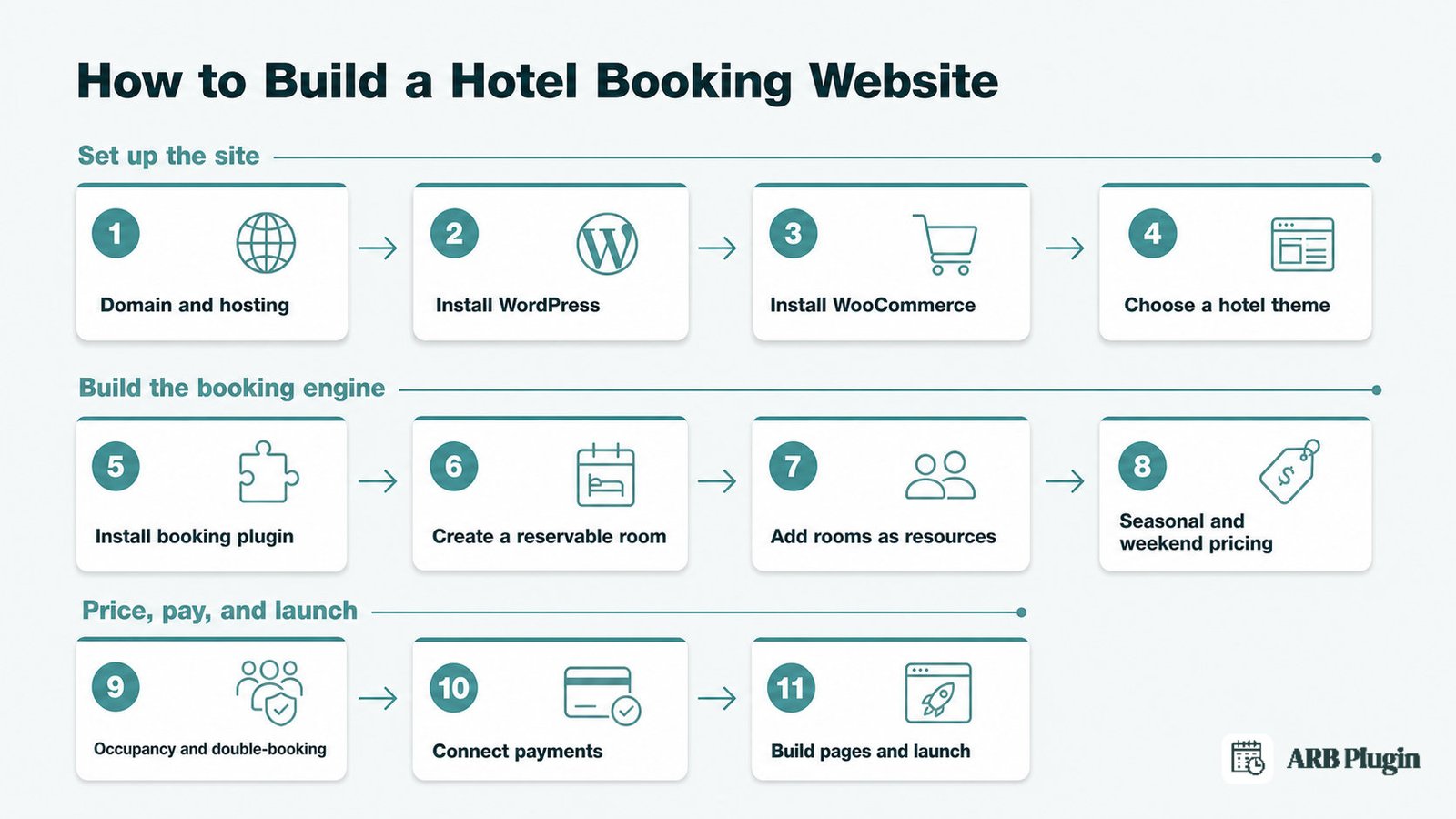
This guide covers domain and hosting, WordPress, WooCommerce, a hotel theme, and your booking plugin. It then covers rooms as bookable resources, seasonal and weekend pricing, and occupancy and double-booking prevention. It also covers payments, launch, and the honest limits on OTA sync and deposits.
What Is a Hotel Booking Website?
A hotel booking website is your own site with a direct booking engine. It shows room availability and prices by date and occupancy, then takes payment. Guests book you directly instead of going through an OTA like Booking.com or Airbnb, which charges a commission on every reservation.
This is different from a site like Booking.com, where travelers browse and book many different properties. A hotel booking website belongs to one property and takes bookings for that property alone.
Building one follows the same core setup any WooCommerce store uses for online booking on WordPress. Hotel-specific steps then layer on top: rooms as inventory, per-night and seasonal pricing, and occupancy rules. The steps below build that engine on WordPress and WooCommerce, keeping the whole guest relationship, and the whole rate, on your own site.
What You Need Before You Start
The prerequisite most people skip is a booking plugin that enforces per-room availability, not just a contact form or a plain product page.
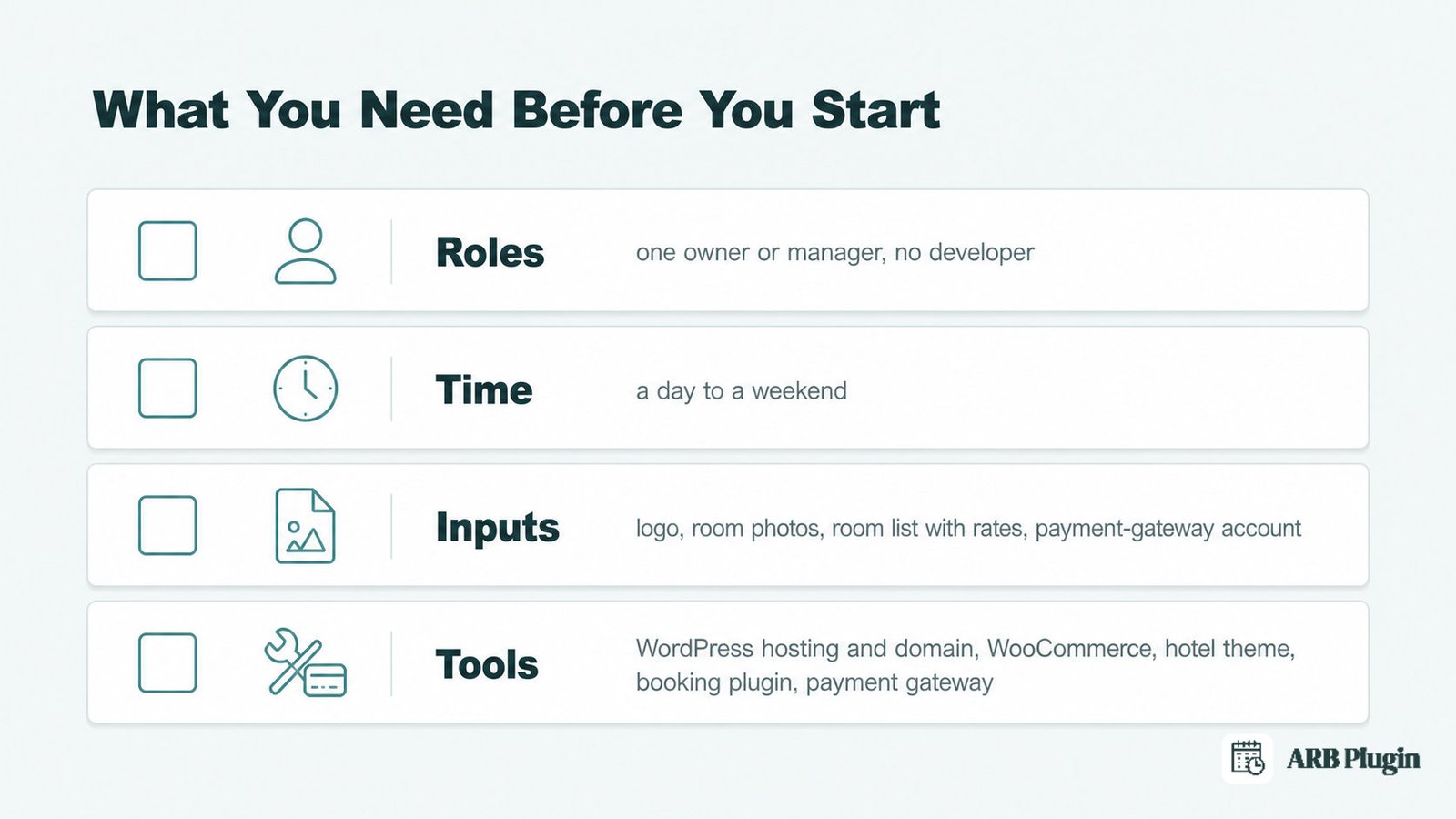
- Roles: one owner or manager to run setup; no developer required for a standard build.
- Time: a focused day to a weekend for a single small property, faster with content ready.
- Inputs: your logo, room photos, a room list with rates, and a payment-gateway account.
- Tools: WordPress hosting and a domain, WooCommerce, a WordPress hotel or accommodation theme, a WooCommerce-compatible hotel booking plugin, and a payment gateway such as Stripe or PayPal.
Step 1: Register a Domain and Choose WordPress Hosting
Registering your domain and choosing hosting comes first, because every later step needs a live, reachable site.
- Pick a short domain name, ideally matching your property's name.
- Choose WordPress hosting, managed or standard, sized for your expected traffic.
- Confirm SSL and HTTPS are active before you install anything else.
A slow or unreliable host shows up later as a booking calendar that lags or times out. Fix hosting quality now, before rooms and rates depend on it.
Step 2: Install WordPress
Installing WordPress takes minutes once hosting is live, because most hosts bundle a one-click installer.
- Open your host's control panel and run the WordPress installer, or install it manually.
- Log into wp-admin with the credentials the installer generated.
- Set your site title and choose a clean, readable permalink structure.
Step 3: Install WooCommerce
WooCommerce is the commerce layer every later step in this guide builds on.
- Install and activate the WooCommerce plugin from the WordPress plugin directory.
- Run its setup wizard and set your store address and currency.
- Set basic tax rules for the country, state, or city where you operate.
Your booking plugin in Step 5 extends WooCommerce directly. This step is the foundation every room reservation rides on.
Step 4: Choose a Hotel or Accommodation Theme
Your theme should show rooms clearly and load fast on mobile, not decorate the page.
Pick a WooCommerce-compatible hotel or accommodation theme built around a rooms grid, not a generic blog layout. Prioritize page speed and a clean room gallery over animation or heavy imagery. Most guests check availability from a phone, so a slow theme costs bookings before a guest reaches your booking form.
Step 5: Install Your Booking Plugin
Installing your booking plugin turns a normal WooCommerce store into one that takes room reservations.
- Download the plugin's zip file, then upload it under Plugins > Add New > Upload Plugin in wp-admin, or upload the folder via FTP to
wp-content/plugins/. - Activate the plugin from the Plugins screen.
- Open its settings page, paste your 9-digit Activation Token, and save.
The ARB booking plugin is one option built specifically for this. It turns any WooCommerce product into a bookable Reservable Product. A room's reservation then runs through the same cart, checkout, and payment gateways your store already uses. There is no separate booking system to maintain, and ARB carries a 4.81-out-of-5 rating from its buyers on CodeCanyon.
Done: the plugin is active, your token is saved, and a "Reservable Product" option appears when you add a WooCommerce product.
Step 6: Create Your First Room as a Reservable Product
Creating your first room means turning one WooCommerce product into a night-based reservation.
- Go to Products > Add New.
- Set Product Data to Reservable Product.
- Under the General tab, set Reservation Duration to customer-defined, on a day-and-night basis.
- Set the Label field to "Nights," so cart and checkout read "Nights: 3" instead of a generic count.
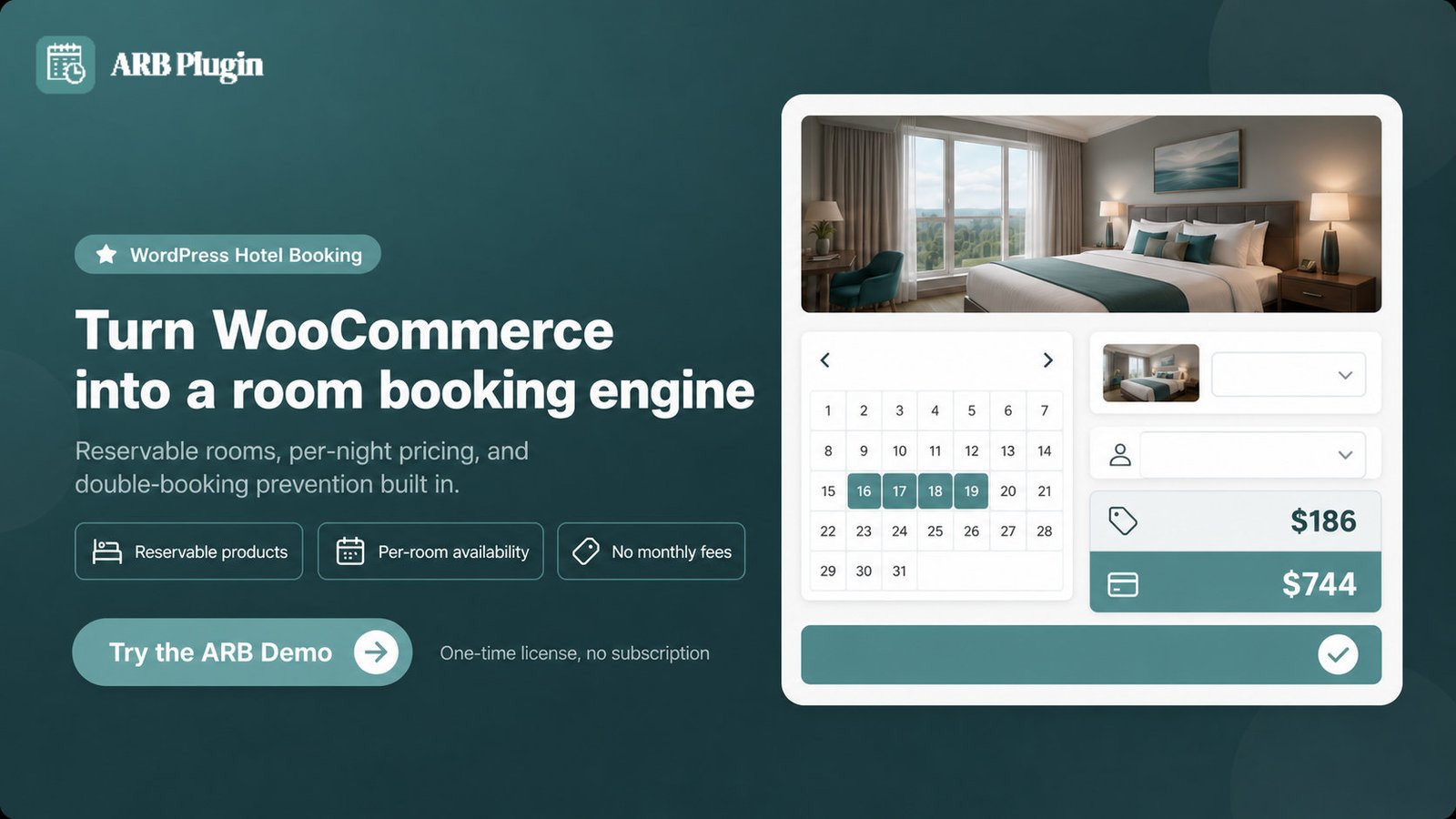
This tells the plugin that a room is reservable in day-and-night units, and that a guest chooses how many nights they want. The guest picks a check-in date and a number of nights, and the price recalculates per night in real time.
For the full field-by-field walkthrough, see how to create a reservable product.
Done: your first room exists as a Reservable Product, priced and labeled by night.
Step 7: Add Rooms and Room Types as Bookable Resources
Adding each room as its own resource is what actually stops a room from being booked twice.
- Open the Resources tab on the reservable product and enable resources.
- Add each room or room type as a separate resource, for example "Deluxe Double" or "Room 204."
- Click Edit resource on each one to set its own availability and Available Quantity.
- Set each resource's individual per-night price.
The front-end calendar then shows only that resource's own availability. Once a resource's quantity for a date is used up, the calendar stops selling it for that date. A single physical room cannot be sold twice for the same night.
| Real room | Resource name | Available quantity | Per-night price |
|---|---|---|---|
| 5 Deluxe Doubles | Deluxe Double | 5 | $120 |
| 3 Family Suites | Family Suite | 3 | $180 |
| 1 Penthouse | Penthouse | 1 | $320 |
This resource model is covered in depth on the bookable resources page, and the availability logic behind it on the per-room availability rules page.
Done: every room or room type is its own resource, with its own quantity and price, and the calendar enforces that limit automatically.
Step 8: Set Seasonal, Weekend, and Length-of-Stay Pricing
Setting seasonal and weekend pricing means layering rate rules on top of your base nightly price.
- Open the Costs tab on the reservable product.
- Use Add Range with a Date Range rule for peak-season or holiday surcharges.
- Add a Range of Days rule for a weekend uplift, for example Friday through Sunday.
- Add a Slot Count rule for a length-of-stay discount, for example a lower nightly rate at four nights or more.
Every rule stacks on the base rate. The displayed price recalculates live as the guest changes dates, through AJAX, with no page reload.
| Rule type | Example | Effect |
|---|---|---|
| Date Range | December 20 to January 2 | +$40 per night, peak season |
| Range of Days | Friday to Sunday | +$20 per night, weekend |
| Slot Count | 4 nights or more | -$15 per night, length-of-stay discount |
The full range of rule types is covered on the dynamic pricing rules page.
Done: a booking on a peak weekend prices correctly without you touching the calendar by hand.
Step 9: Set Occupancy and Prevent Double-Booking
Setting occupancy pricing and a capacity guard turns a calendar into an actual double-booking guard.
- Open the Persons tab and enable Person Types.
- Add Person Types such as Adult and Child, each with its own minimum, maximum, and per-type price.
- Open the Availability tab and set Max Reservations per Slot as a hard capacity cap.
Max Reservations per Slot works together with each resource's own Available Quantity from Step 7. Between the two, the same room-night can never sell to two different guests.
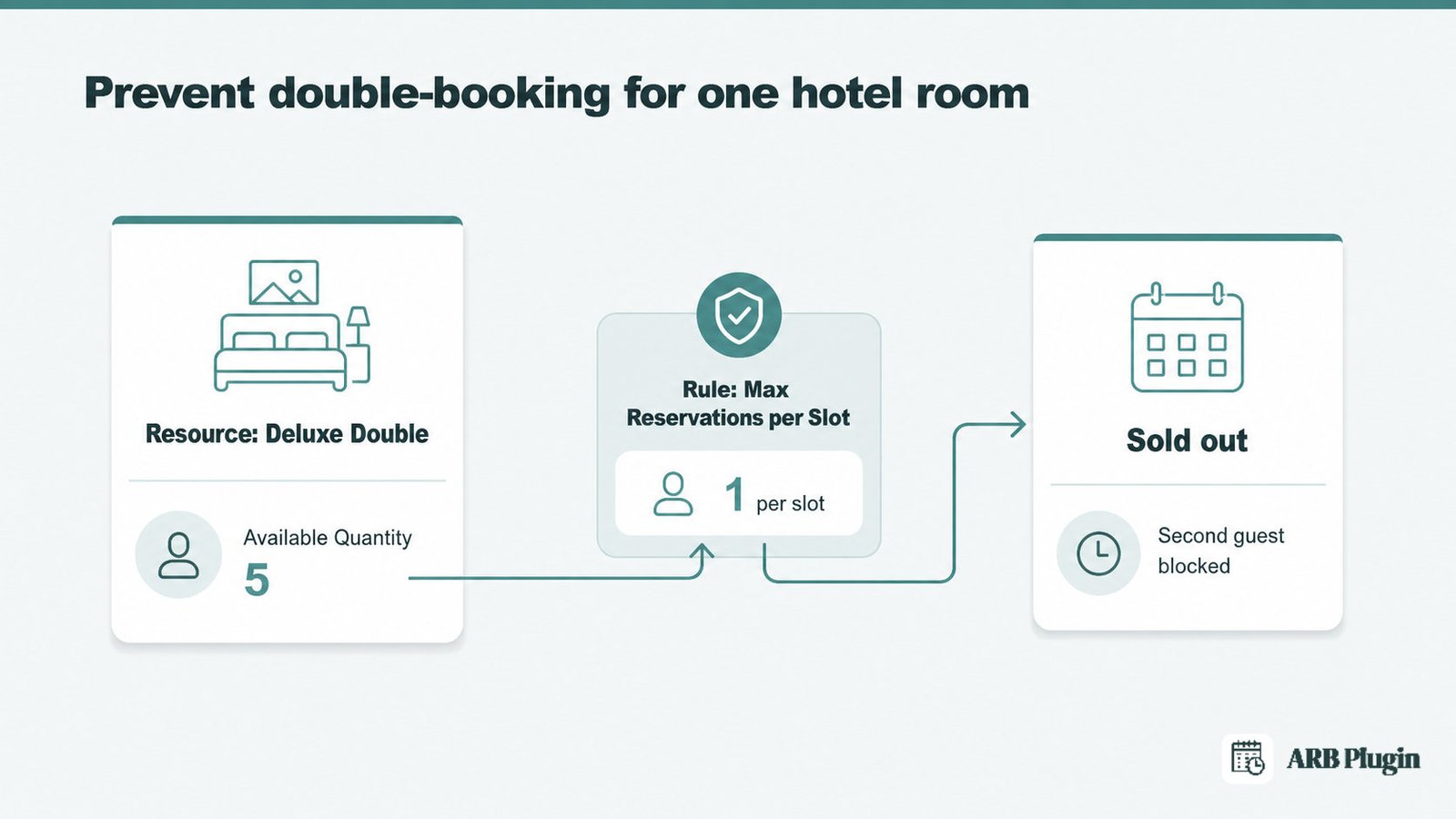
For the full availability-rule walkthrough, see how to set up booking availability.
Done: a room's occupancy price is set, and the calendar physically blocks a second booking on a full night.
Step 10: Connect Payments and Take Direct Bookings
Connecting payments is where the direct-booking economics actually show up.
- Go to WooCommerce > Settings > Payments.
- Enable Stripe, PayPal, or another gateway WooCommerce supports.
- No extra booking-specific payment setup is needed; the reservation checks out through the same gateway as any other order.
Because checkout runs on your own store, the payment, and the commission you would otherwise owe an OTA, stays with you. If you require manual approval before charging a guest, set the booking to confirmation-required. No payment method shows at checkout until you confirm it, and the guest then pays through their My Account page.
For gateway-by-gateway setup, see how to accept payments for bookings.
Done: a test booking completes checkout and the payment lands in your own gateway account.
Step 11: Build Your Core Pages, Then Launch
Building your core pages and testing a real booking are the last steps before launch.
- Build a Rooms page and place each room's booking form with a shortcode (
[product_page id=""]), Elementor, or WPBakery. - Add About, Contact, and cancellation-policy pages.
- Set page titles, meta descriptions, and real room photos for basic on-page SEO.
- Run a real test booking end to end, from room selection through payment.
- Publish the site.
Send a booking confirmation and a pre-arrival reminder once you are live. Reminders cut no-shows and last-minute cancellations. See how to set up booking reminder emails.
Done: your site is live, a real booking has completed payment, and reminder emails are set up.
Direct Bookings vs. OTA Sync: What This Setup Does and Doesn't Cover
This build gives you a direct booking engine, not a channel manager, and that distinction matters before you launch.
What this build does:
- Runs a direct booking engine on your own site, with room, price, and availability logic you control.
- Keeps the whole booking, and the whole rate, without an OTA commission attached.
- Prevents double-booking on your own site through per-room Available Quantity and Max Reservations per Slot.
What this build doesn't do:
- Two-way sync availability with Booking.com, Airbnb, or Expedia in real time.
- Offer built-in iCal channel sync; it exports an .ics file, and one-way Google Calendar sync is a separate paid add-on.
- Take deposits or partial payments; guests pay in full, or you use the confirmation-required and Quote-Request flow instead.
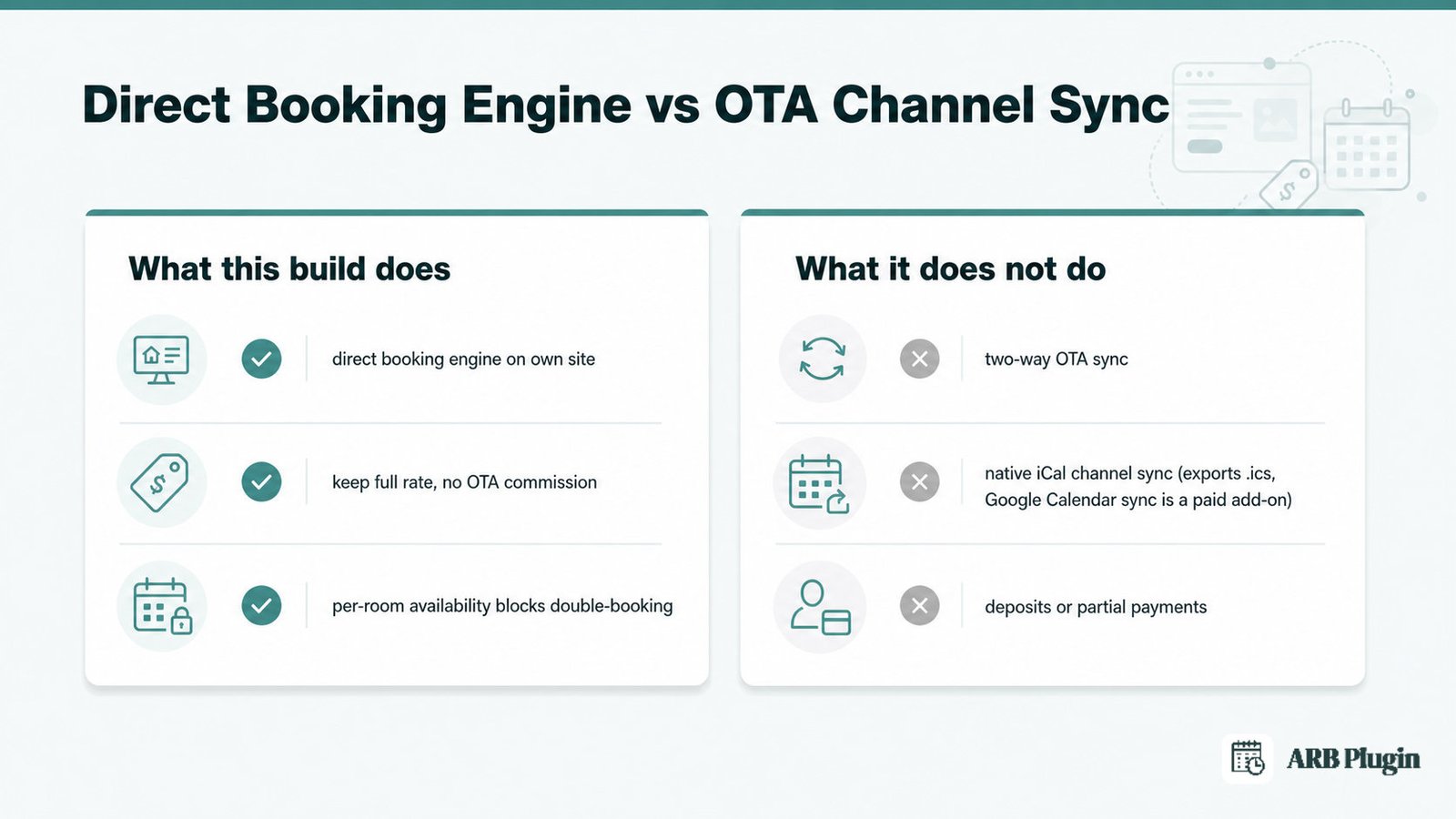
Guidance on this exact question converges on one answer. A single-channel, direct-only property does not need a channel manager. This setup is built for exactly that property.
If you also sell rooms across multiple OTAs, pair this booking engine with a dedicated channel-manager tool built for real-time two-way sync. That way, you stop updating each OTA extranet by hand.
The same honesty applies to deposits. This setup does not take a deposit or a partial payment. Use full payment, or the confirmation-required and Quote-Request workflow, if you need to review a booking before charging a guest.
Common Hotel Booking Website Mistakes to Avoid
The single most damaging mistake is using a plain contact form or a normal product instead of real availability enforcement, which produces double-bookings.
- Relying only on OTAs. Every booking pays a commission, which steadily erodes margin. Add a direct booking engine on your own site so bookings can also arrive commission-free.
- Using a contact form or a plain WooCommerce product. There is no real availability calendar, so two guests can claim the same room-night. Use a booking plugin that enforces per-room availability.
- Skipping per-room Available Quantity. The same room sells twice because nothing tracks how many units of it exist. Set each room as its own resource with a quantity and a Max Reservations per Slot cap.
- Charging one flat nightly rate year-round. Peak weekends and holidays sell at the same price as a slow Tuesday, leaving real revenue on the table. Add Date Range, Range of Days, and Slot Count rate rules.
- Expecting automatic OTA sync out of the box. A direct booking engine does not two-way sync with Booking.com or Airbnb. Listing on both without a channel manager risks manual double-entry, so add a dedicated channel-manager tool if you sell across multiple OTAs.
FAQs
How much does it cost to build a hotel booking website?
Expect a domain (around $10 to $20 a year) and WordPress hosting (roughly $5 to $30 a month). Add a hotel theme (often $0 to $100 one-time). A WooCommerce-native booking plugin such as ARB costs about $55 one-time, well below a recurring subscription plugin's ongoing cost.
What software do hotels use for booking?
Large hotel groups typically run a property management system paired with a channel manager. Independent hotels and B&Bs commonly use WordPress with WooCommerce and a booking plugin instead, for direct bookings at a lower ongoing cost.
Can I build a hotel booking website for free?
Partly. WordPress itself is free, but hosting, a domain, and most booking plugins cost money. A free contact form will not prevent double-bookings, so it is not a real substitute for a booking plugin.
Do I need WooCommerce to take hotel bookings on WordPress?
For the route in this guide, yes. The booking plugin used here extends WooCommerce directly, so WooCommerce must be installed and active first.
How do I stop double-bookings on my hotel website?
Set a per-room Available Quantity so the calendar knows exactly how many of that room exist. Pair it with a Max Reservations per Slot cap so a room-night can never sell twice.
Can guests book more than one room, or set adults and children per booking?
Yes. Person Types handle adult and child occupancy pricing, and a guest can select multiple room resources within the same booking.
Does this setup sync with Booking.com or Airbnb?
No. This is a direct booking engine, not a channel manager, so it does not two-way sync availability with any OTA. Add a dedicated channel-manager tool if you list rooms on multiple OTAs.
Can I take a deposit or partial payment for a room?
Not with this setup. Guests pay in full at checkout, or you use the confirmation-required and Quote-Request flow to review a booking before any payment happens.
How do I charge more on weekends or during peak season?
Use the Costs tab's Add Range feature: a Range of Days rule for weekends, and a Date Range rule for peak-season dates.
How long does it take to build a hotel booking website?
A focused day to a weekend for a small property, once your room list, rates, and photos are ready. Most of that time goes to content, not to clicking through setup screens.
Every step above builds toward one outcome: a room booking that runs on your own site, not an OTA's. ARB is the WooCommerce-native plugin this guide uses for the reservation engine. It prices rooms as individual resources, applies seasonal pricing, and guards against double-booking, all inside the checkout you already run. See the full feature set on the WooCommerce hotel booking page, or try the ARB booking demo to walk through a real room reservation first.