Sending appointment reminders on one repeatable pattern reduces no-shows: a confirmation at booking, a well-timed follow-up, and a personalized final nudge. Most missed appointments trace back to bad timing or a generic message, not to skipping reminders altogether.
This guide covers the ideal reminder cadence and when email beats SMS. It also includes ready-to-copy templates and the exact steps to send reminders automatically, including the WooCommerce path.
What Are Appointment Reminders?
An appointment reminder is an automated email or text message sent before a scheduled appointment. It confirms the date, time, and location, and it exists specifically to cut no-shows.
A confirmation email and a reminder email do different jobs, even though people use the terms loosely. The confirmation fires the instant someone books; it simply confirms the appointment exists. A reminder fires later, closer to the appointment date, and its job is to prompt action: attend, reschedule, or cancel.
A no-show is a booked appointment where the customer never arrives and never cancels. It costs the business the slot, the staff time, and often the revenue for that period.
Reminders exist to turn a forgotten appointment into either a kept appointment or an early cancellation. An early cancellation at least frees the slot for someone else.
Reminders measurably lift attendance. A 2016 systematic review in Patient Preference and Adherence found reminders "improve appointment attendance across a range of health care settings" (McLean et al.).
For the full breakdown of how appointment reminders fit into a booking workflow, start there before building your own sequence.
When to Send Appointment Reminders: The Ideal Cadence
Three touches is the pattern that holds up across independent sources. Send a confirmation the moment someone books, a mid-range reminder one to three days out, and a final reminder a few hours before the appointment.
| When | Channel | Purpose | What It Should Say |
|---|---|---|---|
| At booking | Confirm the appointment exists | Date, time, location or video link, and a reschedule or cancel option | |
| 24 to 72 hours before | Give the customer time to prepare or reschedule | Full appointment details plus what to bring or expect | |
| 1 to 4 hours before | Email or SMS | Prompt same-day action | A short, high-visibility nudge with the time and location |
Two or three touches is the norm. A fourth or fifth reminder does not meaningfully raise attendance and reads as spam to the recipient. For same-day or short-notice bookings, compress the middle touch or send only the final reminder.
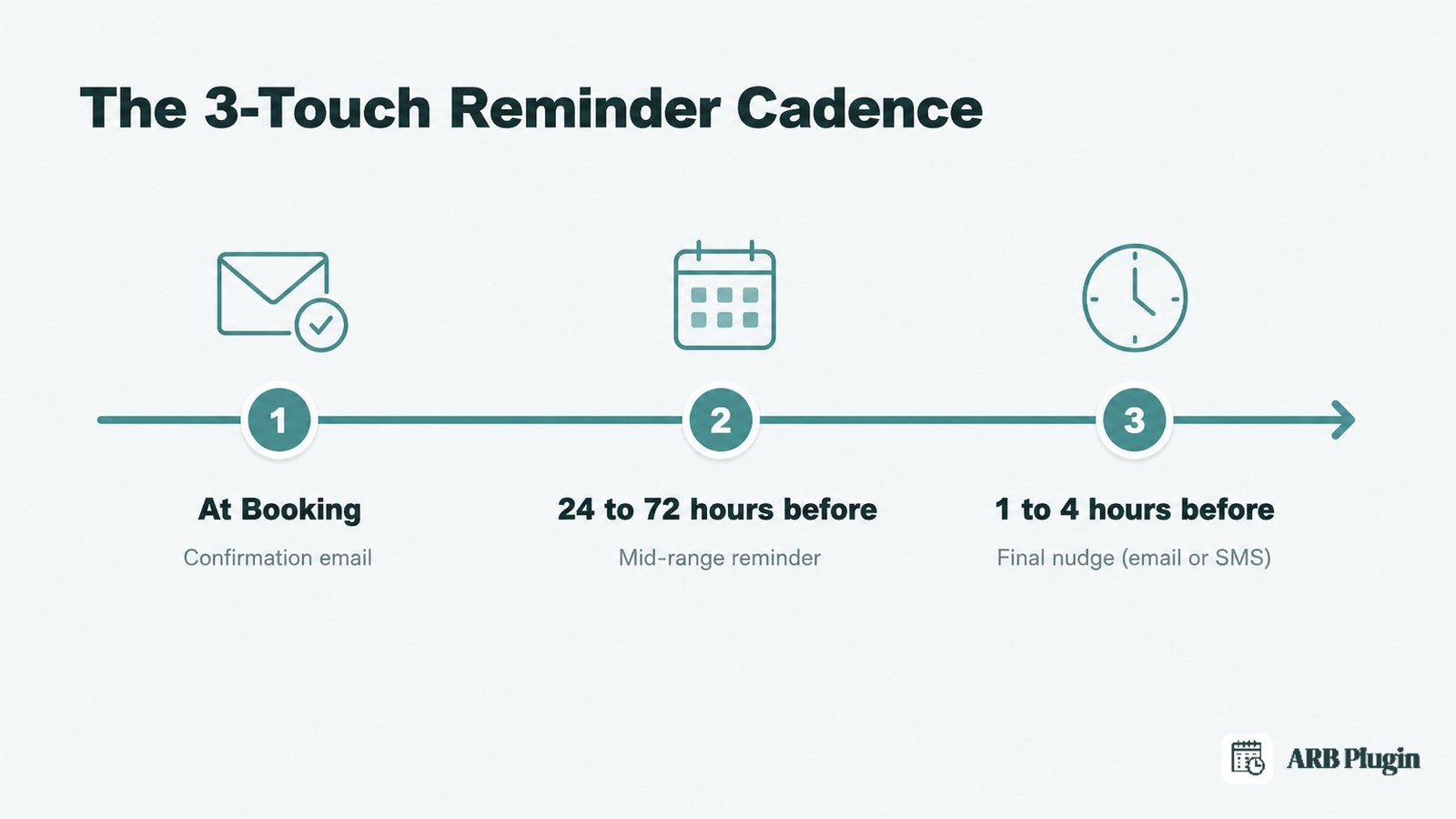
A consistent cadence is the single biggest lever to cut your no-show rate. The templates and steps below turn this cadence into an actual send.
Email vs SMS: Which Channel Should You Use?
Email and SMS solve different parts of the reminder job, and most businesses end up using both.
| Factor | SMS | |
|---|---|---|
| Typical cost | Usually included with your booking or email system | Usually requires a separate paid SMS capability |
| Read speed | Slower; often read within hours | Faster; often read within minutes |
| Character limit | Effectively unlimited | Short, roughly 160 characters per message |
| Best for | Detailed confirmations and reminders sent a day or more ahead | A short, same-day nudge close to the appointment |
| Consent and deliverability | No separate opt-in beyond the address given at booking | Requires explicit opt-in consent from the recipient |
Use email as the default channel. It needs no separate opt-in, and it comfortably carries the full detail: date, time, location, and a reschedule link.
Add SMS only for the final, time-sensitive touch, and only once the customer has given consent to text messages. Most booking systems, ARB included, gate SMS behind a separate paid capability rather than including it by default.
What You Need Before You Start
The prerequisite most people miss is accurate contact information captured at booking, not chased down afterward. Without documented SMS consent, you cannot legally text a reminder, no matter how good your cadence is.
Before you send a single reminder, gather these four prerequisites.
- A booking or scheduling system that stores contact details and the appointment time at booking.
- An email-sending capability, whether built into your booking system or handled by a separate tool.
- An SMS gateway or add-on, only if you plan to text reminders.
- A documented SMS opt-in, collected separately from the email address given at booking.
First-time setup, choosing your cadence and writing your templates, takes about 30 to 60 minutes. Once configured, sending an individual appointment's reminders takes no manual work at all if your system automates it.
If you don't have a booking system in place yet, start with how to set up online booking on WordPress before configuring reminders.
How to Send Appointment Reminders: Step by Step
Here is the exact sequence, from the confirmation that fires at booking to the final reminder before the slot.
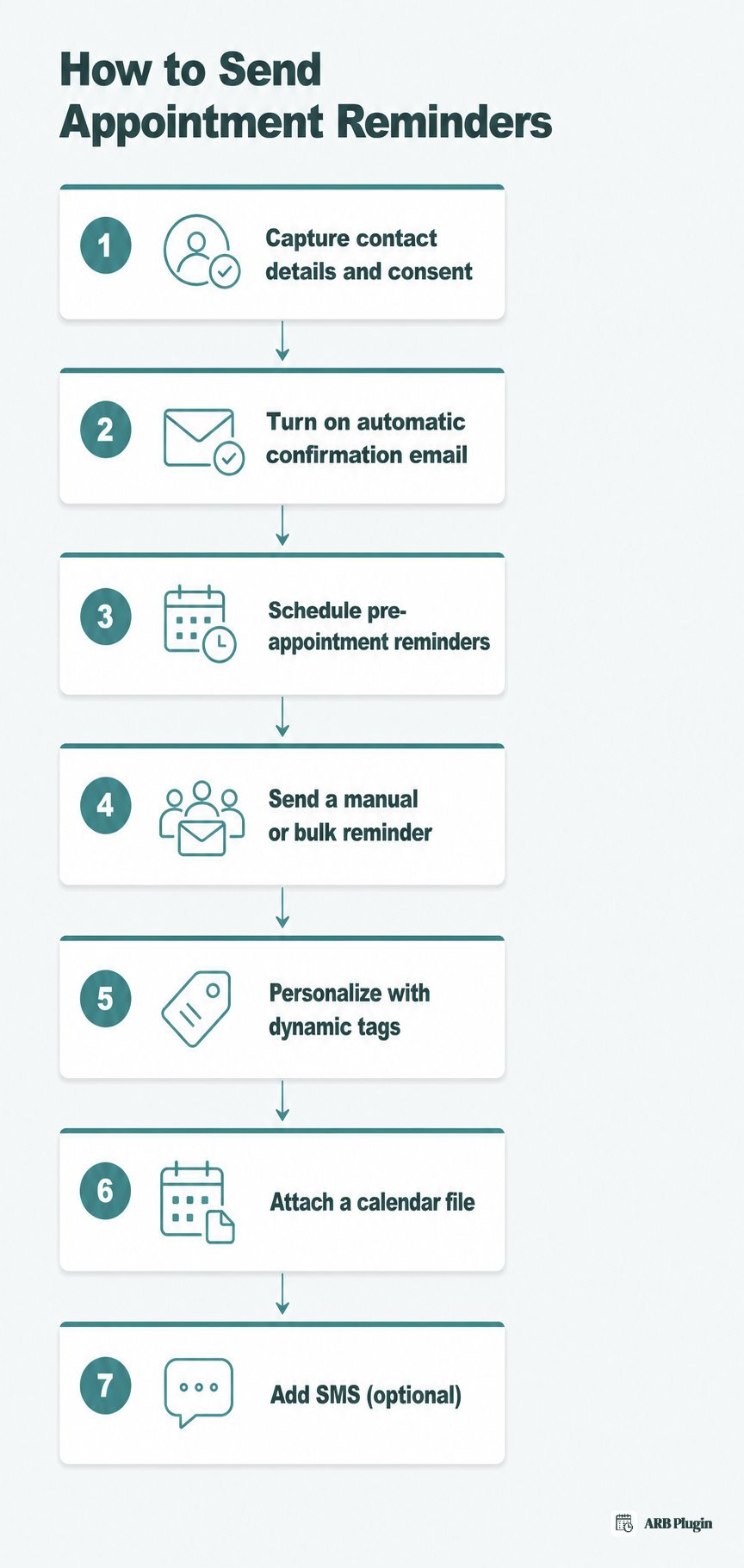
Step 1: Capture Accurate Contact Details and Consent
This step succeeds or fails on one rule: you can only remind someone you can reach. Capture email at minimum, and phone plus SMS opt-in only if you plan to text.
Ask for an email address every time someone books, and a phone number plus an explicit SMS opt-in if you offer text reminders. Store both alongside the appointment date and time, not in a separate spreadsheet you update by hand.
On a WooCommerce-based booking setup, this step is already handled. The customer's email and appointment details land on the order the moment they check out. There is nothing extra to wire up before you can start reminding them.
Done: every booking carries a valid email address, and a phone number plus consent if SMS is in use, automatically.
Step 2: Turn On the Automatic Confirmation Email
The first reminder a customer gets is the booking confirmation, and it should fire the instant they book, with zero delay.
Configure your confirmation email once, then let it send automatically on every booking. Include the appointment date, time, location or video link, and a way to reschedule or cancel.
On a WooCommerce-based booking setup, ARB sends this notification email automatically the moment a booking is placed, using the templates under WooCommerce > Settings > Emails. You edit the wording once, and every future confirmation goes out without you touching it again.
Done: a test booking triggers a confirmation email within seconds, with no manual step on your end.
Step 3: Schedule Your Pre-Appointment Reminders
Confirmations alone do not prevent no-shows. Schedule at least one more reminder to fire automatically before the appointment date.
Set your mid-range reminder, roughly 24 to 72 hours out, and, for time-sensitive slots, a final reminder a few hours before. Both should send without a manual trigger each time.
ARB's reminder scheduling, added in version 8.0.0, handles this send timing automatically. Its centralized timezone handling keeps the reminder correct even when the business and the customer sit in different time zones. It also holds up when a daylight-saving shift lands between booking and appointment.
It is worth being honest about scope here. ARB's strength is automatic confirmations plus scheduled, manual, and bulk reminders, not a multi-step marketing drip sequence. A dedicated marketing-automation tool covers that job better for a long, multi-week touch sequence.
Done: a reminder fires automatically at your chosen interval before the appointment, correctly timed regardless of time zone.
Step 4: Send a Manual or Bulk Reminder When You Need One
Sometimes you need to remind everyone booked for tomorrow in one move, not wait on the automated schedule.
Keep a manual or bulk-send option available for same-day nudges, last-minute schedule changes, or a reminder your automated sequence missed.
In ARB, go to WP-Admin > Reservations > Send Notification, pick the reservable product, write a subject and message, and click send. One click emails every customer with a future reservation for that product, using the order data already on file. There is no separate list to build or export.
Done: you can email every upcoming customer for a given product in under a minute, without leaving WP-Admin.
Step 5: Personalize Every Reminder With Dynamic Tags
A reminder addressed to "Valued Customer" reads as spam. Personalize every message with the recipient's actual name.
Use a merge field or dynamic tag in your reminder template so each recipient sees their own name, not a generic greeting. Pair it with the specific appointment date and time.
ARB's {customer_name} dynamic tag does this inside the Send Notification message. Type {customer_name} once, and it is replaced with each recipient's real name when the email goes out, with no mail-merge tool required.
Done: a test send to two different customers shows two different names in the message body.
Step 6: Attach a Calendar File So the Appointment Lands in Their Calendar
A reminder the customer forgets a day later did not do its job. Attach a calendar file so the appointment lands directly on their calendar.
Enable a calendar attachment on your reminder so the recipient's email client or calendar app can add the appointment with one tap. That beats relying on them to remember the time from reading the email.
ARB's Attach iCalendar file option adds a .ics file with the exact reservation time to the notification email. Customers can import that file into Google Calendar. For the business side, a paid ARB Google Calendar add-on ($19 one-time) syncs bookings from your website into your own Google Calendar automatically. That sync runs one way, from the store to the calendar, and it does not pull changes back from Google Calendar into ARB.
Done: the reminder email includes a calendar attachment, and opening it on a phone offers to add the event.
Step 7: Add SMS for Time-Sensitive Reminders (Optional)
SMS gets read faster than email. That makes it the strongest channel for a reminder sent hours before the appointment, not weeks before it.
Add a text reminder only after you collect explicit SMS opt-in consent, and reserve it for the final, time-sensitive touch. Texting without consent creates deliverability and compliance problems.
Using ARB? SMS reminders run through a separate paid SMS notifications add-on ($15 one-time), not the core plugin. This add-on sends one way: it delivers the reminder text but does not process a reply. A customer cannot text back "C" to confirm or "R" to reschedule through it. Point any SMS reminder to a phone number or a monitored reply channel instead.
Done: SMS reminders reach only customers who opted in, and each message points to a phone number or reply channel instead of a text-back code.
Appointment Reminder Templates You Can Copy
Three templates cover the full cadence: an email confirmation, a 24-hour email reminder, and a short SMS reminder for the final touch.
Subject: Your appointment with {business_name} is confirmed Hi {customer_name}, your appointment with {business_name} on {appointment_date} at {appointment_time} is confirmed. Reply to this email or call us if you need to reschedule or cancel. We look forward to seeing you.
Subject: Reminder: your appointment tomorrow at {appointment_time} Hi {customer_name}, this is a reminder that your appointment with {business_name} is tomorrow, {appointment_date}, at {appointment_time}. Reply to this email if you need to reschedule or cancel.
{business_name}: reminder, your appointment is {appointment_date} at {appointment_time}. Call us to reschedule or cancel.
Keep the SMS template under 160 characters so it sends as one message. All three lean on the same merge fields: customer name, business name, appointment date, and appointment time. Each also needs a clear way to confirm, reschedule, or cancel.
For more prewritten variants across different appointment types, grab more appointment reminder email templates you can adapt.
Common Appointment Reminder Mistakes to Avoid
The single most damaging mistake is relying on one reminder sent at the wrong time. A lone reminder either arrives too early to matter or too late to act on.
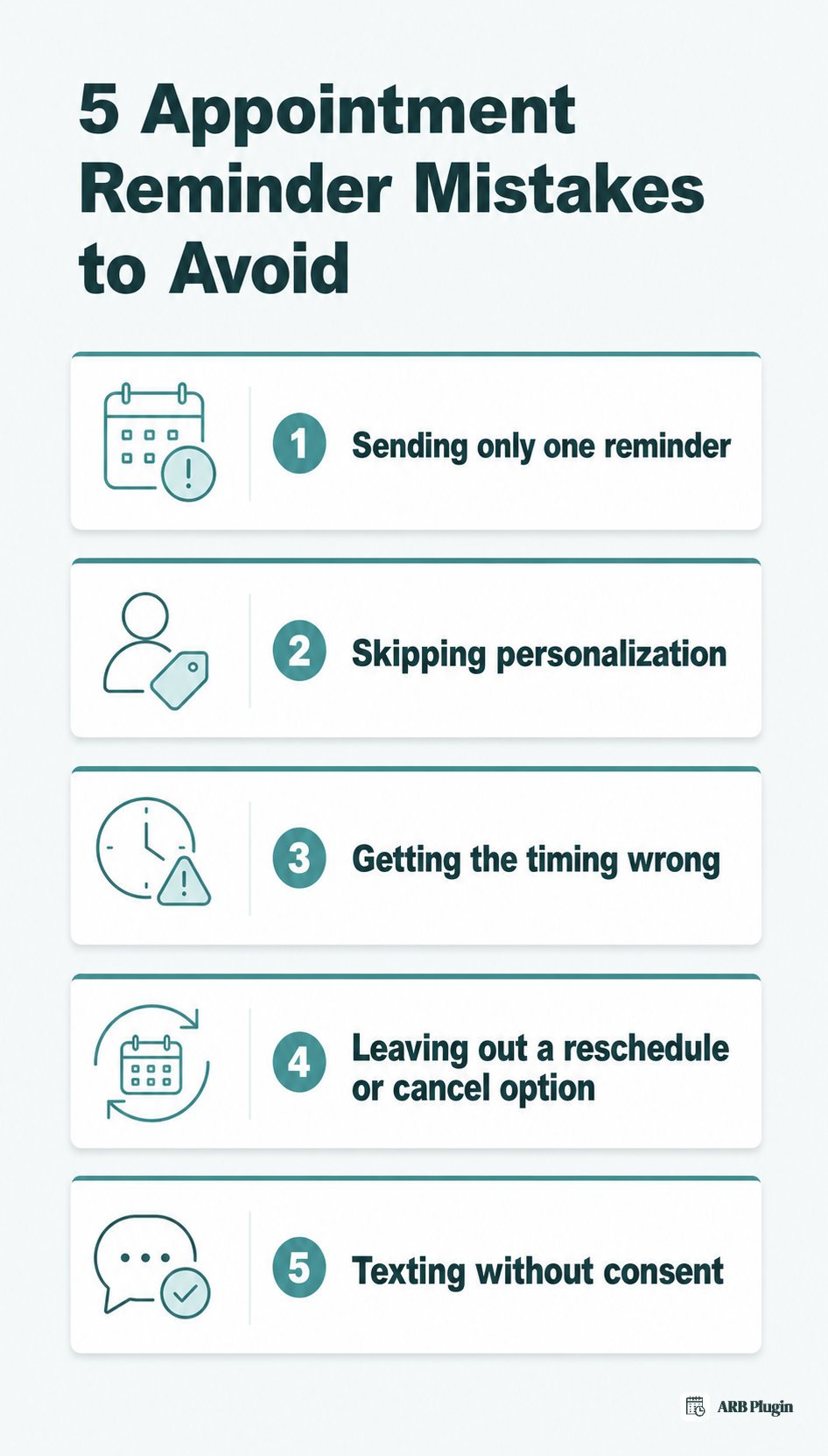
- Sending only one reminder. One touch leaves no second chance if the customer misses or forgets it, and no-shows climb. Use the two-to-three touch cadence instead: confirmation, mid-range reminder, final nudge.
- Skipping personalization. A reminder that opens with "Dear Customer" reads as a mass blast and gets ignored or deleted. Use the customer's actual name and their specific appointment details in every message.
- Getting the timing wrong. A reminder sent only a week out, with nothing closer to the date, gives the customer time to forget again. Pair a 24-to-72-hour reminder with a final touch a few hours before.
- Leaving out a way to reschedule or cancel. Without an easy reschedule or cancel option, customers who cannot make it simply do not show up instead of freeing the slot. Include a reply address, phone number, or reschedule link in every reminder.
- Texting without consent or from a no-reply address. Sending SMS without documented opt-in creates compliance risk, and a no-reply number leaves the customer no way to respond. Collect SMS consent up front and use a monitored channel for replies.
FAQs
How do I send a reminder for an appointment?
Send a confirmation email the moment someone books. Follow with a reminder 24 to 72 hours before the appointment, then a final reminder a few hours before for time-sensitive slots. Email covers all three touches; SMS works best for the final one.
How do I politely remind someone of an appointment?
Open with the appointment details, not an apology or a demand. State the date, time, and location plainly, then offer a clear way to reschedule or cancel if the time no longer works.
How many appointment reminders should I send?
Two to three reminders is the norm: a confirmation at booking, one mid-range reminder, and one final reminder close to the appointment. A fourth or fifth reminder does not raise attendance further and reads as spam.
What time should I send an appointment reminder?
Send the confirmation instantly at booking. Follow with a reminder 24 to 72 hours before the appointment, then a final reminder one to four hours before for same-day urgency.
Should I use email or text for appointment reminders?
Use email as the default channel for confirmations and detailed reminders; it needs no extra opt-in. Add SMS only for the final, time-sensitive touch, and only with the customer's explicit consent.
Can I send automated appointment reminders on WooCommerce?
Yes. A WooCommerce-native booking plugin sends the confirmation automatically at booking and schedules follow-up reminders. It also supports a one-click bulk reminder to every customer with a future reservation for a product.
What should an appointment reminder message include?
Include the business name, the customer's name, and the service or appointment type. Add the date and time, the location or video link, and a way to confirm, reschedule, or cancel.
Do I need consent to send SMS appointment reminders?
Yes. Collect explicit opt-in consent for text messages separately from the email address given at booking. Never send SMS reminders to anyone who has not opted in.
A simple two-to-three touch cadence does more for your no-show rate than any amount of extra copy. Personalize it with the customer's real name and deliver it with a calendar attachment.
Running bookings on WooCommerce? ARB sends these reminders for you. Automatic confirmation emails, scheduled and one-click bulk reminders, {customer_name} personalization, and an attached iCalendar file all run from inside the store you already use. It is a one-time license, not a recurring reminder-tool subscription. Try the booking flow yourself and watch the confirmation email fire before you buy: open the ARB demo.