Building a salon booking website means combining WordPress, WooCommerce, and a booking plugin into one site. Clients pick a stylist, a service, and a time, then pay online. This guide covers nine steps: hosting, domain, WordPress, and WooCommerce. It also covers the salon theme, booking engine, service and stylist setup, payments, the pages clients expect, and launch.
Follow this route and you own the site outright. You pay once for the booking engine instead of a monthly platform fee. You can also sell retail products or gift cards through the same store.
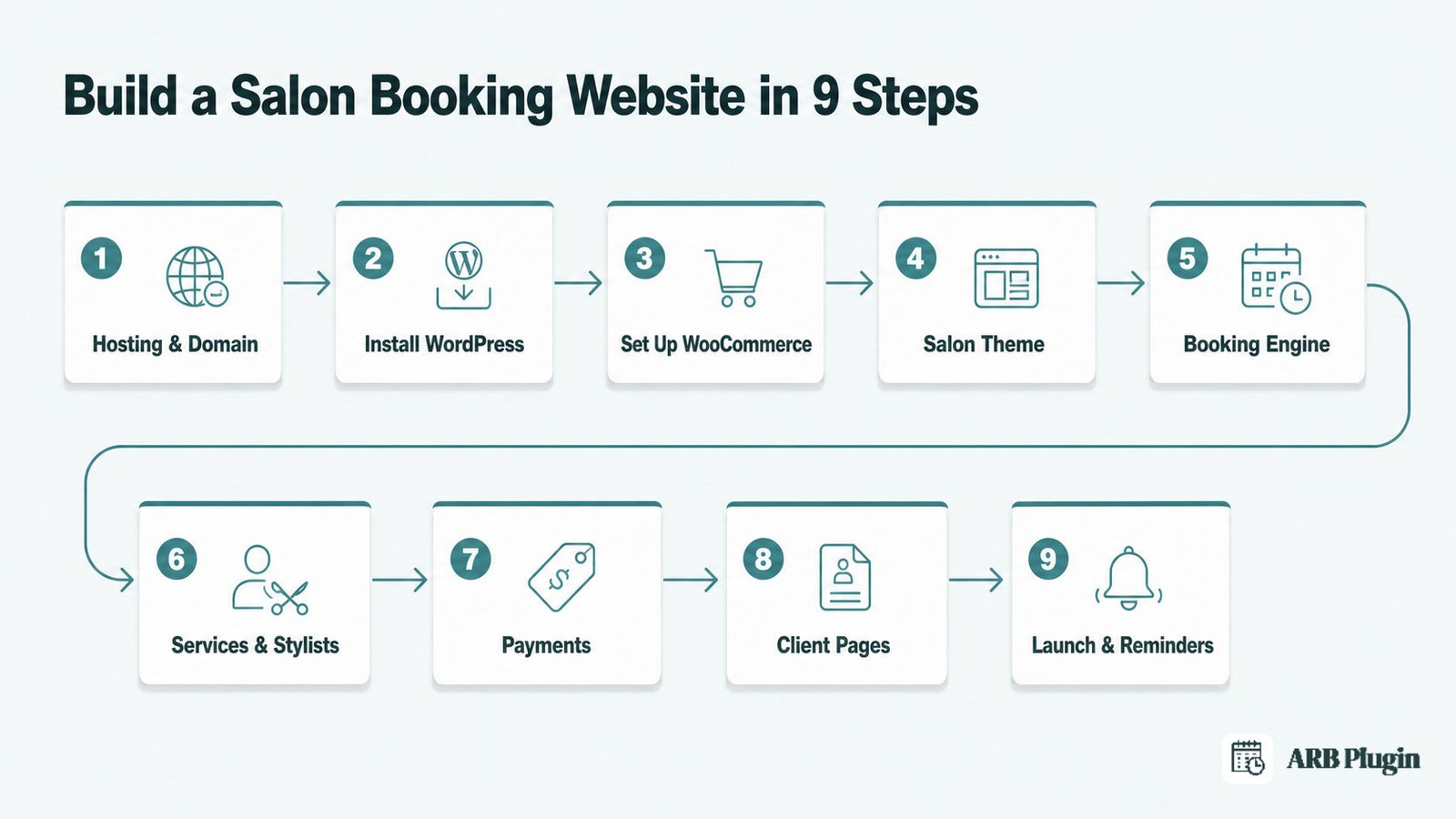
What a Salon Booking Website Actually Needs
A salon booking website needs five things: a service menu with visible prices, online booking with stylist selection, and no double-booking. It also needs payment collection at checkout and automated reminders. Building this on WordPress and WooCommerce, instead of a hosted SaaS salon builder, means you own the site and pay once instead of every month.
- A service menu with prices shown, not a "call for pricing" page.
- Stylist selection at booking, so clients pick who they see.
- A capacity limit that blocks two clients from grabbing the same stylist slot.
- Payment collection at checkout, through your own store.
- Automated reminders, to cut no-show rates.
- Ownership of the site and its data, at a one-time cost instead of a recurring platform fee.
A hosted SaaS salon builder gives you most of this out of the box. You rent it every month, though, and stay locked to that platform's store. Building on WordPress and WooCommerce costs more setup time up front. That time pays back the first time you sell a gift card or a retail product. Both run through the same checkout that handles your bookings.
What You Need Before You Start
The prerequisite most people skip is a finalized service list: every service named, priced, timed, and assigned to the staff who perform it. Without that list, no booking plugin can model your calendar correctly.
- Roles: one owner or manager to run setup, plus an optional developer or agency partner for design and configuration.
- Time: a working booking site in a weekend for a single-location salon; a polished site with full content over one to two weeks.
- Inputs: your service list with durations and prices, staff or room names, opening hours, a logo, and photos of the space and your work.
- Tools: a WordPress-ready web host, a domain name, WooCommerce, a WooCommerce-compatible salon theme, and a WooCommerce booking plugin.
Most of that time goes to gathering content and pricing decisions, not to clicking through setup screens. A salon that walks in with its service list, prices, and staff hours already decided finishes the technical build in a single afternoon.
Step 1: Get Web Hosting and a Domain Name
Getting hosting and a domain comes first, because every later step depends on a live, reachable website.
- Choose a host that lists WordPress and WooCommerce as supported, since bookings add extra database load beyond a basic brochure site.
- Register a domain that matches your salon's name and city, for example "yoursalon-city.com."
- Point the domain's DNS records to your host, then confirm the site loads over HTTPS.
Check your host's specs against WooCommerce's own server requirements page before you buy. An underpowered host slows down the booking calendar once real traffic arrives.
Step 2: Install WordPress
Installing WordPress takes minutes once hosting is live, because almost every host now bundles a one-click installer.
- Open your host's control panel and find the WordPress or "app" installer.
- Enter your site name, an admin username, and a strong password.
- Run the installer, then confirm you can log in at yourdomain.com/wp-admin.
Download WordPress directly from WordPress.org and upload it by FTP instead, when your host has no one-click installer.
Step 3: Install and Set Up WooCommerce
Installing WooCommerce turns your WordPress site into a store, and it is the foundation every later booking step builds on.
- In WP-Admin, go to Plugins > Add New, search "WooCommerce," then install and activate it.
- Run the WooCommerce setup wizard and confirm your store's country, currency, and industry.
- Set your tax rules and connect at least one payment gateway under WooCommerce > Settings > Payments.
The booking engine in Step 5 is a WooCommerce extension, so this store is the real foundation, not a formality. Your bookings will reuse this exact cart, checkout, tax setup, and payment gateway instead of running through a separate system. For the full walkthrough, see how to add online booking to WordPress.
Step 4: Pick and Install a Salon Theme
Picking a theme is about layout and speed, not booking logic, since any WooCommerce-compatible theme works once the plugin in Step 5 is installed.
- Choose a lightweight, WooCommerce-compatible theme built for services or portfolio galleries, not a heavy multipurpose theme.
- Prioritize mobile page speed. Most salon clients open your site from a phone, and a slow theme costs bookings before anyone sees your calendar.
- Install the theme from Appearance > Themes > Add New, then activate it.
Keep this choice tool-agnostic. The theme controls how your site looks; it has no say in how bookings, stylists, or pricing work.
Step 5: Add the Booking Engine
Adding the booking engine turns your WooCommerce store into a reservation system. This guide uses ARB to demonstrate that step because it is a WooCommerce-native booking plugin.
- Buy ARB on CodeCanyon for a one-time price of about $55, instead of paying a recurring plugin subscription.
- Upload the
arb-reservations.zipfile through Plugins > Add New > Upload Plugin, or send it towp-content/plugins/by FTP. - Activate the plugin, open ARB Settings, then paste the 9-digit Activation Token Number from your Envato purchase code.
- Save your settings.
That one-time license replaces a monthly booking subscription entirely. There is no recurring fee for the core plugin, only optional paid add-ons covered later. The next step turns each of your services into a bookable product.
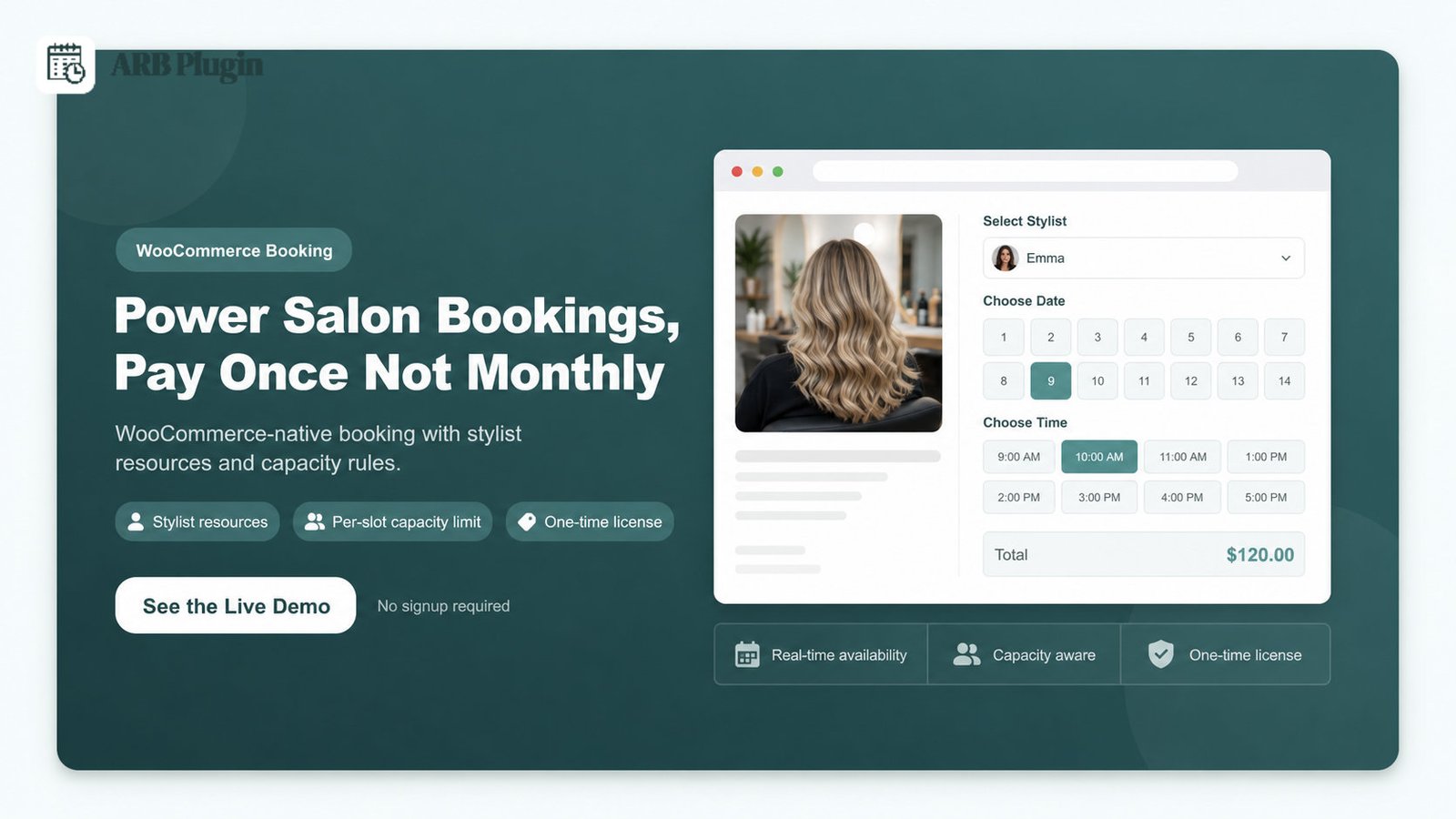
Step 6: Build Your Service and Stylist Booking Products
Building your booking products is the core configuration step. It covers turning services into bookable products, adding stylists, and setting the pricing rules that make salon bookings work.
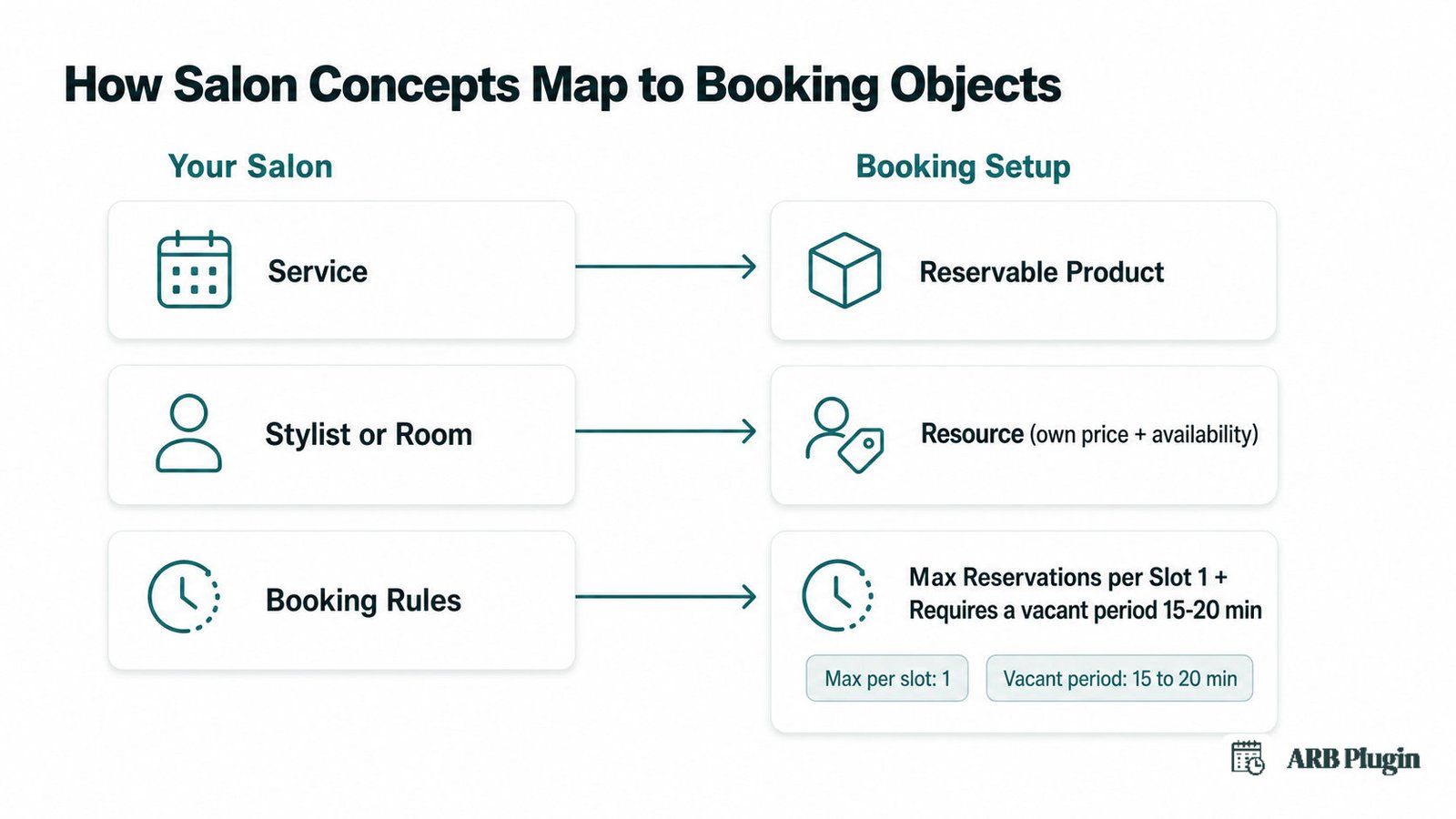
- Turn each service into a Reservable Product.
- Add stylists and rooms as Resources.
- Set each stylist's own availability and cleanup time.
- Cap bookings per slot to stop double-booking.
- Add weekend or peak pricing, if you charge more on busy days.
Turn each service into a reservable product
Turning a service into a bookable product starts in Products > Add New, where you set Product Data to Reservable Product.
That choice exposes five configuration tabs: General, Availability, Costs, Persons, and Resources. Set the Label field to something like "Service". Then set Reservation Duration to a fixed slot matching the appointment length: 45 minutes for a haircut, 90 minutes for a color. Repeat this for every service on your menu. See the full walkthrough for how to create a reservable product.
Add your stylists and rooms as resources
Adding stylists as resources is what lets a client pick a specific person at booking, not just an open time slot.
Turn on Resources on the product's Resources tab, then add each stylist, chair, or treatment room as its own resource with its own price. ARB's live spa-treatment demo shows this pattern with resources named "Pumpkin Body Scrub" and "Swedish Autumn Aroma Massage," each priced and booked independently. Learn more about how to assign resources to bookings.
One honest limit is worth flagging here. I checked ARB's Resources setup and found no staff-account layer sitting on top of it. A resource is a bookable label with a price and an availability schedule, not a staff login with its own dashboard.
A stylist cannot sign in and manage her own calendar. The salon owner configures every resource from the WordPress admin instead.
| Service | Duration | Stylist (resource) | Price |
|---|---|---|---|
| Haircut | 45 min | Anna | $45 |
| Color | 90 min | Bea | $110 |
| Spa treatment | 60 min | Either stylist | $85 |
Set per-stylist availability and cleanup buffers
Setting per-stylist availability keeps two stylists' schedules from colliding on the same booking calendar.
Click Edit resource on each stylist to set that stylist's own working days and hours. Anna can work Tuesday and Thursday while Bea works Friday and Saturday, and the front-end calendar shows only the chosen stylist's open slots. Set "Requires a vacant period" to 15 or 20 minutes so a slot will not book back-to-back with zero turnaround time for cleanup. See the booking availability rules feature, or follow the step-by-step guide to set up booking availability and time slots.
Stop double-booking with a one-at-a-time capacity rule
Stopping double-booking comes down to one setting: Max Reservations per Slot.
Set this value to 1 on every stylist-facing service, so the same time slot cannot sell twice. Combined with per-resource availability, this setting is the guard against double-booking. It keeps two clients from landing on the same stylist for the same slot.
Add weekend or peak pricing (optional)
Adding weekend pricing is optional, and it reuses the same Costs tab you already set up for the base price.
Go to Costs > Add Range and set a Date Range rule, for example an extra $20 charge for bookings from Saturday to Sunday. Use Person Types for paid add-ons, such as a deep-conditioning treatment tacked onto a standard haircut.
Step 7: Turn On Payments (and Decide on Deposits)
Turning on payments means enabling a WooCommerce gateway, because every ARB booking checks out through your existing WooCommerce cart.
- Go to WooCommerce > Settings > Payments and enable a gateway such as Stripe, PayPal, or Square.
- Save your settings, then place a test booking to confirm checkout works end to end.
- Turn on confirmation-required mode when a service needs review before payment. The payment method stays hidden at checkout until you approve the booking, and the client pays afterward through their WooCommerce account.
Here is the gap to plan for before you launch, not after. I looked for a deposit or partial-payment toggle anywhere in ARB's settings and found none. Most hosted SaaS salon platforms bundle deposits by default; ARB does not.
Plan a separate deposit route when your salon depends on a deposit to cut no-shows. Otherwise, lean on confirmation-required mode to review a booking before you charge it. Read how to accept payments for appointments for the full flow. Plan ahead if you must take a deposit for bookings, rather than scrambling after your first no-show.
Step 8: Build the Pages Clients Expect
Building your core pages means covering four things clients look for before they book. Those four are prices, a specific stylist, who works there, and how to reach you.
- A Services & Rates page listing every service with its price shown.
- A Book Online page with the booking form embedded.
- An About or Team page introducing your stylists.
- A Contact page with your hours, address, and phone number.
Place the booking form on your Book Online page, or on each service's own page, with the [product_page id=""] shortcode. Drop the same shortcode into the Elementor Shortcode widget, or place it directly with WPBakery, when you build pages visually. Keep the Services & Rates page itself tool-agnostic; it is plain content, not a booking configuration.
Step 9: Launch, Test the Booking Flow, and Set Reminders
Launching means proving the entire booking flow works before you send real traffic to the site.
- Place a real test booking: choose a stylist, pick a time, then pay with a real card or your gateway's test mode.
- Confirm the confirmation email arrives and the reservation appears correctly in your admin.
- Go live only once that test booking completes cleanly from start to finish.
Turn on reminders under Reservations > Send Notification, using manual or bulk sends and dynamic tags like {customer_name} so every email reads as personal instead of generic. The core plugin sends these reminders by email, and SMS reminders require a separate paid add-on ($15 one-time). Use the Daily Agenda view to run each day's schedule at a glance.
Attach the iCalendar (.ics) file so clients can add their appointment to their own calendar. Reminders are the single biggest lever against no-shows, so automate them before you launch, not after your first empty chair. Learn how to send appointment reminders automatically, and how reminders help reduce no-shows.
Common Salon Booking Website Mistakes to Avoid
The most damaging salon booking mistake is letting two clients book the same stylist for the same slot. It costs you a client either way, and it happens fast once real bookings start flowing.
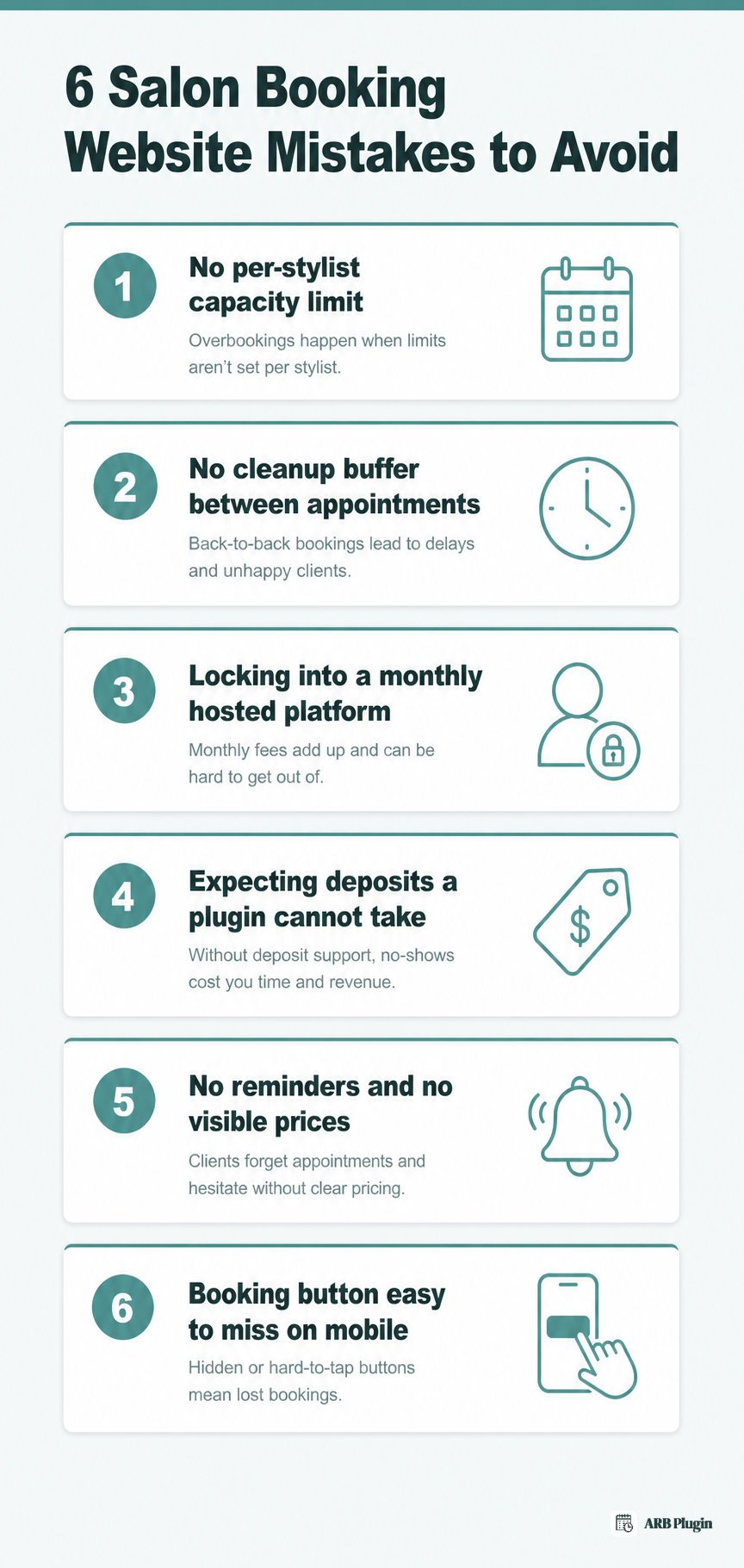
- No per-stylist capacity limit. Two clients land on the same stylist at the same time, and one of them shows up to nothing. Set Max Reservations per Slot to 1 and give each stylist her own resource availability.
- No cleanup buffer between appointments. Back-to-back bookings leave no time to reset a chair or a treatment room, so every appointment after the first one runs late. Set a vacant period, 15 to 20 minutes for most services, between slots.
- Choosing a locked-in hosted platform when you want to own your site. A hosted SaaS salon builder charges every month and keeps you from selling retail products or gift cards through the same store. Build on WordPress and WooCommerce instead, where the WooCommerce salon and spa booking plugin page shows the salon-specific setup.
- Expecting deposits from a plugin that does not take them. A salon that assumes a deposit toggle exists finds out at launch that it does not, and no-shows keep costing money. Confirm your deposit need before you buy: ARB has no native deposit feature, so plan a separate deposit route or lean on confirmation-required bookings instead.
- No reminders and no visible prices. Clients who cannot see a price before booking hesitate, and clients who never get a reminder simply forget. Automate reminder emails and publish a clear Services & Rates page with every price visible.
- A booking button that is easy to miss on mobile. Most salon clients book from a phone, and a booking link buried below the fold or hidden inside a menu costs bookings you never see happen. Put the booking link or button above the fold on every page, not only the homepage.
FAQs
How much does it cost to build a salon booking website?
Hosting and a domain run about $15 to $40 a month. WordPress and WooCommerce are free. A one-time booking plugin like ARB costs about $55, replacing what would otherwise be a recurring plugin fee.
How long does it take to build a salon booking website?
A working salon booking site takes a weekend for a single-location salon that already has its services, prices, and staff hours decided. Most of that time goes to content and pricing decisions, not to clicking through setup screens.
Can I build a salon booking website for free?
Partly. WordPress and WooCommerce are both free software. Hosting, a domain, and a capable booking plugin are not free. A "free" salon booking site still carries a real monthly or one-time cost once you need stylist selection and capacity rules.
Do I need WooCommerce to take salon bookings on WordPress?
Yes, on the route this guide shows. WooCommerce supplies the checkout, tax handling, and every payment gateway ARB uses, so there is no separate payment system to configure alongside it.
How do I stop two clients booking the same stylist at once?
Set Max Reservations per Slot to 1 on every stylist-facing service, and give each stylist her own per-resource availability. Together, these two settings block the same slot from selling twice.
Can I take deposits for salon appointments?
Not natively in ARB. There is no built-in deposit or partial-payment feature. Plan a separate deposit workflow, or use confirmation-required mode to review and approve a booking before the client pays.
Can clients choose a specific stylist when they book?
Yes. Each stylist becomes a Resource with its own price and its own availability. Clients pick a name from a dropdown before they see open time slots. What ARB does not offer is a staff login for that stylist to manage her own calendar.
What is the best salon booking software?
It depends on whether you want to rent or own the system. A hosted SaaS salon platform gets you running fastest but charges monthly and locks you to that platform. A WordPress and WooCommerce site with a booking plugin like ARB costs more setup time. It then lets you own the site, pay once for the plugin, and sell retail products through the same store.
You now have every step to launch a salon site that books stylists and takes payment on WordPress. ARB is the WooCommerce-native booking engine that powers it: per-stylist availability, cleanup buffers, and one-at-a-time capacity. It runs on a one-time price instead of a monthly platform fee. See it in action on the live spa booking demo, then set it up on your own store.