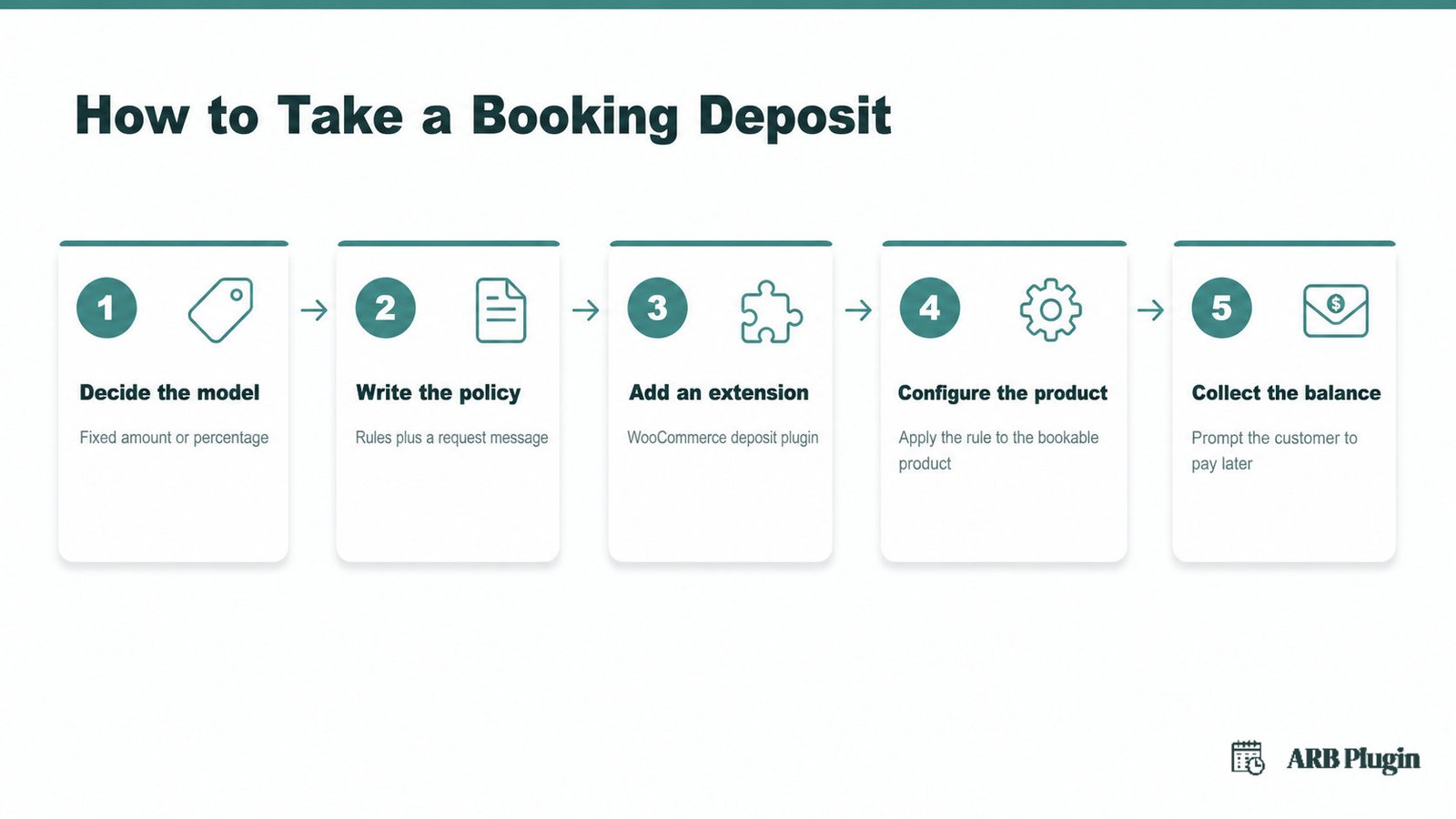
Taking a deposit for bookings takes five steps. Pick a fixed or percentage model, then write the policy and request wording. Add a deposit extension to WooCommerce, apply it to the bookable product, and plan how to collect the balance later. Most booking plugins, ARB included, do not take deposits natively.
A separate extension handles the partial payment instead. This guide walks through each step, plus a native alternative that skips the extension entirely and the mistakes that cause the most disputes.
What Is a Booking Deposit?
A booking deposit is a partial upfront payment that reserves a booking before the appointment or stay happens. The customer pays it at booking, and the remaining balance comes due later, on whatever schedule the policy sets. Read what a booking deposit is for the full concept breakdown, including deposit types and refund models.
Deposits show up most in fields where a cancelled slot is hard to fill and a no-show is expensive. Salons, event venues, contractors, tour operators, and short-term rentals lean on them heavily. Wedding photographers, catering companies, and multi-day rentals depend on them most, because a last-minute cancellation rarely gets rebooked in time.
A deposit does not require any specific software. It requires a clear policy, a clear request, and a payment method that actually collects the money.
What You Need Before You Start
Most store owners switching on deposits skip one step: writing the deposit and refund policy before touching a single WooCommerce setting. Without it, the first refund request turns into a dispute.
Before you start, confirm you have the following.
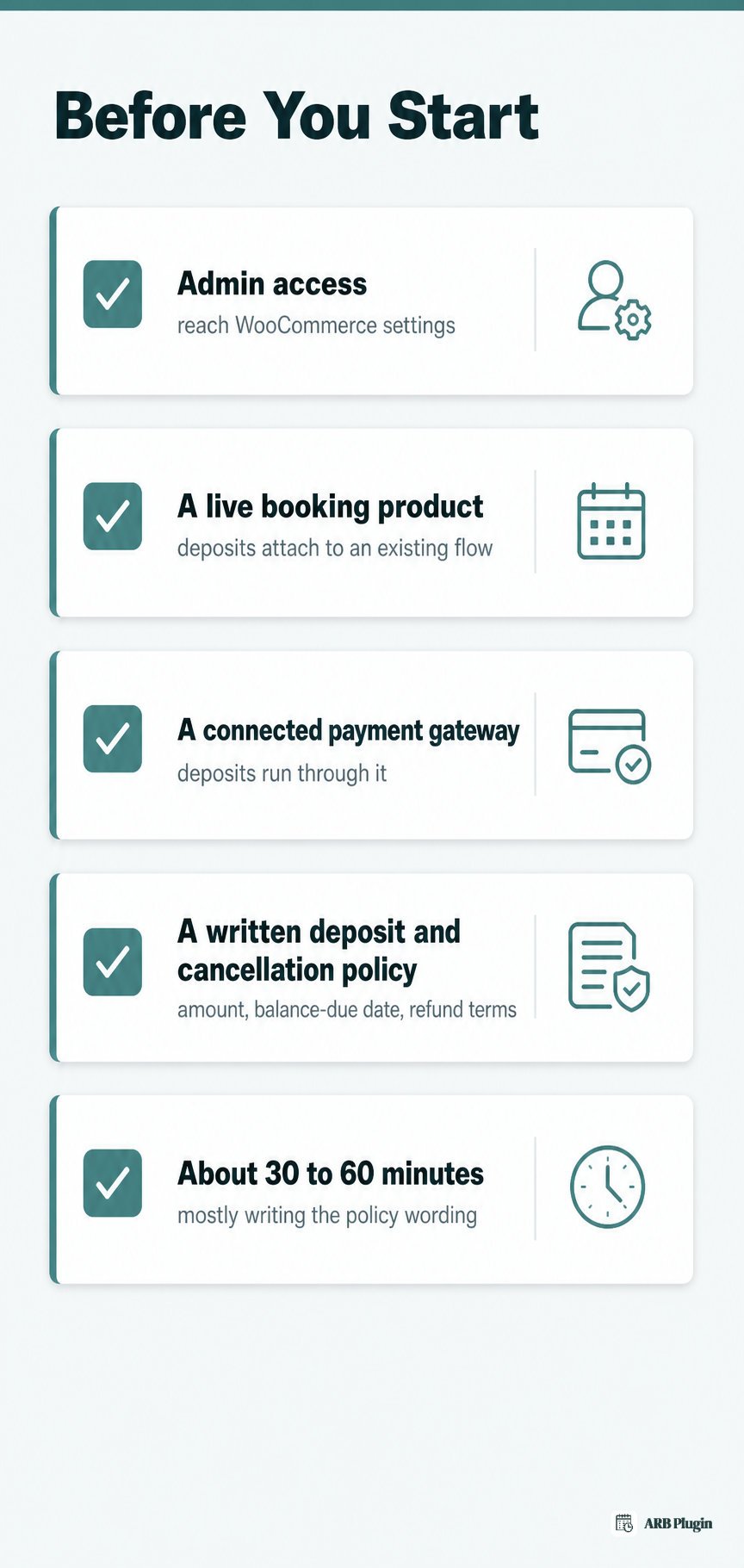
- A store owner or site admin with access to WooCommerce settings.
- A booking product already live. If you have not set one up yet, add online booking to WordPress first. Deposits attach to an existing booking flow, not a blank store.
- A connected payment gateway. Deposits still run through your existing gateway, so accept payments for bookings before you configure anything else.
- A written deposit and cancellation policy. Decide the amount, the balance-due date, and the refund terms before you ask anyone to pay.
- About 30 to 60 minutes, mostly spent writing the policy wording, not clicking through settings.
Step 1: Decide Your Deposit Model (Fixed Amount vs Percentage)
Two deposit models cover nearly every booking type: a fixed dollar amount or a percentage of the total price.
| Model | How it works | Best for | Example |
|---|---|---|---|
| Fixed amount | The same dollar figure regardless of order size | Short, low-cost, predictable appointments | A $50 deposit on a $150 haircut and color booking |
| Percentage | A share of the total order value, commonly 20% to 50% | Higher-ticket, custom, or long-lead-time bookings | A 30% deposit on a $2,000 photography package equals $600 |
Fixed amounts work best for short, predictable bookings, where the deposit only needs to cover the cost of one missed slot. Percentage deposits fit higher-ticket or custom work, where a no-show carries real financial risk.
Size the deposit to two things. Estimate how much a no-show actually costs you. Then decide how much upfront commitment you need before you block time or a resource for one customer.
Market practice across appointment-based businesses converges on 20% to 50% for percentage deposits. Lower-risk bookings commonly use 5% to 10%, and flat fees of $25 to $75 are typical for short appointments. A 50% deposit is the standard ask for higher-ticket or custom-work bookings.
Step 2: Write Your Deposit Policy and Deposit-Request Message
A deposit policy and a deposit-request message are two separate assets. One sets the rules; the other asks for the money.
Start from this policy wording, then adjust the amount and timing to your own business.
Deposit policy: A 30% deposit is required to confirm your booking. The remaining balance is due on the day of service. Deposits are refundable up to 7 days before your appointment; cancellations after that window forfeit the deposit.
Pair it with a short request message the customer receives right after booking.
Sample deposit-request message: Subject: Confirming your booking, deposit due. Hi [Customer Name], thanks for booking with us. To hold your slot, we ask for a 30% deposit of [$Amount]. Pay securely using the link below, and the remaining [$Amount] is due on the day of service. Thank you, and we look forward to seeing you.
For the fuller refund and no-show wording behind that policy line, start from the cancellation policy template. Layer the deposit-specific terms from above on top of it.
Step 3: Add a Deposit or Partial-Payment Extension to WooCommerce
WooCommerce and booking plugins, ARB included, do not take partial payments on their own. You add a dedicated deposit or partial-payment extension to do that job.
Here is how to add one.
- Search the WordPress.org plugin directory and the WooCommerce extension marketplace for "deposits" or "partial payments." Both free and paid options exist.
- Compare current ratings, review counts, and last-updated dates before installing. Ratings on these extensions vary widely, so a recent, well-reviewed option matters more than whichever one you find first.
- Confirm the extension explicitly documents support for your booking plugin's product type. Most deposit extensions are built and tested against specific booking plugins or default WooCommerce product types, not every custom booking product on the market.
- Install and activate it, then set your storewide default deposit rule, fixed amount or percentage, from its settings screen.
Most deposit extensions let you set the split as a percentage or a fixed amount. You can usually apply it storewide or per product, and mark it optional or required. Because they hand the transaction to your existing payment gateway instead of processing it separately, they work with whichever WooCommerce-supported gateway you already use.
Before you buy: ARB creates and runs the booking itself: the Reservable Product, its availability, and its price. It does not collect a deposit or partial payment; that job belongs to the extension you just installed. ARB's Reservable Product is a custom WooCommerce product type, and a deposit extension that only documents support for a different booking plugin may not recognize it. Confirm compatibility with your specific booking product before purchasing, and test the flow on a staging site first.
Step 4: Configure the Deposit on Your Bookable Product
Once the extension is active, apply its deposit rule to the specific product customers book.
Here is how to configure it.
- Open the extension's settings and choose fixed amount or percentage, matching the model you picked in Step 1.
- Decide whether the deposit is optional or required at checkout. A required deposit removes the choice; an optional one still lets cautious customers pay in full.
- Apply the rule to your bookable product, either as the storewide default or as a per-product override.
- On an ARB store, the product the rule needs to attach to is the Reservable Product you created for that service, room, or class.
If the bookable product's availability rules are not configured yet, set up booking availability before you layer a deposit rule on top of it.
Confirm compatibility before you rely on this setup. Check that the deposit extension actually recognizes ARB's Reservable Product type in its own settings screen. If it does not list your product, or it errors on save, use the no-plugin alternative below instead of assuming it works.
Done: the product page shows the deposit amount and the remaining balance before checkout, and a test booking splits the payment correctly.
Step 5: Collect the Remaining Balance Later
Most WooCommerce deposit tools do not auto-charge the remaining balance from a stored card. You have to prompt the customer to pay it.
Here is how to collect it reliably.
- Set a balance-due date when you configure the deposit, tied to the appointment or arrival date.
- A few days before that date, resend the original invoice or generate a follow-up invoice for the remaining amount.
- Give the customer a direct way to pay it, through their WooCommerce account or a payment link in the reminder email.
- Reconcile paid balances against your reservation list, so you know which bookings still owe money going into the appointment.
Using ARB? Its manual and bulk reminder emails use dynamic tags like
{customer_name}, so you can message every customer with an unpaid balance for one product in a single send. The Daily Agenda view and the order-level reservation manager both surface who is confirmed but still owes money, and you can edit the order or email a fresh invoice from the same screen. Set up the reminder side of this in how to send appointment reminders.
The No-Plugin Alternative: Confirmation-First and Quote-Request Bookings
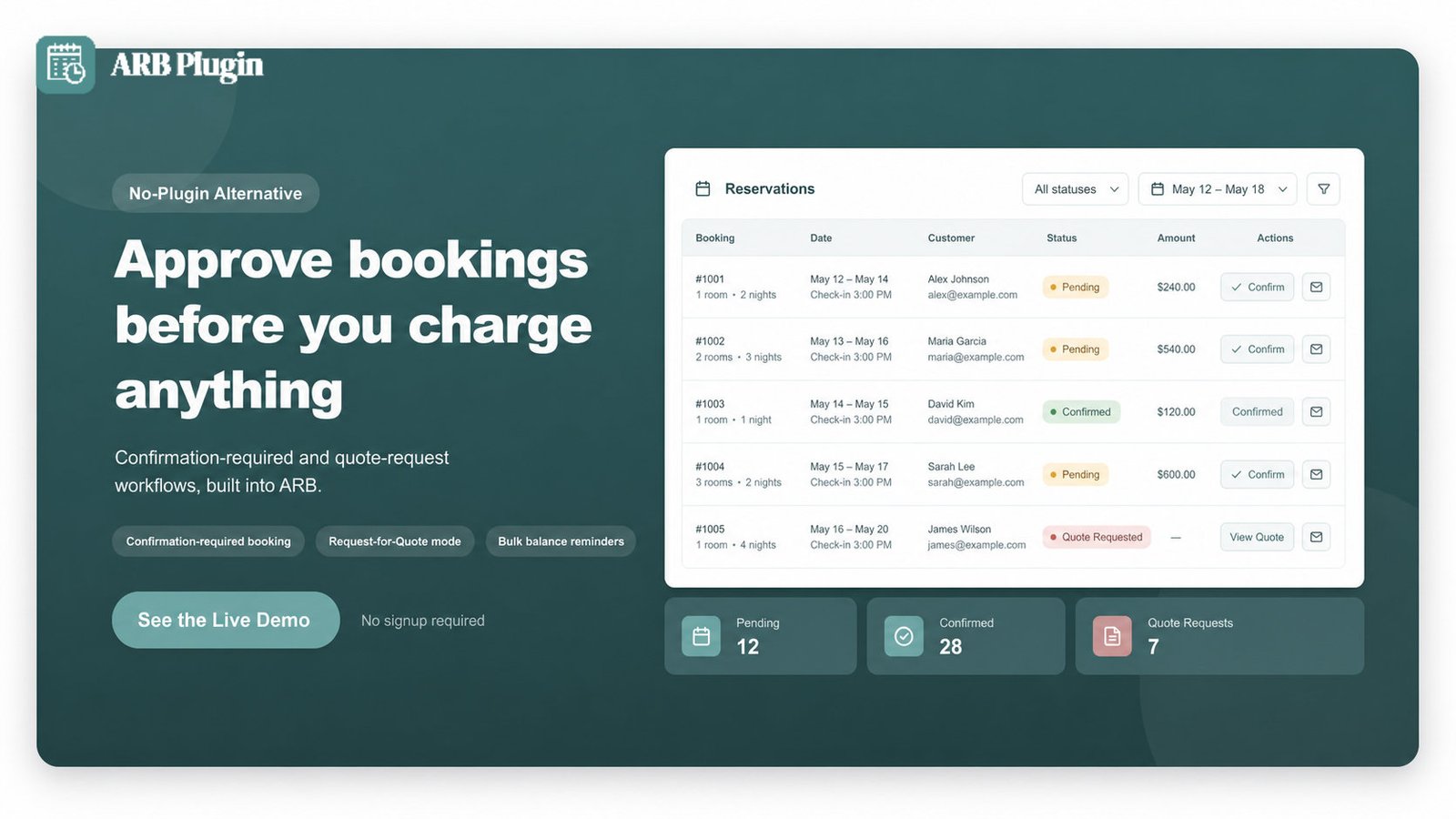
If you would rather skip a deposit extension entirely, ARB has two native workflows that require commitment before payment, without collecting a percentage deposit.
Confirmation-required bookings hide every payment method at checkout until you approve the request. The customer submits the booking, you review it, and only after you confirm does WooCommerce email them a payment link to their My Account page. Request-for-Quote mode goes further: the booking form becomes a quote request, and you set a custom price for that specific customer before any payment happens.
Both workflows collect the full or quoted amount once you approve the booking, not a percentage deposit paid upfront. Choose them when your goal is approval and commitment, not partial payment collected in advance. A contractor confirming a custom job before charging anything fits this pattern. So does a venue reviewing a date request before it locks the calendar.
Common Booking Deposit Mistakes to Avoid
The most damaging booking deposit mistake is charging one with no written refund or cancellation policy. Without it, every dispute becomes a case-by-case argument, and chargebacks follow.
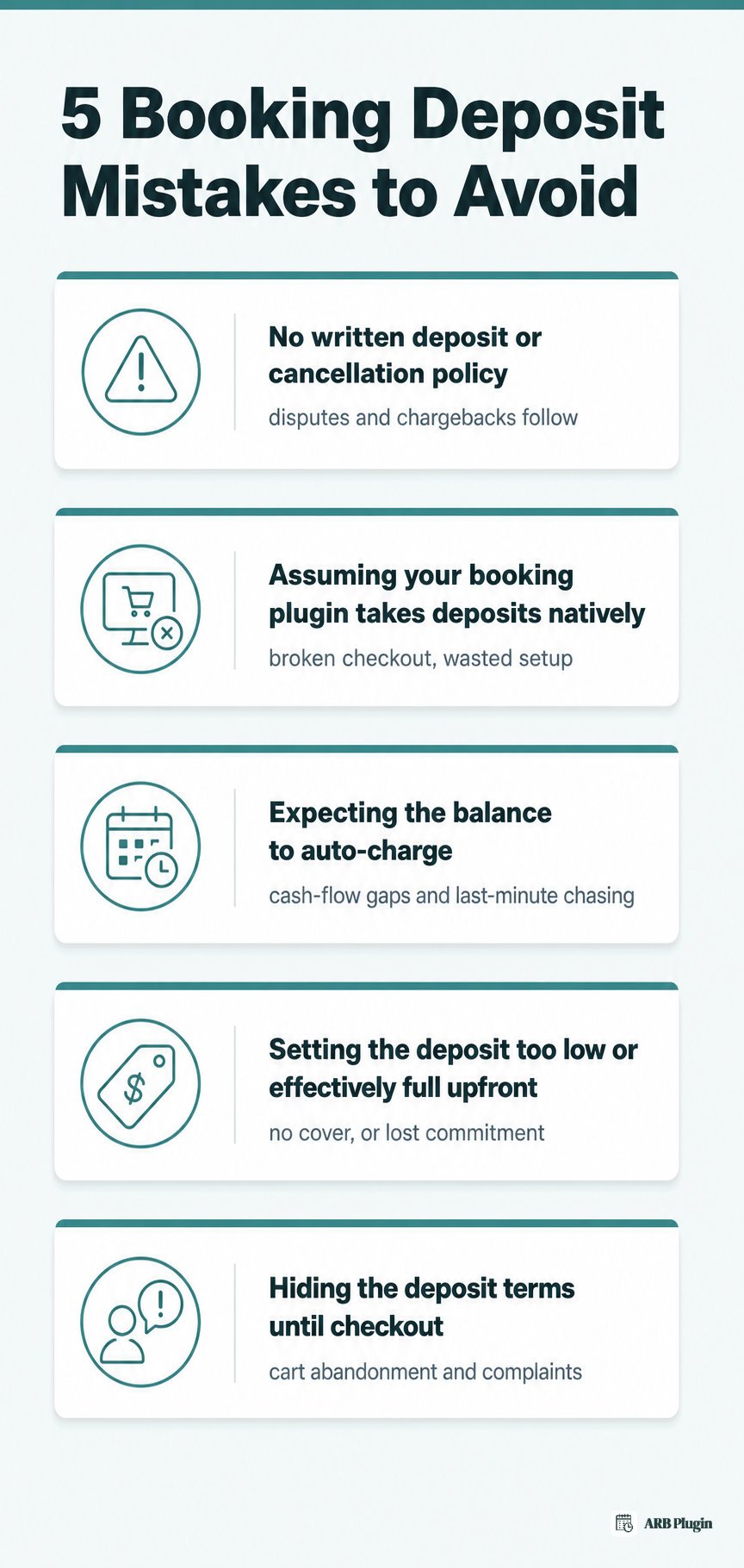
- No written deposit or cancellation policy. This causes disputes and chargebacks when a customer expects a full refund you never promised. Publish the policy on the product page and in the confirmation email, using the wording from Step 2.
- Assuming your booking plugin takes deposits natively. This wastes setup time or leaves checkout broken when the deposit never actually applies. Confirm before you build anything; most booking plugins, ARB included, do not take deposits natively, so you need a separate extension.
- Expecting the balance to auto-charge. This creates cash-flow gaps and awkward, last-minute chasing. Most WooCommerce deposit tools do not auto-charge a stored card, so set a due date and a reminder in advance, as covered in Step 5.
- Setting the deposit too low, or effectively charging the full amount upfront. A low deposit does not cover the cost of a no-show, and a near-100% deposit removes the customer's incentive to keep the booking. Size it to your actual no-show risk and margin, typically 20% to 50% of the total.
- Hiding the deposit terms until checkout. This causes cart abandonment and complaints when customers discover the charge late. Show the deposit amount and the balance-due date on the product page itself, before checkout begins.
FAQs
How do you politely ask for a deposit?
Ask for a deposit by naming the amount, tying it to securing the booking, and stating how to pay, in that order. Thank the customer for booking first, then state the deposit clearly. The sample message in Step 2 covers the full wording.
How much deposit should I take for a booking?
Most service businesses charge between 20% and 50% of the total price. Lower-risk bookings commonly use 5% to 10%, and flat fees of $25 to $75 are typical for short appointments. Size it to your no-show risk and margin, not one fixed rule.
When should I require a 50% deposit?
Require a 50% deposit for higher-ticket, custom, or long-lead-time bookings, such as weddings, multi-day rentals, or made-to-order work. A no-show on these bookings is expensive to absorb, so a larger deposit protects your margin.
How do booking deposits work?
A booking deposit works in two payments. The customer pays a partial amount to confirm the booking, then pays the remaining balance later, on the date your policy sets. The deposit secures the slot; the balance completes the transaction.
Can I take a deposit in WooCommerce without a dedicated bookings plugin?
Yes. A deposit or partial-payment extension applies to WooCommerce products generally, not only to booking-specific products. Before you rely on one, confirm it explicitly supports your specific booking product type, including custom types like ARB's Reservable Product.
Does the customer's balance get charged automatically?
Usually no. Most deposit extensions create the remaining balance as a scheduled or follow-up order rather than charging a stored card automatically. You need to resend an invoice, send a payment link, or otherwise prompt the customer to pay it.
Are booking deposits refundable?
It depends on your policy. Deposits can be refundable or non-refundable, and either way, refunds are typically processed manually from the original order rather than automatically. State your refund terms clearly before the customer pays.
Can I take deposits for bookings without a deposit plugin?
Not a percentage deposit, but ARB's confirmation-required and Request-for-Quote workflows give you approval before payment with no extra plugin. Both collect the full or quoted amount after you approve the booking, which fits when your goal is commitment rather than a partial payment.
Taking a deposit for bookings comes down to three decisions. Decide how much to ask for, how to word the request, and how to collect the balance afterward. Most deposit tools will not chase down a stale card for you, so plan the reminder yourself. ARB runs the bookable product, its availability, and its reservation management underneath whichever deposit approach you choose; it does not take the deposit itself. See the Reservable Product, reminders, and reservation manager in action with the live ARB demo.