ARB pushes WooCommerce bookings into Google Calendar two ways. A free iCalendar (.ics) export ships in the core plugin. A paid ARB Google Calendar add-on automates the sync. Both send bookings out to Google Calendar. Neither pulls Google Calendar events back into ARB.
This guide shows how to sync ARB bookings to Google Calendar using both methods. It also covers what you need before you start, and the honest limits of one-way sync. A few tips at the end help you get the setup right the first time.
Can ARB Sync Bookings to Google Calendar?
Yes. ARB syncs bookings to Google Calendar two ways. A free iCalendar (.ics) export ships in ARB core. A paid ARB Google Calendar add-on automates the sync. Both push bookings into Google Calendar. Neither is two-way. Here's how to set up each method in ARB.
The free .ics export works today, on any ARB store, with no extra purchase. The paid add-on removes the manual export step for stores taking bookings at a steady volume.
What You Need Before You Start
You need three things before syncing. Those are a WooCommerce store running ARB, a Google account, and, for the automated method, the separate paid add-on.
- A WooCommerce store running ARB with at least one Reservable Product taking live bookings. If you have not built that yet, set up online booking in WordPress first.
- A Google account with Google Calendar enabled.
- For Method 1, the free export: nothing extra. The .ics export ships in ARB's core license.
- For Method 2, the automated add-on: the ARB Google Calendar add-on, sold separately as its own purchase.
ARB itself carries no plan tiers to check. It is a one-time license, and the only real choice is core, free, or the separate add-on, paid.
Try the ARB live demo before you buy, and confirm the sync setup fits your booking flow.
How to Sync ARB Bookings With Google Calendar: Two Methods
ARB syncs bookings to Google Calendar two ways, and both push data out only.
| Method 1: iCal (.ics) export | Method 2: Google Calendar add-on | |
|---|---|---|
| Cost | Free, in ARB core | Paid add-on, sold separately |
| Automation | Manual, export and import each time | Automated, bookings sync on their own |
| Sync direction | One-way, static snapshot | One-way, live |
| Best for | Low booking volume, budget-first | Steady volume, hands-off ops |
Method 1: Export the iCalendar (.ics) File and Import It (Free, in Core)
This method takes five steps and costs nothing beyond your existing ARB license.
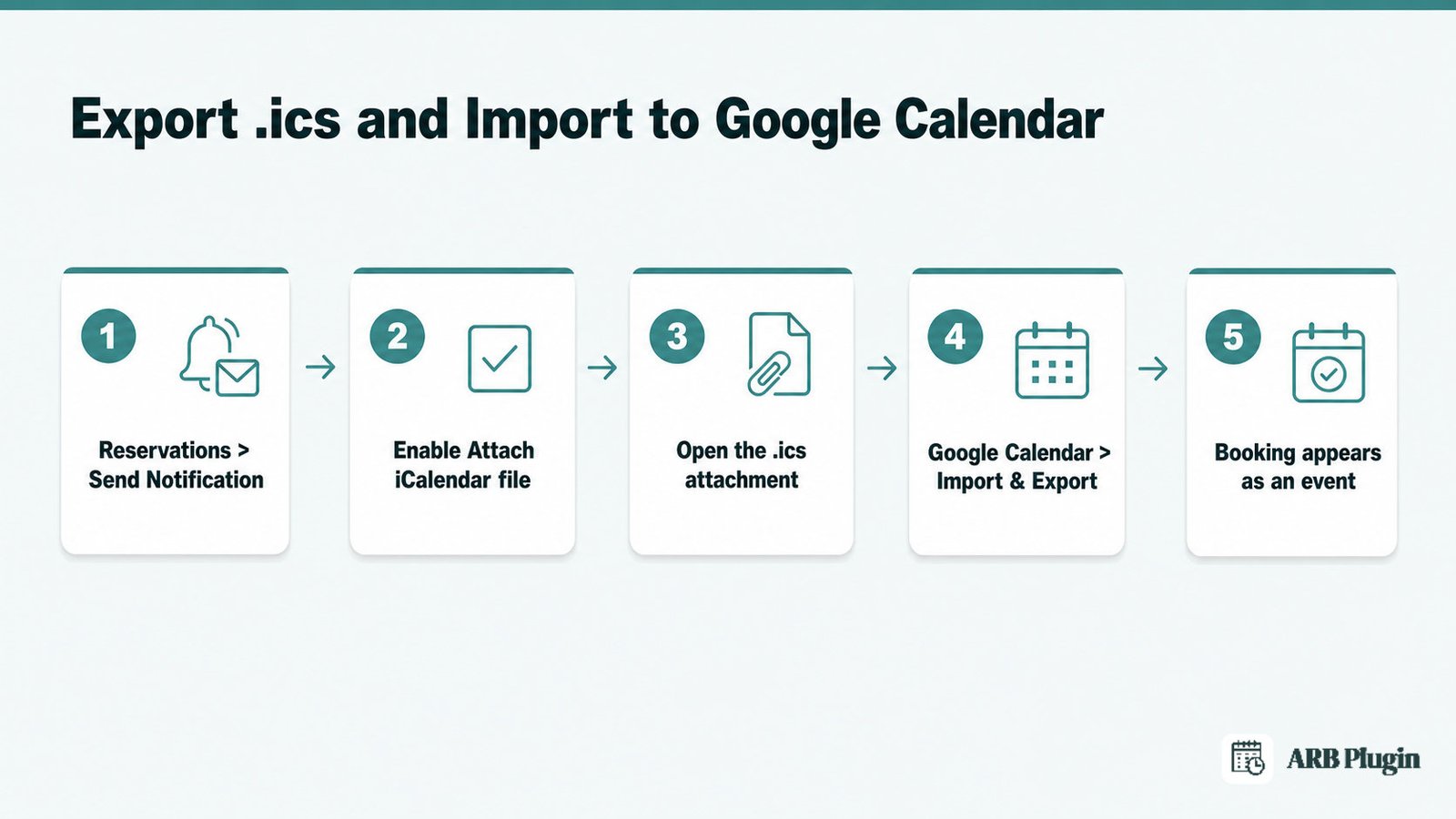
- In WP-Admin, go to Reservations, then Send Notification.
- Choose the reservable product, then enable Attach iCalendar file and send the notification. ARB attaches an .ics file holding the reservation date and time to the same message that carries ARB's booking notification emails.
[Screenshot needed: ARB "Send Notification" screen with the "Attach iCalendar file" checkbox enabled] Alt: ARB Send Notification screen showing the product selector and the Attach iCalendar file checkbox enabled.
- Open the .ics attachment from the notification email, or save it to your computer.
- In Google Calendar, click Settings (the gear icon), then Import & Export, then Select file from your computer. Choose the .ics file, pick a destination calendar, and click Import.
[Screenshot needed: Google Calendar Settings > Import & Export screen with "Select file from your computer"] Alt: Google Calendar Import and Export screen with Select file from your computer highlighted and an .ics file chosen.
- Done: the booking appears as an event in Google Calendar, showing the reservation time.
This import is a one-time snapshot, not a live feed. Import events to Google Calendar confirms imported events don't stay in sync between two accounts. Re-import the .ics file after editing a reservation, so the Google Calendar event reflects the change.
Method 2: Automate Sync With the ARB Google Calendar Add-On (Paid)
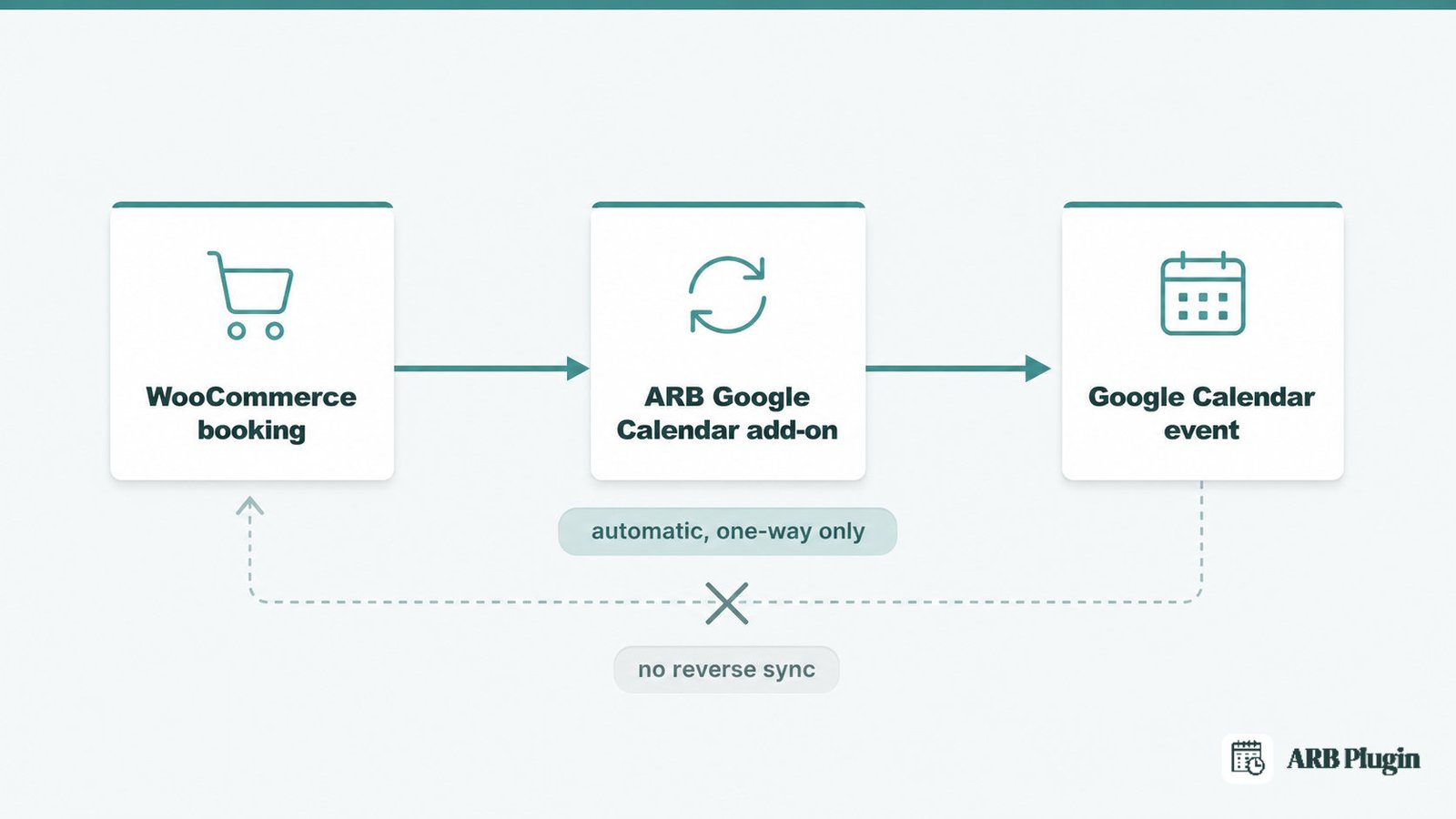
The add-on removes the manual export and import step by syncing new bookings automatically.
- Buy the ARB Google Calendar add-on separately from its marketplace listing, then install and activate it on your WooCommerce site.
[Screenshot needed: the ARB Google Calendar add-on on its CodeCanyon/Envato listing] Alt: The ARB Google Calendar add-on's Envato Market listing page showing the purchase button and its current rating.
- Activate the add-on, then connect and authorize your store's Google account, so ARB can write events to your Google Calendar.
[Screenshot needed: the add-on's Google account connect/authorize step] Alt: The ARB Google Calendar add-on's Google account connect and authorize screen.
- Once connected, new ARB booking orders sync automatically from your WooCommerce site to your Google Calendar. No manual export or import step is needed.
- Done: a booking placed on the store appears in Google Calendar without any manual step.
The add-on is $19 one-time (Regular License) on its marketplace listing. Confirm the current price there before you buy.
The add-on writes bookings to Google Calendar only. It does not read Google Calendar events back into ARB. Nothing you block on a personal calendar closes that slot inside ARB. See ARB's Google Calendar sync feature for the full breakdown of what syncs and what does not.
One-Way vs Two-Way Sync: What ARB Does and Doesn't Do
ARB syncs one way only: confirmed bookings push out to Google Calendar. ARB does not do two-way sync. An event on Google Calendar, a personal appointment, a day off, or another calendar's meeting, does not block that same slot inside ARB.
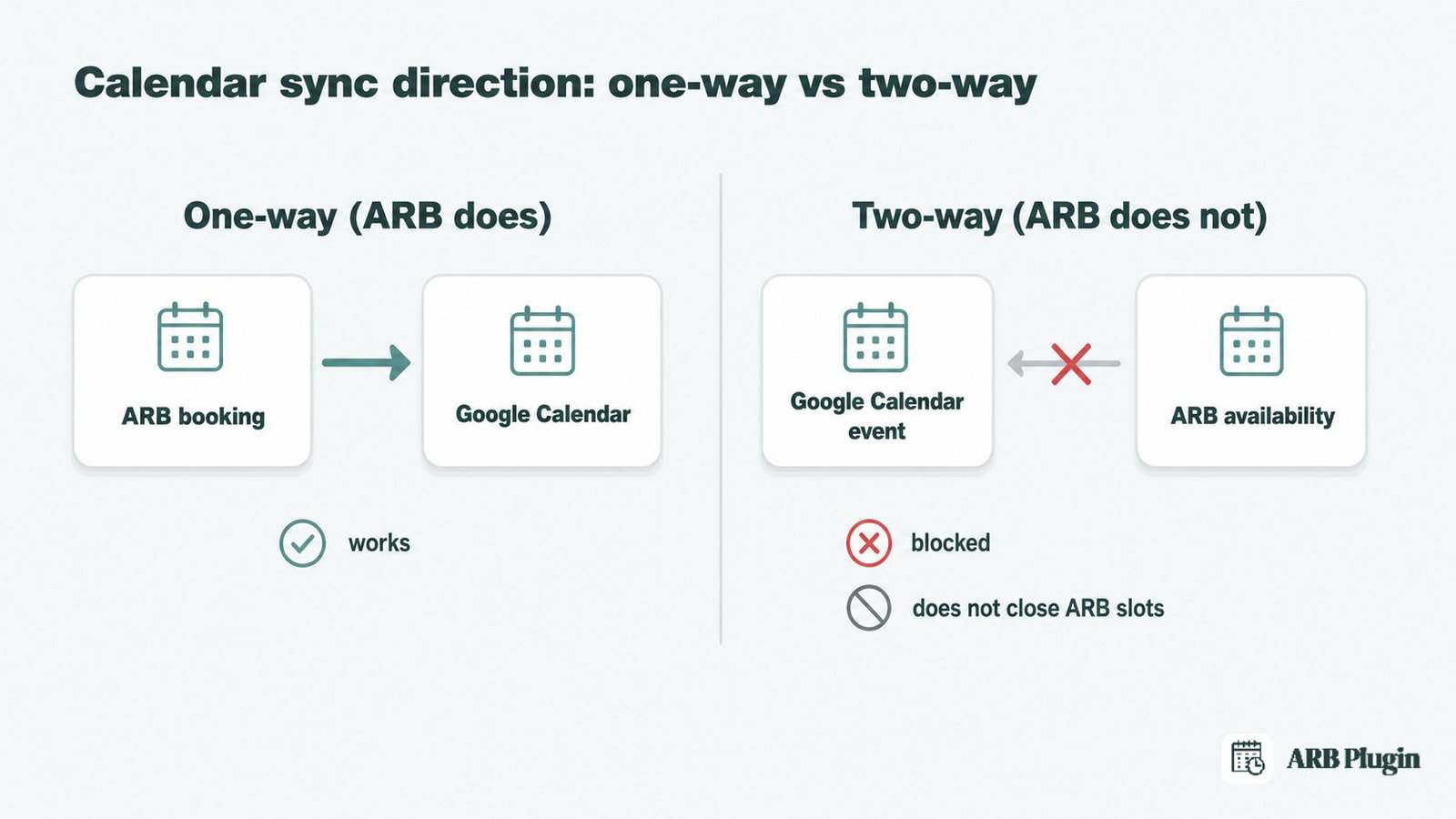
That gap has one practical consequence: you still manage availability inside ARB yourself. Google Calendar shows your bookings; it does not decide what customers can book next.
Some other WooCommerce booking plugins close that gap. They offer native two-way Google Calendar sync, feeding changes made directly in Google Calendar back into the plugin's own availability. ARB's add-on does not match that today.
For most stores, one-way sync is enough. You get full visibility into every booking without leaving Google Calendar, and you already control availability inside ARB directly.
- What one-way sync does: pushes every confirmed ARB booking out to Google Calendar, automatically with the paid add-on, or on manual export for free.
- What one-way sync does not do: read Google Calendar events back into ARB, or block a WooCommerce time slot because a Google Calendar event sits there.
- What still controls availability: ARB's own Availability tab settings on each Reservable Product, no matter what Google Calendar shows.
Which Method Should You Use?
Pick Method 1 if bookings are occasional. Pick Method 2 if bookings are steady and you want the sync automated.
- Choose Method 1, the free export, if: you take bookings occasionally, want zero extra cost, and don't mind exporting and importing manually after each batch of reservations.
- Choose Method 1 to let customers sync their own booking too: enabling Attach iCalendar file also emails customers their own .ics file, so they can add the appointment to their own Google Calendar.
- Choose Method 2, the paid add-on, if: bookings come in steadily and you want new reservations to appear in Google Calendar automatically, without touching the export step.
- Neither method gives you two-way sync: whichever you pick, you still manage availability inside ARB yourself.
See ARB integrations for the rest of ARB's connected tools, including payment gateways and page builders.
Tips for Syncing ARB Bookings With Google Calendar
The single most useful habit is keeping customer .ics attachments on, even if you also run the paid add-on for your own calendar.
- Keep Attach iCalendar file on for customers, even with the add-on. Customers get their own .ics file on every notification, so they can add the booking to their own calendar and show up less often to a missed appointment.
- Remember the free export is a snapshot, not a live feed. If you edit a reservation in ARB after importing its .ics file, re-send and re-import it. Google's own documentation confirms imported events don't stay in sync on their own.
- Check the synced time after your first booking, especially across time zones. ARB's timezone handling, added in v8.0.0, keeps synced times consistent, but verify that first event lands at the right local time.
- Budget for the add-on separately once volume gets high. Manual export becomes impractical once bookings arrive daily, and the add-on is a separate purchase worth planning for at that point.
The feature page covering ARB's Google Calendar sync, linked earlier, goes deeper on the add-on's setup screens.
FAQs
Does ARB support two-way Google Calendar sync?
No. ARB syncs one way only, pushing bookings to Google Calendar. It does not pull Google Calendar events back to block ARB's own availability.
Is Google Calendar sync free in ARB?
The iCalendar (.ics) export is free, included in ARB's core license. Automated sync requires the paid ARB Google Calendar add-on, sold separately.
How much does the ARB Google Calendar add-on cost?
It is sold separately as its own add-on, priced at $19 one-time on its CodeCanyon listing.
Can customers add their booking to their own Google Calendar?
Yes. Enable Attach iCalendar file on the Send Notification screen. The .ics file then rides along on the notification email, ready for the customer to import.
Does ARB sync with Outlook or Apple Calendar?
No native Outlook or Apple Calendar sync is documented. The .ics export can still be imported manually into most calendar apps, Outlook and Apple Calendar included.
Do imported .ics events update automatically in Google Calendar?
No. An imported .ics file is a one-time snapshot. Google's own help documentation confirms imported events don't stay in sync, so re-import after any change.
Which ARB plan includes Google Calendar sync?
ARB has no plan tiers to choose between. Its core license includes the free .ics export, and the automated add-on is always a separate purchase.
Once your bookings sync, make sure you can also accept payments for your bookings.
ARB runs inside the WooCommerce checkout you already use. It is priced as a one-time purchase around $55, rated 4.81 out of 5 on CodeCanyon. Try the ARB live demo, linked above, before you decide between the free export and the paid add-on.