An ICS file (.ics) is a plain-text calendar file in the iCalendar format, defined by RFC 5545. It records what a calendar event needs, including the title, date, time, and location. Google Calendar, Outlook, and Apple Calendar can all open and import the same file.
What Does ICS Stand For? The iCalendar Format
ICS is the file extension for the iCalendar format, short for Internet Calendaring and Scheduling. The Internet Engineering Task Force (IETF) created the format in 1998 and standardized it in RFC 5545, which replaced the earlier RFC 2445.
Because iCalendar is one open specification, the same .ics file opens correctly in Google Calendar, Outlook, Apple Calendar, and Mozilla Thunderbird. The extension replaced an older, less standardized format called .vcs, or vCalendar.
What Does an ICS File Contain?
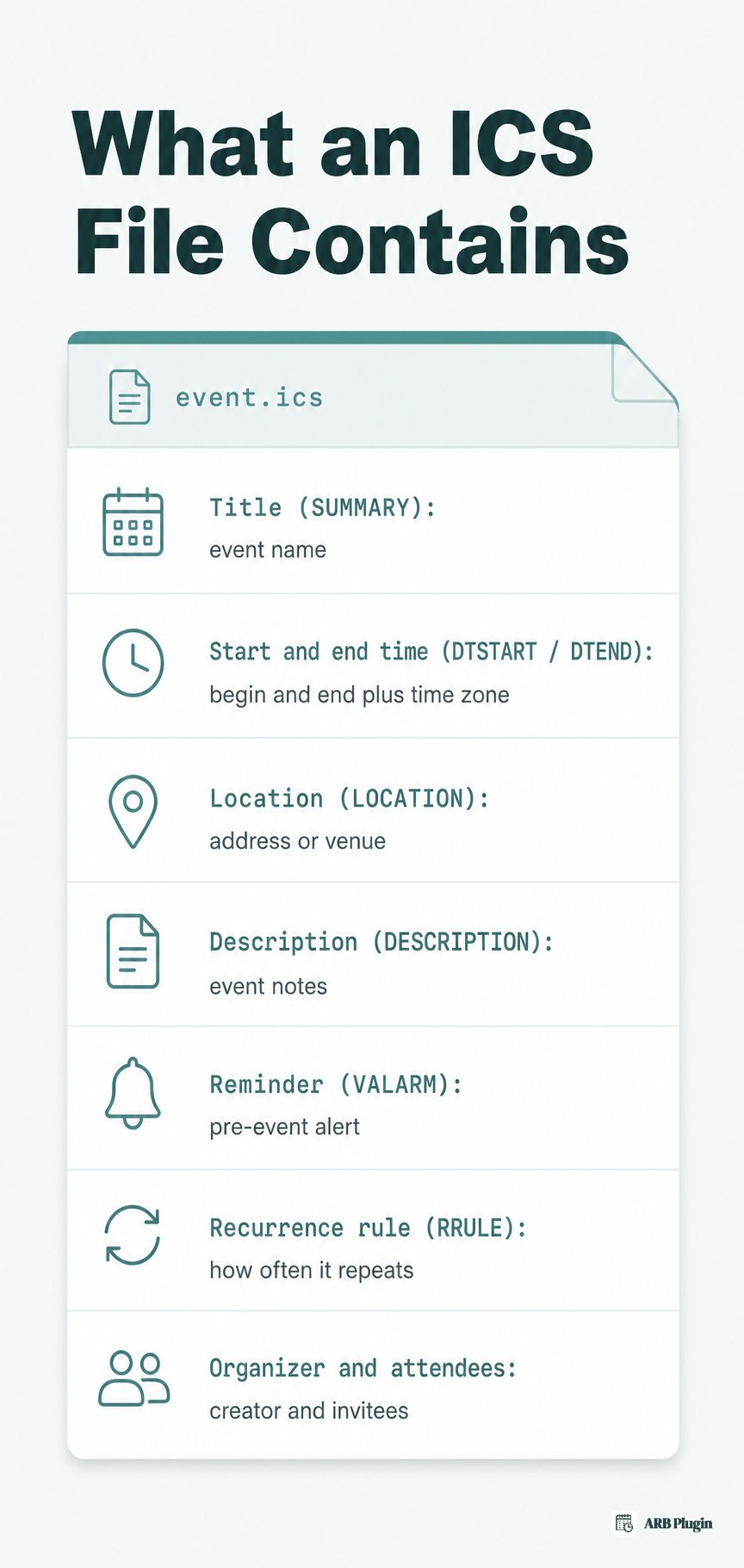
An ICS file stores one calendar event's details as plain, human-readable text. The fields below appear inside every ICS file, as documented by FileInfo:
- Title (the SUMMARY field): the event name, such as "Dentist Appointment."
- Start and end time (DTSTART and DTEND): when the event begins and ends, including the time zone.
- Location (LOCATION): an address or venue name.
- Description (DESCRIPTION): notes about the event.
- Reminder (VALARM): an alert set to fire before the event starts.
- Recurrence rule (RRULE): how often a repeating event recurs.
- Organizer and attendees: who created the event and who is invited.
Every field sits on its own line as plain text. Opening an .ics file in Notepad or TextEdit shows raw lines, such as DTSTART:20260815T140000Z, instead of a formatted calendar view. Reading the raw text is the fastest way to check what an unfamiliar .ics file actually contains before importing it.
How Do You Open an ICS File?
You open an .ics file by double-clicking it or importing it into a calendar app; the exact steps vary by platform.
Open an ICS file on Google Calendar (web)
Here's how to open an .ics file in Google Calendar on the web.
- Open Google Calendar and click the gear icon, then Settings.
- Select Import & export from the left menu.
- Click Select file from your computer and choose the .ics file.
- Choose which calendar to add the event to, then click Import.
These steps follow Google's own import instructions.
Open an ICS file in Outlook
Here's how to open an .ics file in Outlook.
- Double-click the .ics file attachment to preview it as a calendar item, then click Save & Close to add it.
- Use File, then Open & Export, then Import/Export, and choose Import an iCalendar (.ics) file if double-clicking does not work.
Newer Outlook builds sometimes skip the direct Open action for a downloaded .ics file, so File > Open & Export is the more reliable fallback.
Open an ICS file on Apple Calendar (Mac and iPhone)
Here's how to open an .ics file on Apple Calendar.
- On a Mac: double-click the .ics file; Calendar opens automatically and asks which calendar to add the event to.
- On an iPhone: tap the .ics attachment in the email or message, then tap Add All to add it to Calendar.
Open an ICS file on Android
Android has no single built-in .ics handler, so opening one depends on your default calendar app. Tap the .ics attachment, and Android opens it in whichever calendar app is set as default, usually Google Calendar. If no default app is set, a dedicated ICS viewer app from Google Play can open the file instead.
Open an ICS file in a text editor
Here's how to read an .ics file's raw contents instead of importing it.
- Right-click the file and choose Open with, then select Notepad (Windows) or TextEdit (Mac).
- Read the plain-text lines, such as DTSTART and SUMMARY, to see exactly what the file contains before you import it.
How Do You Create an ICS File?
You create an .ics file three ways. Export one from a calendar app, generate one using an Add to Calendar tool, or write the file by hand.
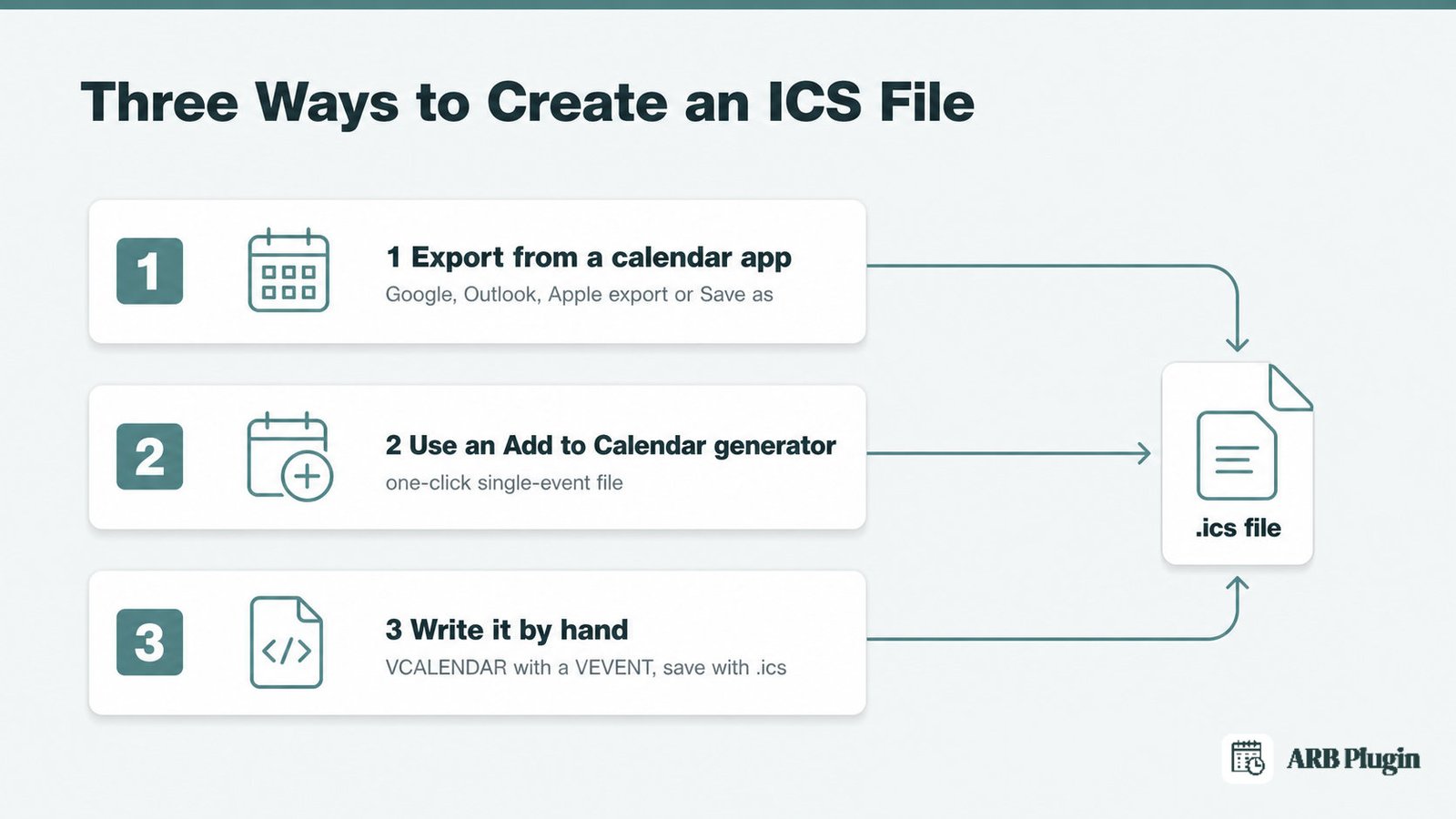
- Export from a calendar app: Google Calendar, Outlook, and Apple Calendar all include an export or "Save as" option that generates an .ics file for one event or your whole calendar.
- Use an "Add to Calendar" generator: many event pages and invitation tools generate a single-event .ics file automatically when a visitor clicks an "Add to Calendar" button.
- Write the file by hand: open a text editor, type a VCALENDAR block with a VEVENT inside it, fill in DTSTART, DTEND, and SUMMARY, then save the file with an .ics extension.
What Are ICS Files Used For?
ICS files travel wherever a calendar event needs to move between systems. The most common uses include the following.
- Meeting and appointment invites: an invite.ics attachment lets the recipient add the meeting to their own calendar with one tap.
- Booking and appointment confirmation emails: many booking systems attach an .ics file so the customer can save the appointment, the same pattern covered in booking confirmation emails.
- "Add to Calendar" buttons: event pages generate a one-time .ics file for a single ticketed event or webinar.
- Holiday and subscription calendars: some calendars distribute as a downloadable .ics snapshot instead of a live feed.
The same .ics attachment is what an online booking system or a reservation system sends after a customer completes a booking. Confirming each reservation this way also helps a business avoid double booking across staff or resources. The same event details land on both the customer's calendar and the business's own records.
ICS File vs a Live Calendar Feed: What's the Difference?
An ICS file and a live calendar feed solve the same problem two different ways. An .ics file is a one-time, static export you import once. A live calendar feed, often called a webcal or ICS feed, is a subscription URL your calendar app rechecks automatically.
| ICS file | Live calendar feed | |
|---|---|---|
| What it is | A static snapshot you download and import once | A subscription URL your calendar app checks for updates |
| Update behavior | Stays the same after import; edits to the source do not appear | Refreshes automatically as the source calendar changes |
| Microsoft's term | Calendar Snapshot | Published or subscribed calendar |
| Best for | A single meeting invite or booking confirmation | An ongoing schedule, like a team calendar or class schedule |
Both formats use the same iCalendar structure. The difference is whether the calendar app fetches updates on its own.
Are ICS Files Safe to Open?
An ICS file is plain text, so opening one cannot run code or install malware by itself. The real risk sits in what the invite contains, not in the file format itself.
Security researchers, including Rapid7 and Sublime Security, track a named attack pattern called ICS phishing, or calendar invite phishing. Attackers rely on the format's low profile to slip past many email scanners, which often treat plain-text calendar files as harmless.
The iCalendar spec itself defines an ATTACH property. This property can embed or link to a file inside an otherwise plain-text .ics file. So the format is not entirely incapable of carrying a payload.
In practice, most malicious ICS files carry a link or a spoofed meeting detail, not an embedded attachment, per Guardian Digital's research.
Three checks catch a malicious ICS file before it does any damage.
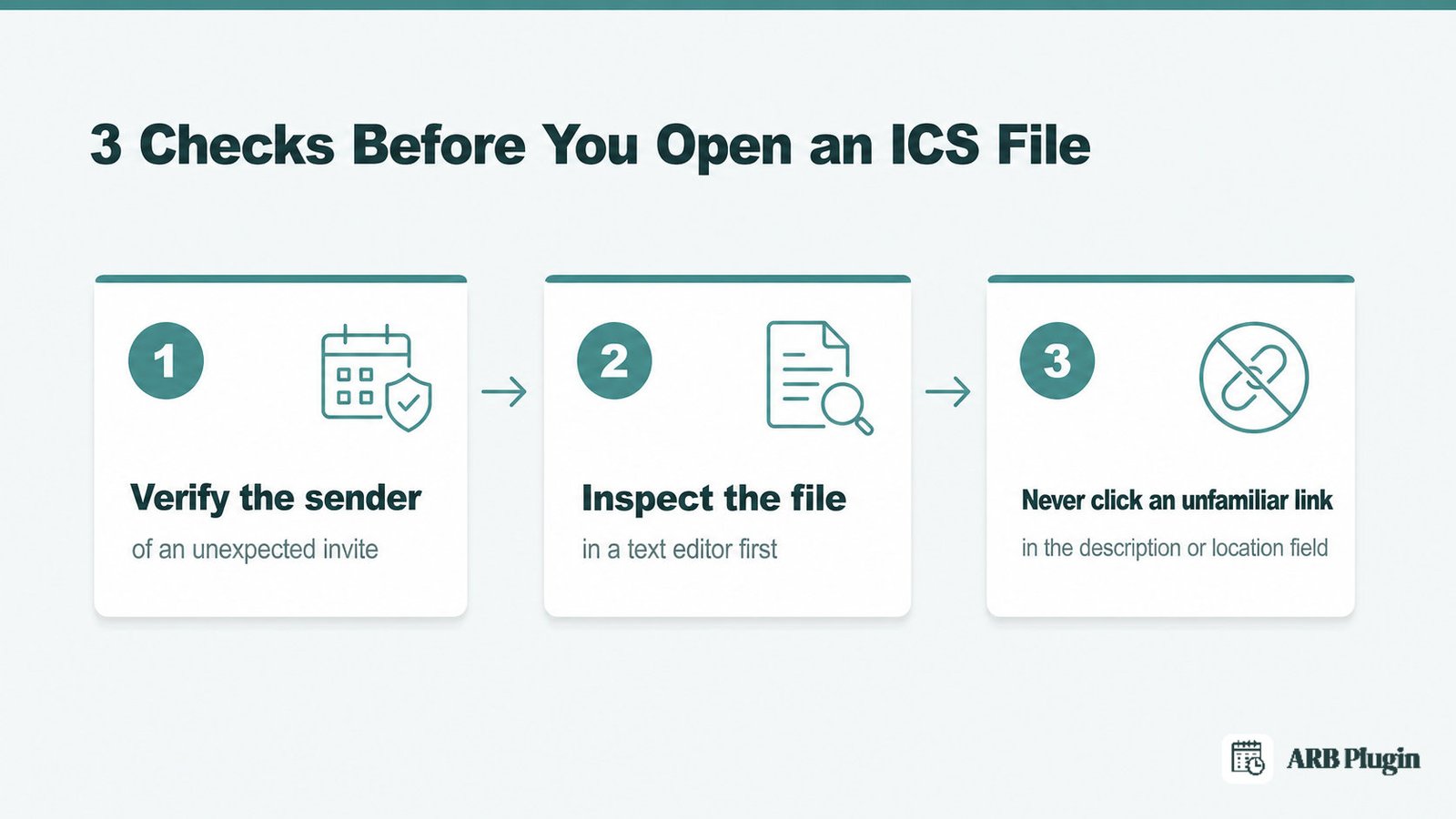
- Verify the sender before opening an unexpected meeting invite from an unknown address.
- Inspect the file in a text editor first if anything about the invite looks off.
- Never click an unfamiliar link inside the event's description or location field.
How ARB Uses ICS Files for WooCommerce Booking Confirmations
ARB, the WooCommerce Appointment, Reservation and Booking plugin, attaches an iCalendar (.ics) file to its booking notification emails. A customer taps the attachment once, and the reservation, with its exact time, lands in Google Calendar, Outlook, or Apple Calendar.
This .ics attachment ships in ARB core, so every store gets it without an add-on. For ongoing sync instead of a one-time file, the paid ARB Google Calendar add-on pushes every new booking into Google Calendar automatically. That sync runs one way, from ARB into Google Calendar, and does not sync changes back or connect to Outlook or Apple Calendar.
Any bookable product in WooCommerce built with ARB sends this same confirmation, so a customer never has to copy an appointment time by hand. A step-by-step walkthrough for how to sync your bookings to Google Calendar covers the add-on setup in full.
See the .ics attachment and the calendar add-on in action in the ARB booking demo.
FAQs
What is an ICS file?
An ICS file (.ics) is a plain-text calendar file in the iCalendar format, defined by RFC 5545. It stores one event's title, date, time, and location, and any calendar app can open it.
Can I open an ICS file in Excel?
Not directly. Convert the .ics file to a CSV file first, using a free ICS-to-CSV converter, then open that CSV file in Excel.
How do I convert an ICS file to PDF?
Open the event from your calendar app and use its Save as PDF or Print to PDF option. A dedicated ICS-to-PDF converter tool works too, if your calendar app lacks that option.
What is an ICS file on iPhone?
On iPhone, an ICS file works the same as anywhere else. Tap the attachment, then tap Add All to import the event into Apple Calendar.
Why won't my ICS file open?
An ICS file usually won't open because no calendar app is set as the default handler for the .ics extension. Set a default calendar app, or import the file manually through your calendar's import option.
Is .ics the same as .ical?
Effectively, yes. Both refer to the iCalendar format. The .ics extension is the standard one, while .ical, .ifb, and .vcs are older or related variants.
Can an ICS file be malicious?
The plain-text file cannot run code on its own. Treat an unexpected ICS attachment from an unknown sender with caution. Inspect it in a text editor before opening it in your calendar app.