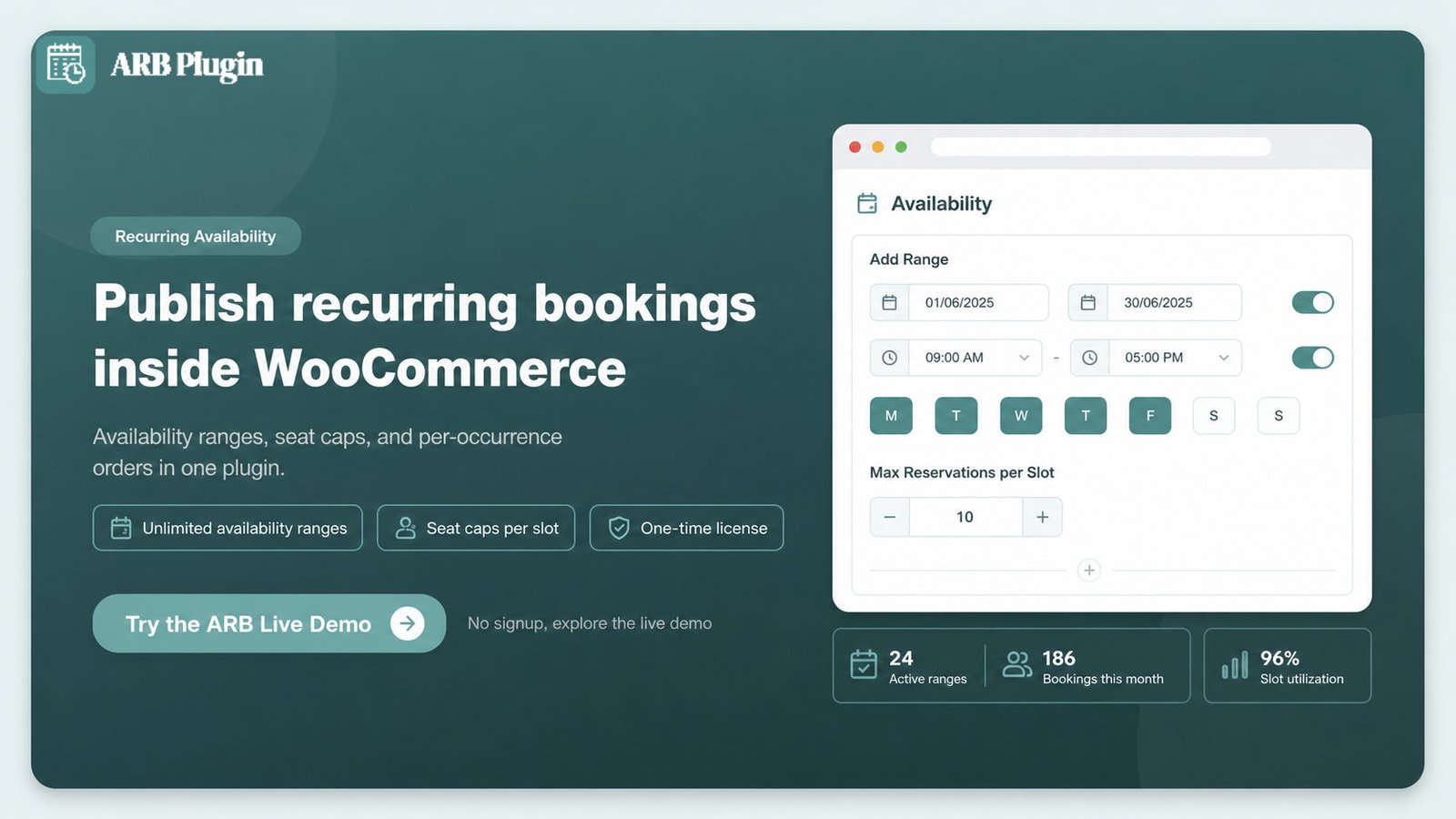
Setting up recurring bookings in WooCommerce takes seven steps. Pick your recurrence type, then create a reservable product and publish a repeating schedule. Next, set a booking duration, cap seats, add buffer time, and settle payment per occurrence. A WooCommerce booking plugin publishes standing availability. It does not auto-charge a repeating subscription.
This guide covers what recurring bookings are, and the two meanings people confuse. It then covers what you need first, the seven setup steps, and a worked example for a seat-limited weekly class. Common mistakes and frequent questions close out the guide.
What Are Recurring Bookings?
Recurring bookings are appointments or reservations that repeat on a set schedule, such as weekly, biweekly, monthly, or a custom interval. A standing weekly fitness class, a monthly service visit, and a recurring equipment rental are all recurring bookings. The schedule repeats, and the customer decides which occurrences to book. For the full definition and industry examples, see what recurring appointments are in more detail.
Recurring bookings differ from a one-time reservation because the same slot reopens on every cycle instead of being scheduled fresh each time. Some booking systems generate one linked series in a single action. Others publish a standing slot that customers rebook every cycle.
WooCommerce booking plugins use the second model. They open a repeating slot on the calendar, and each occurrence becomes its own order.
Two Kinds of "Recurring" (Pick the Right One First)
WordPress recurring booking searches actually cover two different mechanics, and picking the wrong one wastes setup time.
| Kind | What repeats | Who books each occurrence | How it is billed | Typical tool |
|---|---|---|---|---|
| Recurring availability (standing slots) | The bookable slot itself, published once | The customer, one occurrence at a time | Each occurrence is a separate WooCommerce order | ARB, a WooCommerce booking plugin |
| Auto-recurring subscription series | One signup, then the same charge repeats automatically | Nobody rebooks manually after the first signup | One recurring charge, auto-billed every cycle | A subscriptions plugin built for recurring billing |
A WooCommerce booking plugin, including ARB, handles the first kind. It publishes a repeating schedule, and customers book the occurrences they want. It does not auto-rebook or auto-charge anyone on a cycle.
A true auto-recurring subscription series needs a dedicated subscriptions plugin paired with the booking plugin, or a recurring-appointments tool built around billing. No WooCommerce booking plugin does this natively on its own.
What You Need Before You Start
The prerequisite most people miss is deciding your recurrence pattern and kind before you configure anything. Rebuilding a reservable product after picking the wrong type wastes real setup time.
Gather these four things before you start.
- Role: the store owner or admin who manages WooCommerce settings and pricing.
- Time: 20 to 40 minutes for a first recurring product, once your schedule and seat limits are decided.
- Inputs: your repeat pattern (weekly, biweekly, monthly, or custom), your seat cap per occurrence, and whether you need auto-charged billing.
- Tools: a WooCommerce booking plugin for standing recurring slots, and, only if you need auto-charged series, a separate subscriptions plugin.
Free and basic booking plugins can publish a simple weekly repeat. Complex rules, like seat caps and per-resource recurring schedules, need a plugin built for capacity management.
Start with the full guide to add online booking to WordPress if you have not set up bookings at all yet.
How to Set Up Recurring Bookings in WooCommerce: Step-by-Step
Here is the WooCommerce-native way to publish a repeating booking schedule, step by step.
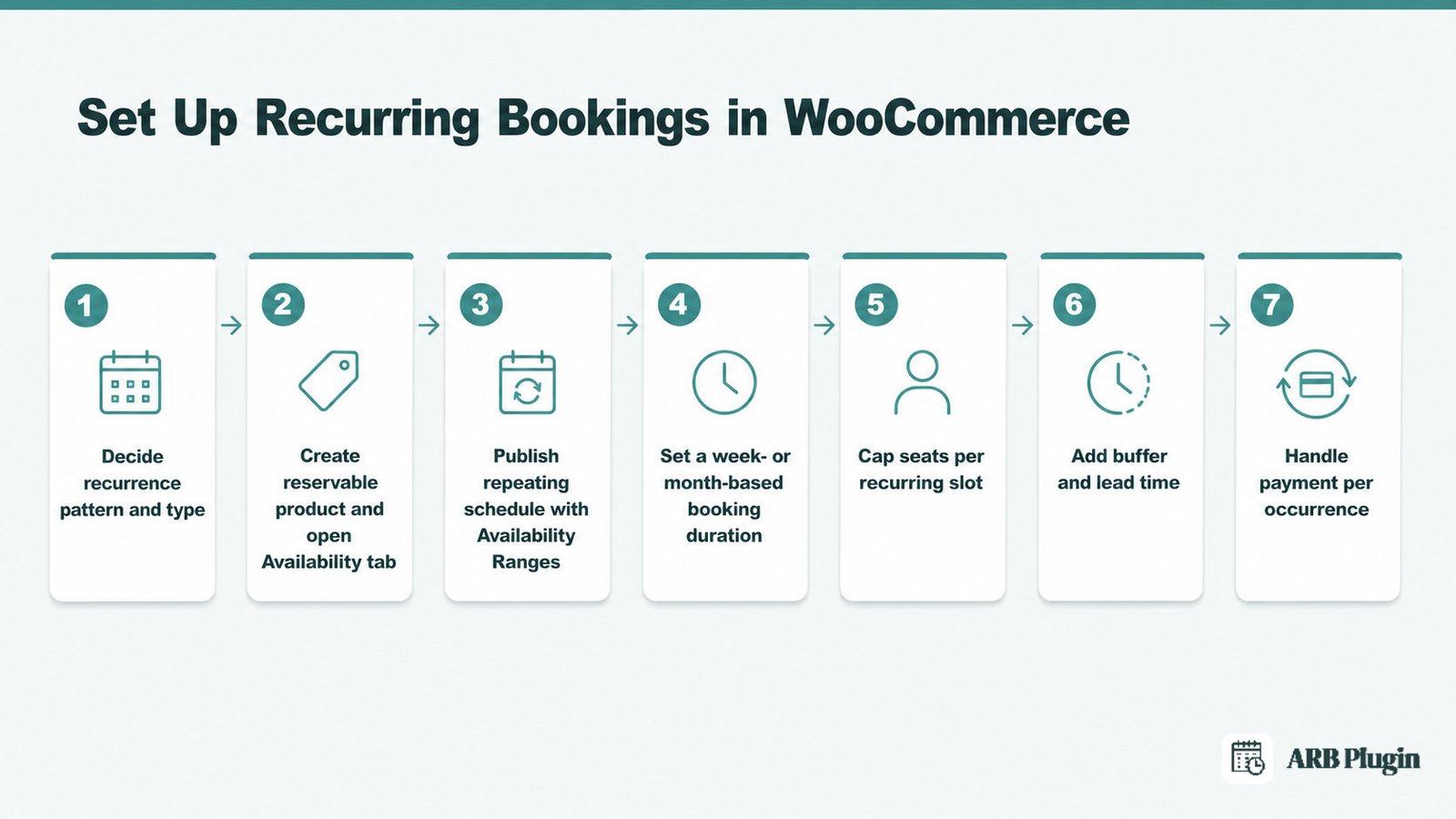
Step 1: Decide Your Recurrence Pattern and Type
Step 1 fixes two decisions before you touch a settings screen. Decide how often the booking repeats, and whether customers rebook occurrences or get auto-charged for a series.
Pick a cadence first: weekly, biweekly, monthly, or a custom interval that does not fall on an even schedule. Then pick a kind, using the Two Kinds table above as the test.
���� Need auto-charged billing? Skip ahead to a subscriptions plugin paired with your booking plugin when customers must be charged automatically every cycle without rebooking. The remaining steps in this guide cover the recurring-availability kind.
Done: you have a written recurrence pattern and a confirmed kind, standing slots or subscription series, before opening any product settings.
Step 2: Create a Reservable Product and Open the Availability Tab
Step 2 creates the WooCommerce product that carries the recurring schedule. Every recurring setting in this guide lives on this one product's Availability tab.
Follow these steps to create the product.
- Go to Products, then Add New, and title the product, for example "Weekly Yoga Class."
- Scroll to Product Data and choose Reservable Product from the dropdown.
- Open the Availability tab, one of five booking tabs: General, Availability, Costs, Persons, and Resources.
This guide demonstrates each recurring setting in ARB, the WooCommerce booking plugin that adds the Reservable Product type. Every range, duration, and seat-cap setting below lives on this one product.
Done: the product shows five configuration tabs, and the Availability tab is open and ready for its first recurring setting.
Step 3: Publish Your Repeating Schedule with Availability Ranges
Step 3 is the core of a recurring setup: publishing the repeat itself. ARB's Add Range menu turns a recurrence pattern into a standing schedule of bookable slots.
| Recurrence pattern | ARB range type | Example |
|---|---|---|
| Weekly, same day and time | Monday to Sunday, with a set time window | A Tuesday 6:00 PM to 7:00 PM class, every week |
| Weekly, specific days | Range of days | Monday, Wednesday, and Friday, each with its own time |
| Monthly | Range of months | A monthly service visit on a fixed date pattern |
| Multi-week season | Range of weeks | An 8-week course running across specific calendar weeks |
Add Range accepts unlimited ranges. Stacking a weekly evening class with a monthly deep-clean visit on the same product is one product with two ranges, not two separate products. The 1st slot starts at field sets each day's opening time.
Publishing a range creates standing recurring availability, and ARB is not auto-rebooking anyone into it. Customers book the occurrences they want from that repeating schedule themselves, published through its recurring availability ranges.
Done: the front-end calendar shows a new bookable slot on every date your range covers, and every date outside it stays unavailable.
Step 4: Set a Week- or Month-Based Booking Duration
Step 4 sets how long a single reservation lasts, which is different from how often the slot reopens. Reservation Duration handles multi-week or multi-month bookings, not the repeat itself.
In the General tab, set Reservation Duration to days, months, or nights for a booking that spans more than one day. A 4-week course or a monthly rental both use this setting. Choose customer-defined slots when customers pick their own length within a minimum and maximum, or fixed slots for a set duration.
A booking that spans several weeks is a duration setting on one order. A slot that reopens every week is a recurring availability range from Step 3. Combine both when a multi-week course also repeats: a season-long range, sized with a multi-week duration.
Turn on Count Duration as Item when the duration field should count as a quantity, such as a number of sessions, instead of literal time.
Done: the booking form shows the duration options you set, and a completed booking spans exactly that many days, weeks, or months.
Step 5: Cap Seats per Recurring Slot
Step 5 solves the seat-limited recurring class problem directly. Max Reservations per Slot caps how many customers one recurring occurrence accepts, so a 12-seat class never becomes a 20-seat overbook.
Set these four options together.
- Max Reservations per Slot: set it to your real seat count, for example 12 for a fitness class.
- Show quantity of left available time slots: turn it on so customers see remaining seats before they book.
- Count Persons as Items: turn it on, or enable Person Types, so each attendee, not each order, consumes one seat.
- Per-resource availability: set it under Resources if different instructors or rooms need their own seat caps.
Done: a recurring slot stops accepting bookings the moment its seat cap fills, and customers see the remaining count before they try.
Step 6: Add Buffer Time and Lead Time So Slots Don't Collide
Step 6 keeps back-to-back recurring sessions from colliding. Two settings do the job: a vacant period between sessions, and a lead time before each one opens.
Set Requires a vacant period of to the minutes your room or instructor needs to reset between sessions. Set A slot is reservable after minimum to the notice a same-day booking needs. Set A slot is reservable till to how far ahead customers can book.
���� This guide covers buffer and lead time briefly, since a recurring schedule stacks the same rules week after week. For the full walkthrough of buffers and windows, see setting up booking availability.
Done: back-to-back recurring sessions on the calendar always leave your set buffer between them.
Step 7: Handle Payment per Occurrence (and True Subscription Series)
Step 7 settles payment for each recurring occurrence, and draws the line on auto-charged series. Each booking is its own WooCommerce order. Nothing auto-charges a customer on a repeating cycle.
Every recurring occurrence checks out through your store's existing WooCommerce gateways, tax rules, and coupons, the same as any other order. There is nothing extra to configure for payment on a per-occurrence booking plugin, so you accept payments for appointments the usual way.
A booking plugin will not auto-charge a customer every cycle without rebooking on its own. Pair a dedicated subscriptions plugin with your booking plugin, or use a recurring-appointments tool built around billing, when that auto-charged behavior is what you need.
Keep attendees on schedule between occurrences, and send appointment reminders before each session.
Done: every recurring occurrence completes checkout normally, and you know whether your setup needs a subscriptions plugin or not.
Example: A Weekly Fitness Class with Limited Seats
A weekly fitness class with a hard seat cap combines three settings from the steps above into one product.
Follow this walkthrough to build the class.
- Create a Reservable Product titled "Tuesday Evening Yoga" and open its Availability tab.
- Add a Monday to Sunday range covering Tuesday only, from 6:00 PM to 7:00 PM (Step 3).
- Leave Reservation Duration at a single-session slot, since one class is one booking (Step 4).
- Set Max Reservations per Slot to 12 and turn on Show quantity of left available time slots (Step 5).
- Turn on Count Persons as Items so a customer booking for two people takes two of the 12 seats.
The result is a repeating Tuesday 6:00 PM class with 12 seats. Customers book whichever weeks they want. The left-slots counter shows exactly how many seats remain, and a 13th customer cannot book once the cap fills.
This is exactly how a fitness class booking schedule is built. The same pattern powers recurring course and class booking with seat caps, just with a longer Reservation Duration for a multi-week course.
Common Recurring Booking Mistakes to Avoid
The most damaging recurring booking mistake is expecting a booking plugin to auto-charge a subscription series. A booking plugin publishes recurring availability. It does not auto-bill repeating customers.
Five mistakes cost the most setup time and revenue.
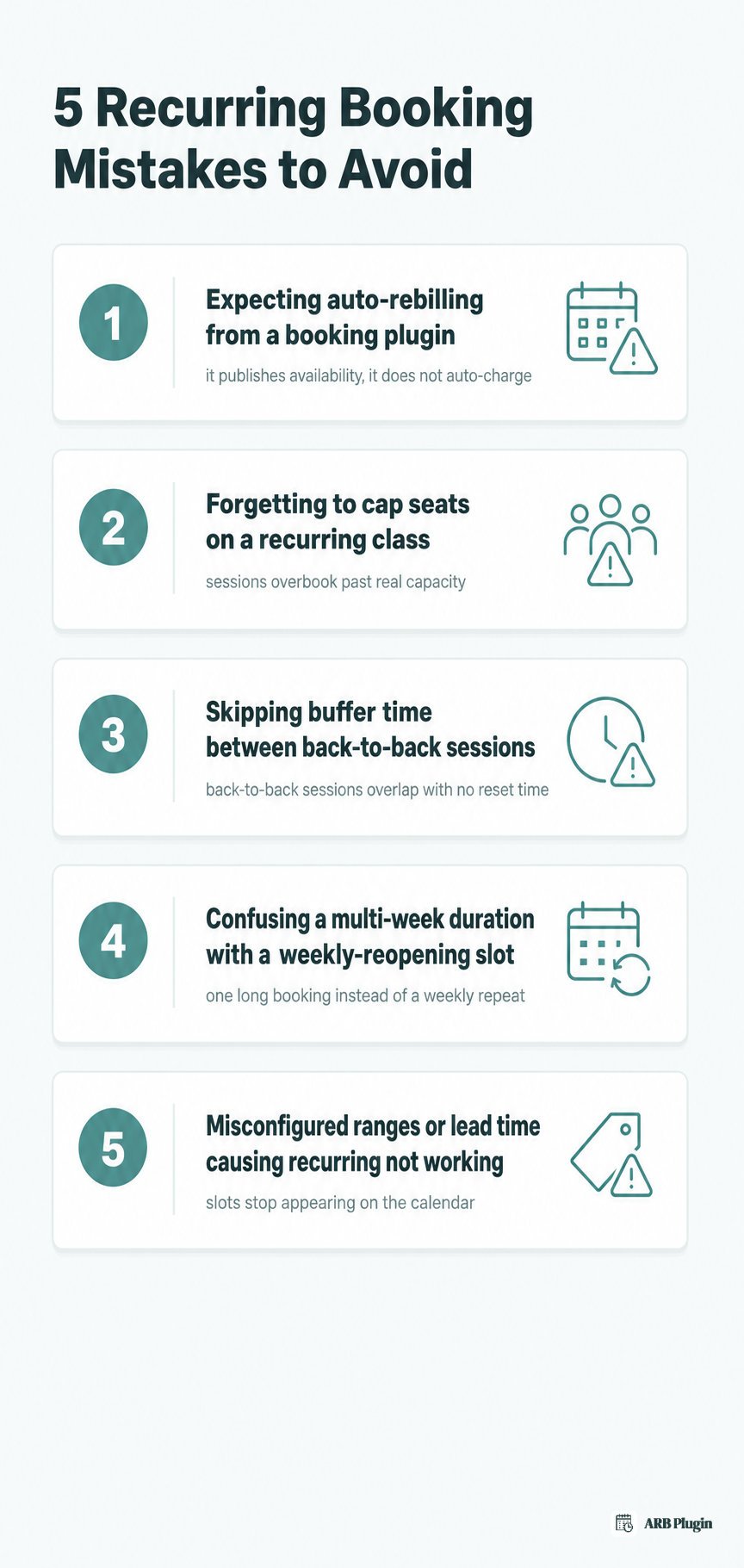
- Expecting auto-rebilling from a booking plugin. Customers are not charged for later occurrences, so a business assumes payment is coming when it is not. Pair a subscriptions plugin for a true auto-charged series, or use recurring availability for standing slots customers pay for individually.
- Forgetting to cap seats on a recurring class. Sessions overbook past their real capacity. Set Max Reservations per Slot and turn on Count Persons as Items.
- Skipping buffer time between back-to-back recurring sessions. Sessions overlap with no setup time between them. Set a vacant period matching your real reset time.
- Confusing a multi-week duration with a weekly-reopening slot. The booking behaves the wrong way, either one long booking instead of a repeating short one, or the reverse. Match Step 3's range to the repeat, and Step 4's duration to one booking's length.
- Letting misconfigured ranges or lead time cause "recurring not working." Slots stop appearing on the calendar. Check your Add Range coverage, A slot is reservable after minimum, and A slot is reservable till.
FAQs
Can WordPress Do Recurring Bookings for Free?
Yes, for a simple weekly repeat. Free and basic booking plugins publish a basic recurring schedule. Seat caps, per-resource recurring rules, and buffer settings typically need a paid plugin built for capacity management.
How Do I Set Weekly vs. Biweekly vs. Monthly Recurrence?
Weekly repeats come from a Monday to Sunday range or Range of days. Monthly repeats come from Range of months. Biweekly and custom intervals use Range of weeks, set to cover only the weeks you want.
Can I Limit Seats on a Recurring Class?
Yes. Set Max Reservations per Slot to your seat count. Turn on Count Persons as Items so each attendee, not each order, counts against the cap.
Can Customers Be Automatically Charged for Every Recurring Session?
No, not from a booking plugin alone. A booking plugin settles each occurrence as its own order. Auto-charging a customer every cycle needs a dedicated subscriptions plugin paired with the booking plugin.
How Long Does It Take to Set Up Recurring Bookings?
A basic recurring schedule takes about 20 to 40 minutes once you have decided your pattern, duration, and seat cap. Multiple ranges or per-resource rules add time per additional rule.
Why Are My Recurring Booking Slots Not Showing Up?
The most common cause is range or lead-time misconfiguration. Check that your Add Range coverage includes the date you expect. Confirm A slot is reservable after minimum and A slot is reservable till are not blocking it.
Can Each Staff Member or Room Have Its Own Repeating Schedule?
Yes. Enable resources, add each staff member or room as its own resource, and set that resource's own availability under Edit resource. Each resource's calendar filters to its own repeating schedule.
Do Recurring Bookings Work with My Existing WooCommerce Payment Gateways?
Yes. Each recurring occurrence checks out as a normal WooCommerce order. Existing gateways, tax rules, and coupons apply without extra setup.
Can I Send Reminders for Recurring Appointments?
Yes. Automatic or manual reminder emails keep every attendee notified before each recurring occurrence, the same as for a one-time booking.
Recurring bookings in WooCommerce come down to three settings. Publish a repeating Add Range schedule, match the duration to your booking length, and set a seat cap that protects your capacity. ARB handles all three inside the WooCommerce checkout you already run, for a one-time license instead of a yearly plan. Try the recurring booking flow in the ARB live demo before you set up your own repeating schedule.