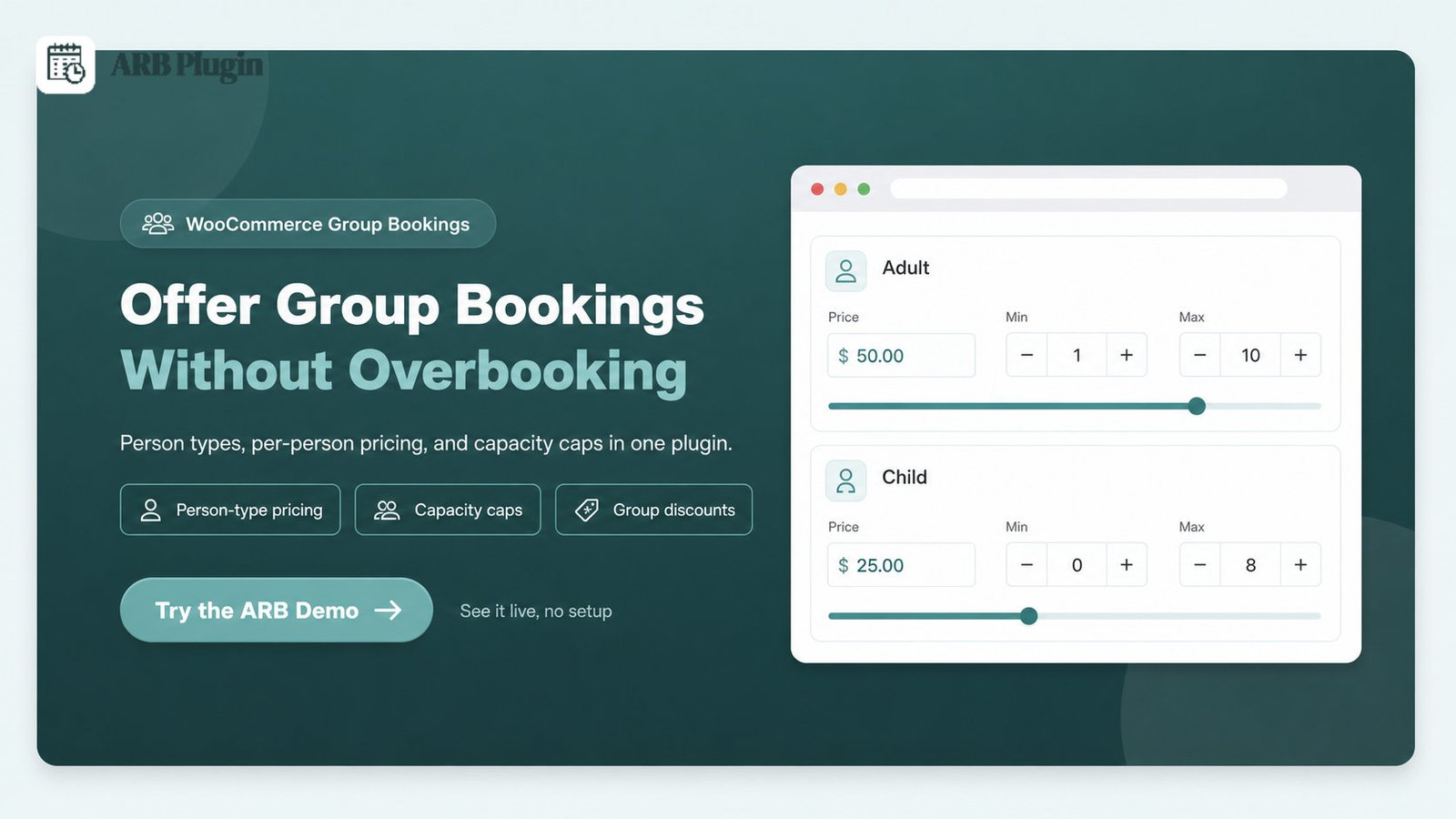
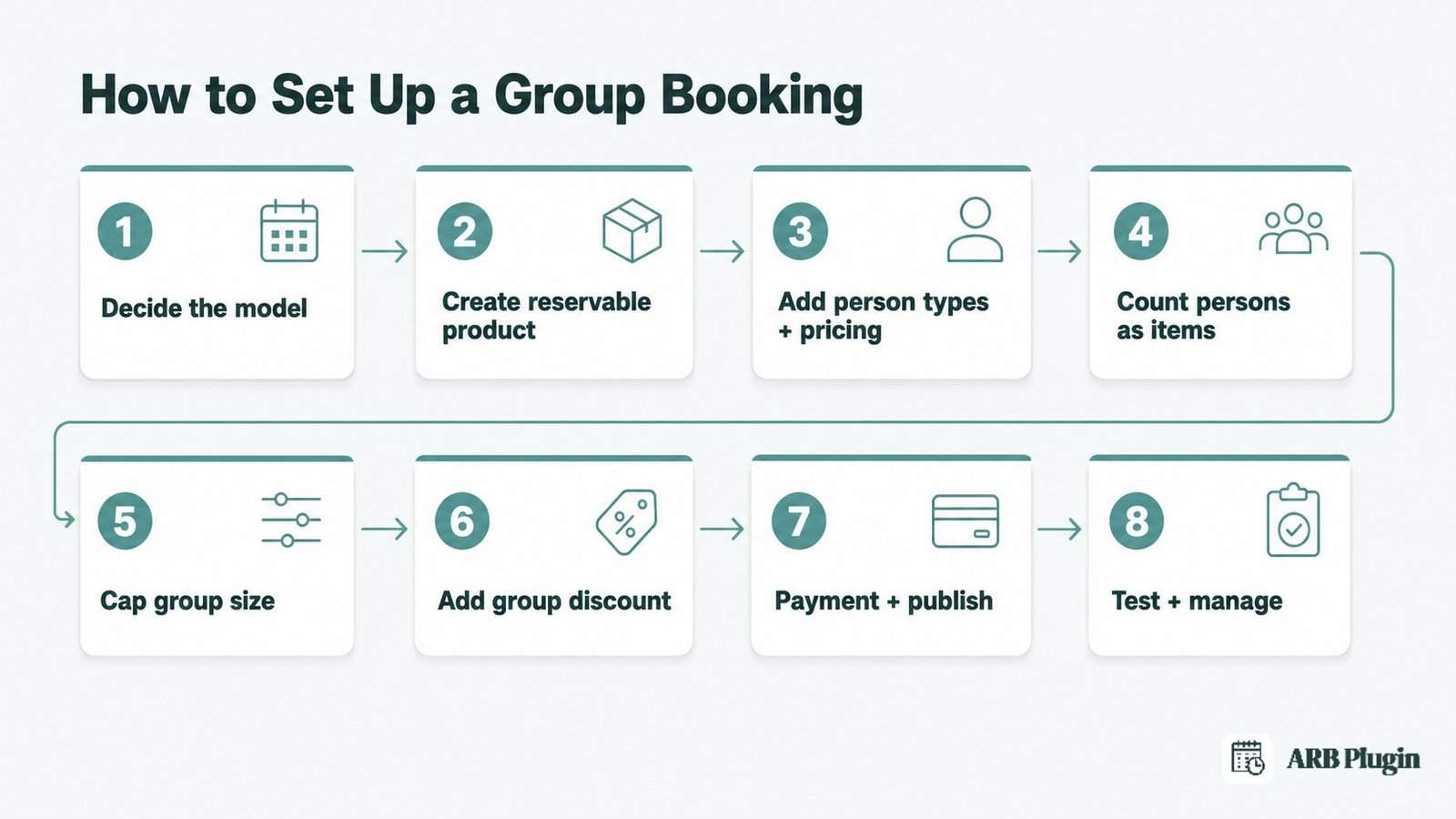
Offering group bookings means setting up a WooCommerce product that lets one customer reserve several attendees at once. It charges each person its own price, and it never accepts more people than the session holds. Eight steps get a class, tour, or event to that point.
This guide walks from the two group-booking models through person types, per-person pricing, capacity, and discounts. It ends with publishing, a worked example, and the mistakes that cause silent overbooking.
What Are Group Bookings?
A group booking lets one customer reserve multiple seats or attendees in a single reservation, for a class, tour, event, workshop, or group service. It differs from a hotel group booking or an airline group fare, which reserve several rooms or seats across separate travelers under one shared code.
Group bookings split into two types. Multiple attendees can share one time slot, like a yoga class or a guided tour departure. Or one booking can span multiple sessions, like a course series billed as a single package. This guide sets up the first type: several attendees in one slot.
Businesses that take this kind of group booking include class and course booking, tours and activities, and event ticketing. Workshops and other group services use the same setup. For the full definition, including party-size thresholds and pricing patterns, see what a group booking is.
What You Need Before You Start
The prerequisite most people miss: decide your capacity rule and your pricing tiers before you touch the booking form. Everything else is just filling in fields.
Gather these four things first.
- Role: the store owner or admin who manages product settings.
- Time: about 20 to 30 minutes to configure one group-bookable product.
- Inputs: your session capacity, per-person or per-tier prices, and your minimum and maximum party size.
- Tool: a WordPress site running WooCommerce, plus a booking plugin that supports per-person pricing and capacity limits.
If you have not set up online booking at all yet, start with our guide to add online booking to WordPress.
Step 1: Decide How Your Group Booking Should Work
Group bookings work one of two ways, and the setup differs for each.
| Model | How it works | Best for |
|---|---|---|
| Shared slot | Several attendees book the same time slot together | Classes, tour departures, workshops, events |
| Multi-session booking | One booking spans several separate sessions | A course series billed as one package |
This guide configures the shared-slot model: several attendees booking one session together, priced per person, capped at a real seat count.
Step 2: Create a Reservable Product for Your Class, Tour, or Event
Every group-bookable session starts as a WooCommerce product configured for reservations, not a plain product listing.
Follow these steps to create it.
- Go to Products, then Add New, and give the product a title.
- Open Product Data and choose Reservable Product from the dropdown.
- Set the Label field to what a seat represents, such as Ticket, Seat, or Attendee.
This guide demonstrates each setting in ARB, a WooCommerce-native booking plugin. Choosing Reservable Product exposes five configuration tabs: General, Availability, Costs, Persons, and Resources. Group bookings use four of them directly.
Done: the product shows five configuration tabs, and the General tab's Label field matches what you are selling.
Step 3: Add Person Types with Per-Person Pricing and Min/Max
Most groups mix adults, children, or members at different prices, and a Persons tab handles that mix directly.
Follow these steps.
- Open the Persons tab and turn on Enable Persons.
- Click Add Person Type for each category, such as Adult, Child, or Member.
- Set each person type's own price, plus its minimum and maximum count.
- Repeat Add Person Type for as many categories as the booking needs.
A person type does not have to be an actual person. Use the same field for tickets or add-ons, like a soft drink or an extra chair, each with its own price.
I price Adult at $20 and Child at $12 on the same form, and cap each type between 1 and 10, with no custom code.
For the wider feature set behind this tab, see group bookings in WooCommerce.
Done: each person type shows its own price on the booking form, and the form blocks any count outside its min and max.
Step 4: Count Each Attendee as a Booked Seat
This is the setting that decides whether your capacity number means anything. A group booking that does not count every attendee as a seat can silently overbook a session.
Turn on Count Persons as Items on the Persons tab. A booking for 5 persons then deducts 5 slots from capacity, not 1.
Why this matters: without Count Persons as Items on, a single booking for 10 people uses only one unit of capacity. A 10-seat session can accept ten separate 10-person bookings before the calendar shows it full. That is a 100-person overbooking on a 10-seat session.
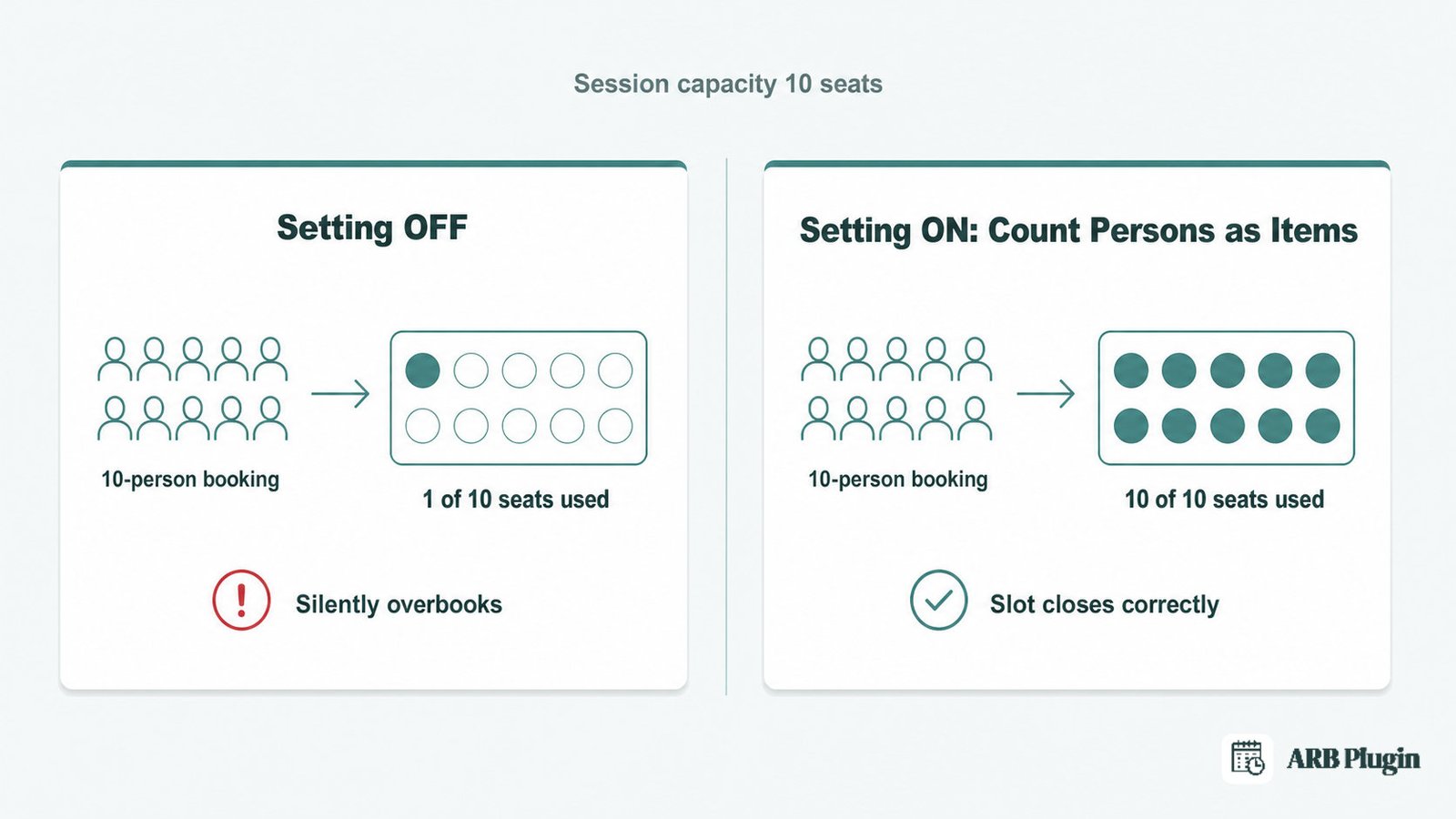
I turn this setting on for every group-bookable product I configure. ARB's own documentation states the mechanic exactly: if a customer reserves for 5 persons, then 5 slots, not 1, of the event get booked.
Done: a 10-person booking shows as 10 seats used, not 1, on your capacity count.
Step 5: Cap Group Size to Prevent Overbooking
Capacity still needs a real ceiling, and that ceiling lives on the Availability tab, not the Persons tab.
Set Max Reservations per Slot to the session's real seat count, such as 10 for a 10-seat yoga class. With Count Persons as Items on, a booking for 6 people uses 6 of those 10 seats. The slot closes the moment total attendees reach 10.
Max Reservations per Slot is one setting among many that control your booking calendar. See the full guide to set up booking availability for lead time, buffers, and blackout dates.
Done: the slot stops accepting new bookings the moment total attendees reach your seat count.
Step 6: Add a Group Discount
Large groups expect a price break, and a Costs tab range builds one without a separate coupon code.
Follow these steps.
- Open the Costs tab and click Add Range.
- Choose Person Count as the range basis.
- Set the threshold and the discount, such as $10 off any booking over 1 person.
- Save. The form recalculates the total live as attendee count changes.
Use Slot Count instead of Person Count for a discount based on total slots booked, such as $5 off any booking over 4 slots.
I set a Person Count range at more than 1 person for $10 off. The checkout total updates the instant a second attendee is added.
For the full pricing engine behind this tab, including date, time, and day-of-week ranges, see dynamic pricing.
Done: the booking form shows the discounted total before checkout, for any group that crosses your threshold.
Step 7: Set Up Payment and Publish the Booking Form
Group bookings check out through whatever payment setup your WooCommerce store already runs. No separate group-booking payment system exists.
Because the reservable product is a normal WooCommerce product, it inherits the store's existing gateways, taxes, and coupons automatically.
���� Using ARB? Publish the booking form on the product's own page, or place it anywhere with the [product_page id=""] shortcode, Elementor, or WPBakery.
See the full walkthrough for accept payments for bookings if gateway setup is not done yet.
Done: the product page shows a working booking button, and checkout charges the group total through your existing gateways.
Step 8: Test the Flow and Manage Group Bookings
Place a real test booking before your first customer does, and confirm every number is correct.
- Book the product yourself for 4 attendees, mixing person types if you configured more than one.
- Confirm the seats deducted from capacity equal 4, not 1.
- Confirm the checkout total charges each person type's own price, minus any group discount.
���� Using ARB? Manage live bookings from the admin Reservations list, and filter by product or date. Edit persons or person types on an existing order, and check the Daily Agenda for the day's sessions.
Set up automatic notifications with send appointment reminders.
Done: your test booking shows the correct seat count, the correct total, and appears in the admin Reservations list.
A Worked Example: A Class of 10 and a Family Ticket
Two examples show these settings working together.
A yoga class of 10. Max Reservations per Slot is set to 10, and Count Persons as Items is on. One person type, Attendee, costs $15, with a minimum of 1 and a maximum of 10. A booking for 6 attendees costs $90 and deducts 6 seats, leaving 4 open.
A family ticket. Two person types cover Adult at $20 and Child at $12, each with its own min and max. A Person Count discount takes $10 off any booking over 3 people. A booking of 2 adults and 2 children totals $64 before the discount and $54 after it, deducting 4 seats from capacity.
| Scenario | Person types | Total before discount | Discount | Final total | Seats used |
|---|---|---|---|---|---|
| Yoga class of 10 | Attendee ($15) | $90 (6 attendees) | None | $90 | 6 of 10 |
| Family ticket | Adult ($20), Child ($12) | $64 (2 adults, 2 children) | $10 (over 3 people) | $54 | 4 |
These numbers are illustrative, chosen to show the math, not published ARB pricing.
Common Group Booking Mistakes to Avoid
The single most damaging mistake is leaving Count Persons as Items off. A 10-person booking then deducts one seat instead of ten, and the session silently overbooks.
Five mistakes to avoid:
- Leaving Count Persons as Items off. A 10-person booking deducts one seat instead of ten. The session overbooks with no error shown. Turn the setting on in Step 4.
- Setting slot capacity with no min or max per person type. A booking can arrive as one person calling itself a group, or a party larger than the room allows. Set a minimum and maximum on each person type in Step 3.
- Charging one flat price instead of per-person-type pricing. Mixed adult and child groups overpay or underpay, and solo bookers pay a group rate meant for six. Price each person type separately in Step 3.
- Skipping the group discount. Large-party buyers abandon the booking or call to negotiate a better rate instead. Add a Person Count cost range in Step 6.
- Forgetting a buffer between group sessions. Back-to-back classes collide with no time to reset the room. Add a vacant period using the same availability settings covered in Step 5.
FAQs
How do group bookings work?
Group bookings work by letting one customer reserve several seats or attendees in a single transaction. The form prices each attendee by person type, then checks the running total against the session's remaining capacity before checkout completes.
What are the different types of group bookings?
Group bookings split into two types. Several attendees can share one time slot, like a class or tour departure. Or one booking can span multiple sessions, like a course series. This guide sets up the first type.
Can customers book for multiple people in one booking?
Yes. A group-bookable product lets one customer select several attendees, choose a person type for each, and pay one combined total at checkout.
Can I charge different prices for adults and children?
Yes. Add separate person types, such as Adult and Child, and set each one's own price. The booking form totals the mix automatically.
How do I stop a class or event from being overbooked?
Turn on Count Persons as Items so every attendee counts as one seat, then set Max Reservations per Slot to your real capacity. The slot closes once attendee count reaches that number.
How do I offer a group or bulk discount?
Add a Costs tab range rule based on Person Count or Slot Count, such as $10 off any booking over 1 person. The discount recalculates live as attendee count changes.
Do I need a separate plugin just for group bookings?
No. A WooCommerce booking plugin with person types and capacity limits handles group bookings inside the same product used for single bookings.
How is a group booking different from a recurring booking?
A group booking reserves multiple attendees for one session. A recurring booking reserves the same attendee across several repeating sessions, like a weekly class pass.
How long does it take to set up group bookings?
Configuring a group-bookable product takes about 20 to 30 minutes, once you know your capacity, your per-person prices, and any group-discount threshold.
Every setting here ships in ARB: person types, per-person pricing, Count Persons as Items, and Person Count discount ranges. ARB is a one-time WooCommerce booking plugin priced around $55, with no recurring subscription. Try the ARB demo to book a group yourself and watch the seat count and price update live, then set up your first group-bookable class.