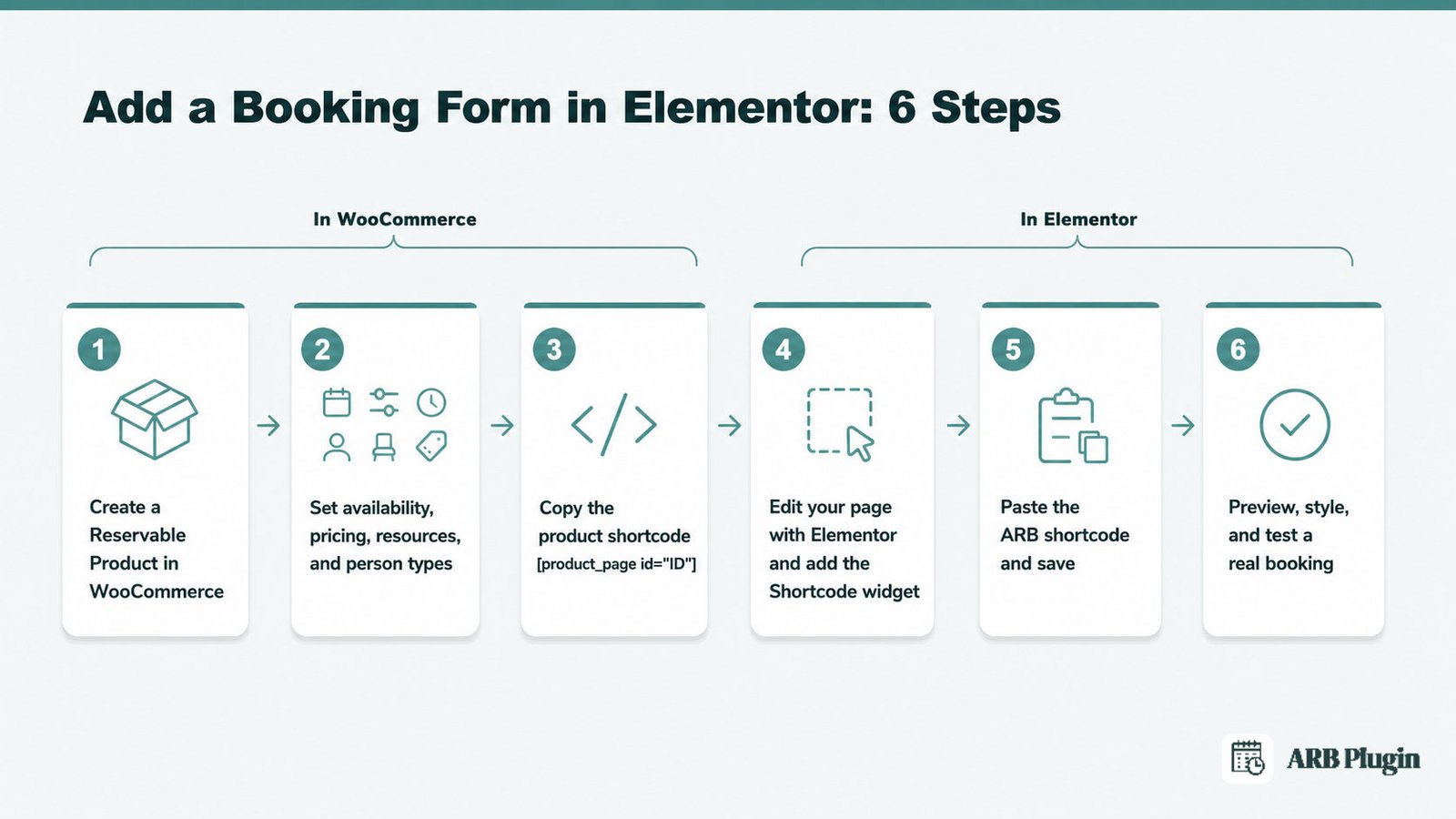
ARB adds a real, payment-taking booking form to any Elementor page in six steps. Build a Reservable Product in WooCommerce, copy its shortcode, then paste it into Elementor's free Shortcode widget. The form checks availability and blocks double-booking automatically. Elementor Pro is not required.
This guide covers what a real booking form actually needs and how ARB compares honestly to Elementor's own Form widget. It then walks the six-step setup, ways to get more from the form once it is live, and what the whole thing costs.
What an Elementor Booking Form Actually Needs
A real booking form checks live availability, blocks already-taken slots, lets customers pick a date, time, resource, or person type, and takes payment. Elementor's own Form widget collects information only. It has no availability logic, no double-booking guard, and no built-in checkout. ARB adds all four requirements inside WooCommerce, using a shortcode Elementor can render directly.
Elementor's Form widget, even the free version, can still capture a booking request as raw data. It cannot check whether a slot is already reserved, calculate a price by person or resource, or accept payment automatically. A booking form that lives inside WooCommerce, rather than a separate app, keeps availability, pricing, and checkout in one system.
Elementor's own form widget doesn't do those things by itself. Setting up the shortcode method below is one piece of a bigger job: how to add online booking to WordPress end to end. A WooCommerce booking plugin like ARB turns any product into a bookable form. The calendar, the price, and the checkout all live in the same system.
Elementor Forms vs a Real Booking Form: What's the Difference?
Elementor Pro Forms and ARB answer different questions. The Form widget is Elementor's built-in way to collect information. A booking plugin like ARB is a transaction engine that happens to render inside Elementor.
| Capability | Elementor Pro Form (Form widget) | Booking plugin in Elementor (ARB) |
|---|---|---|
| Checks real-time availability | No | Yes, calculated live via AJAX |
| Prevents double-booking | No | Yes, via Max Reservations per Slot |
| Date/time-slot picker | No, a text or date field only | Yes, a full availability calendar |
| Resources and person types | No | Yes, dedicated Resources and Persons tabs |
| Dynamic or range-based pricing | No | Yes, range rules by date, time, slot, and person count |
| Takes payment via existing checkout | No, needs a separate add-on or workaround | Yes, through the store's own WooCommerce checkout |
| Requires Elementor Pro | Yes | No, works with the free Shortcode widget |
| Cost | Bundled with an Elementor Pro subscription | One-time license, no recurring fee |
A generic contact form can still gather a booking request. It cannot stop two customers from claiming the same slot, and it cannot charge a card at checkout. That gap is why a real booking form needs a booking plugin like ARB running underneath it. A heavier form builder on top does not close it.
What You Need Before You Start
No, you do not need Elementor Pro to add a booking form with ARB. The method uses Elementor's free Shortcode widget, not the Pro-only Form widget. You do need WordPress, an active WooCommerce store, ARB installed and licensed, a configured payment gateway, and Elementor.
Before you start, gather these:
- WordPress with an active WooCommerce store already selling at least one product
- ARB installed and activated, with its 9-digit token entered in ARB Settings
- A payment gateway configured in WooCommerce, such as PayPal, Stripe, Square, or another WooCommerce-supported gateway
- Elementor installed; the free version is enough, since the Shortcode widget is not a Pro-only feature
ARB itself is a one-time CodeCanyon license, around $55, and every booking feature in this guide is included. The only extra costs are optional add-ons, such as Google Calendar sync, sold separately.
You build the booking product inside WooCommerce first, then place it on your Elementor page. If you need finer control over your hours before you begin, see how to set up booking availability first.
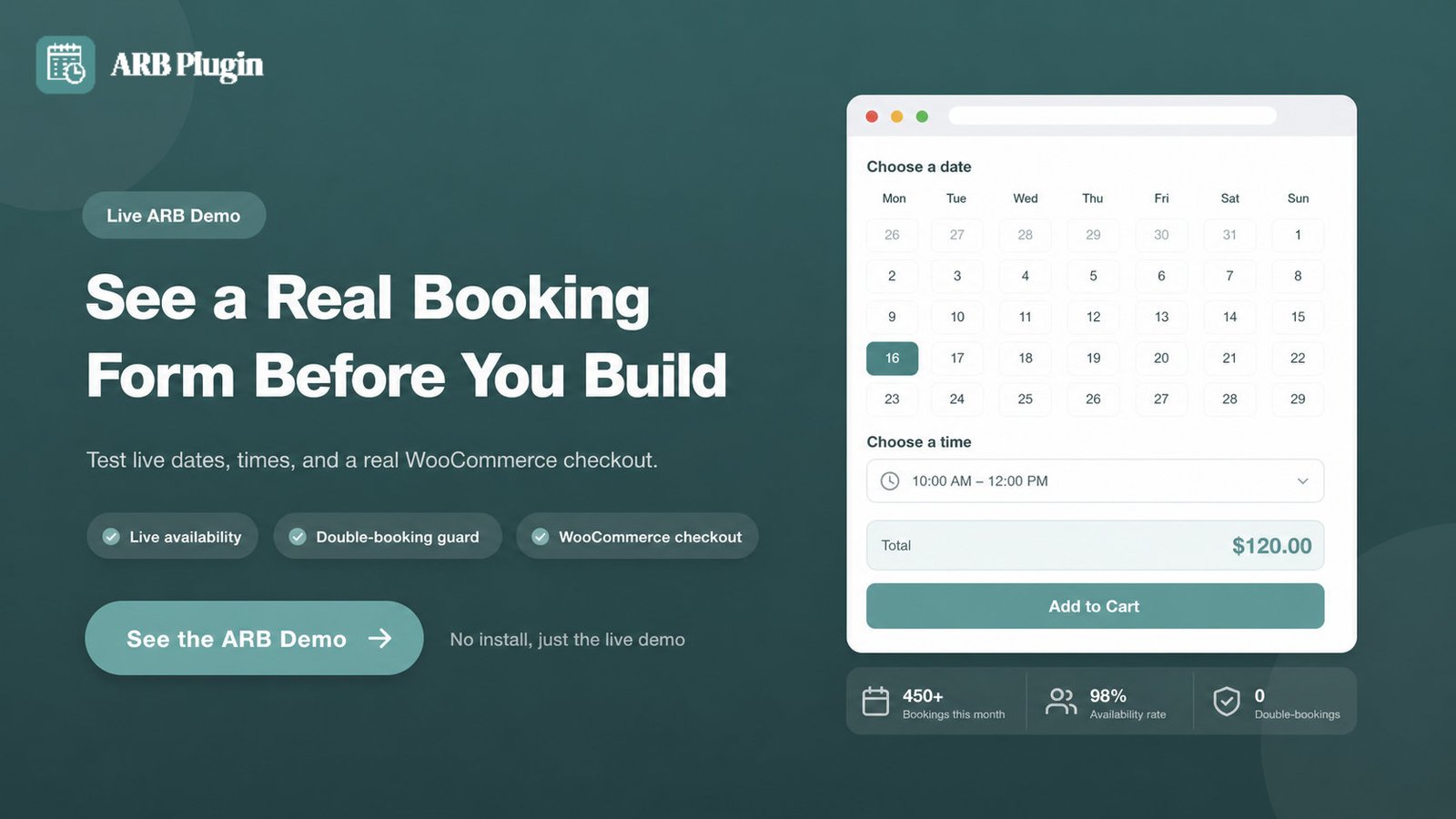
Want to see the finished form before you build one? Try the live ARB booking demo and test a real date, time, and payment flow. ARB carries a 4.81-out-of-5 CodeCanyon rating, sold under a one-time, WooCommerce-native license.
How to Add a Booking Form in Elementor With ARB: Step by Step
Six steps get a real booking form live on an Elementor page. Most of the work is a one-time WooCommerce product setup; placing the form in Elementor takes only two of the six steps.
Step 1: Create a Reservable Product in WooCommerce
This product is your booking form. Every setting here controls what customers see and book on the front end.
Go to Products > Add New. Enter a title and description, then scroll to Product Data and choose Reservable Product from the dropdown.
[Screenshot needed: WooCommerce Product Data dropdown with "Reservable Product" selected] Alt: WooCommerce Product Data dropdown open, with "Reservable Product" selected from the product type list.
Done: the Product Data box now shows five new tabs, General, Availability, Costs, Persons, and Resources. For the full walkthrough, follow the guide to create a Reservable Product.
Step 2: Set availability, pricing, resources, and person types
This step turns a plain product into a booking form with real rules, not just a price tag.
Open the Availability tab and set Max Reservations per Slot first. This one field is the double-booking guard: once a slot fills to that number, ARB blocks further bookings for it. Add availability ranges, date, day-of-week, or time ranges, to define your open hours. Set Requires a vacant period of if you need a buffer between appointments.
[Screenshot needed: Availability tab showing Max Reservations per Slot and Add Range] Alt: ARB Availability tab showing the Max Reservations per Slot field set to 1 and the Add Range button with date and time range options.
Switch to Costs to set a Base Cost and any range-based pricing, such as weekend surcharges or per-person discounts. Enable Persons and Resources if your booking needs person types (adult, child, ticket) or bookable resources (rooms, staff, equipment).
The booking calendar that customers see on the front end renders automatically from these settings. You do not build it separately.
Done: the Availability, Costs, and, if enabled, Persons and Resources tabs each show your rules. Max Reservations per Slot holds a number greater than zero.
Step 3: Copy the product shortcode ([product_page id="ID"])
ARB renders any Reservable Product with one shortcode: [product_page id="your_product_id"].
Open the product's edit screen and find its numeric ID, shown in the product list or the edit URL. If the ID is 733, the shortcode is [product_page id="733"].
[Screenshot needed: product edit screen with the product ID highlighted] Alt: WooCommerce product edit screen with the numeric product ID highlighted near the page title.
Done: you have a single shortcode line ready to paste, built from your product's own ID. ARB's documentation confirms this exact syntax for every Reservable Product.
Step 4: Edit your page with Elementor and add the Shortcode widget
Elementor renders the ARB shortcode through its own built-in Shortcode widget. No Elementor Pro is required for this step.
Open the page where the form should appear and click Edit with Elementor. In the widget panel on the left, search for Shortcode. Drag the Shortcode widget onto the spot on the canvas where the booking form should sit.
[Screenshot needed: Elementor widget panel with the Shortcode widget] Alt: Elementor left sidebar widget panel with "Shortcode" typed in the search box and the Shortcode widget icon visible.
Done: an empty Shortcode widget sits on the canvas, ready for the code from Step 3.
Step 5: Paste the ARB shortcode and save
Pasting the shortcode is the only configuration this widget needs.
Click the Shortcode widget and paste [product_page id="733"], using your own product ID, into its content field. Elementor immediately renders the full ARB booking form, calendar, time slots, resources, persons, price, and Add to Cart button, inside the preview. Click Update to save the page.
[Screenshot needed: Shortcode widget with pasted shortcode and the rendered booking form in the Elementor preview] Alt: Elementor Shortcode widget content field showing the pasted product_page shortcode, with the live booking form calendar rendered in the preview panel.
Done: the live Elementor preview shows a working calendar and price, not placeholder text.
Step 6: Preview, style, and test a real booking
A finished form still needs one real test booking before you trust it with customers.
Preview the live page and run one test booking through the entire WooCommerce checkout, confirming the slot, price, and payment all behave correctly. Match the form's colors and layout to your Elementor design in WooCommerce > Settings > ARB Settings.
[Screenshot needed: front-end Elementor page with the working booking form and Add to Cart] Alt: Live Elementor page showing the rendered ARB booking form with a selected date, time slot, calculated price, and an Add to Cart button.
If no payment methods appear at checkout, the product's required confirmation setting is on. Disable it in the product's General tab so WooCommerce's gateways show up immediately, or keep it on if you want to approve bookings before charging. For the full payments walkthrough, see how to accept payments for appointments.
Done: a completed test order appears in WooCommerce > Orders, with the correct slot, resource, price, and payment status.
Make the Most of Your Elementor Booking Form in ARB
Five ARB settings take the form beyond a basic setup. Match your Elementor design, hide the calendar for a compact layout, switch to quote requests, send reminders automatically, or sync bookings to Google Calendar.
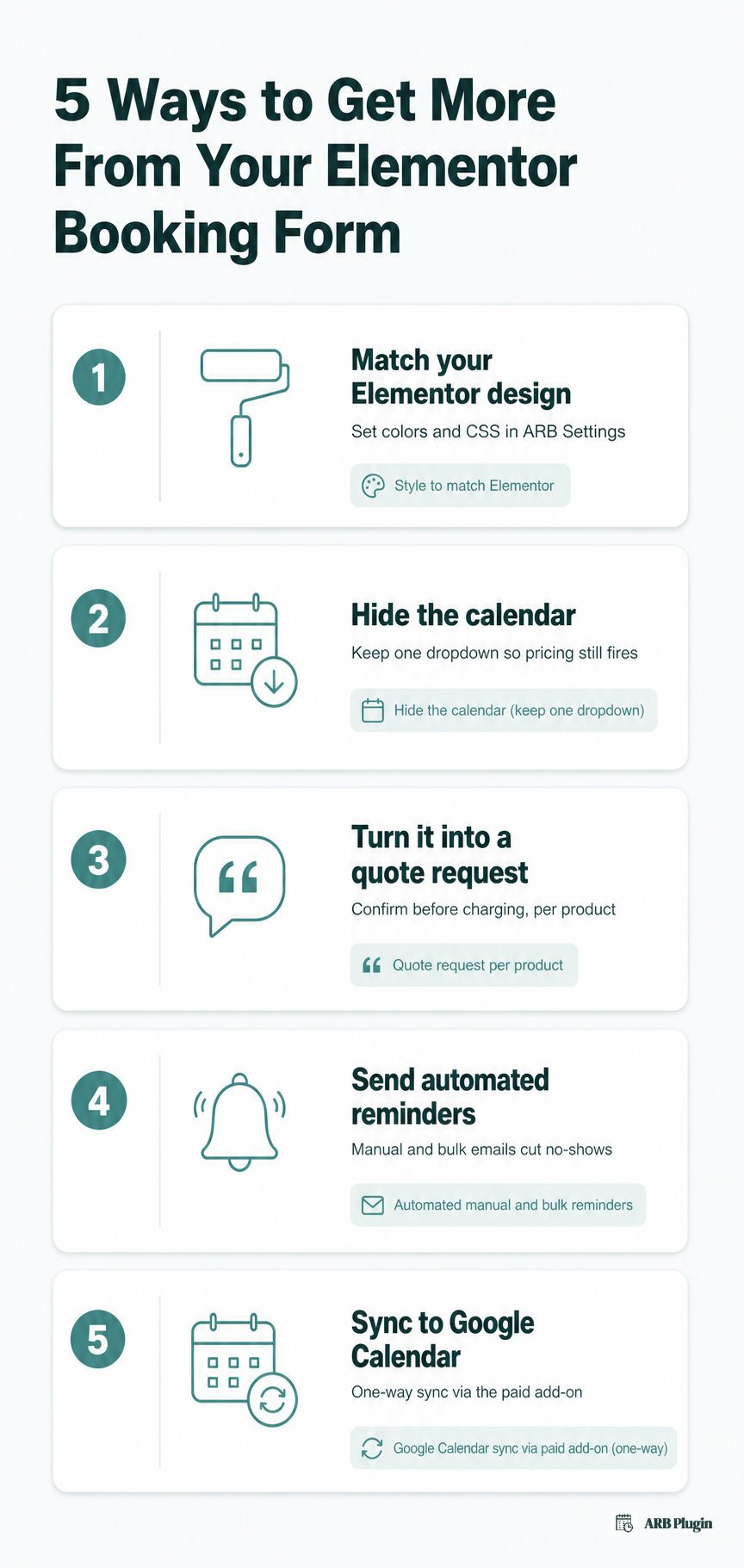
- Style the form to match Elementor. Set the booking form's colors and CSS in WooCommerce > Settings > ARB Settings, so it inherits your Elementor page's design instead of a default look.
- Hide the calendar for a compact form. ARB lets you hide the calendar entirely, but keep at least one dropdown, a resource or a person type, so the AJAX price calculation still fires without it.
- Turn the same form into a quote request. Enable ARB Quote Request in ARB Settings, then switch it "On" per product, for approval-first businesses that need to confirm before charging.
- Send automated reminders after the booking. Manual and bulk reminder emails cut no-shows. See how to send appointment reminders for the full setup.
- Sync bookings to Google Calendar. The core plugin exports an iCalendar (.ics) file with every booking email. Full automated sync to Google Calendar needs the paid ARB Google Calendar add-on; it is a one-way sync from ARB to Google Calendar, not two-way.
For gateway, calendar, and other connected tools, see the full list of ARB integrations.
Is an Elementor Booking Form Free? What It Actually Costs
Yes, you can add a free form to Elementor, and several free tools include real, if limited, booking functionality. Free tiers of dedicated booking plugins support basic date and time slots. Elementor Pro itself is a recurring subscription. A fully featured, payment-integrated booking engine like ARB is a paid tool, priced as a one-time purchase rather than a subscription.
ARB itself costs a one-time license, roughly $55, with every feature described in this guide included. The only extra costs are optional add-ons: Google Calendar sync and SMS notifications, both sold separately. There is no monthly plan to track.
FAQs
Do I need Elementor Pro to add a booking form?
No. ARB's method uses Elementor's free Shortcode widget, not a Pro-only Form-widget add-on.
Can I create an Elementor booking form for free?
Yes, for a basic form. Free booking plugins handle simple date and time slots, but they cap features and rarely take payment through your own checkout. A form that also prevents double-booking and charges through WooCommerce needs a paid tool like ARB, sold as a one-time license.
Does an Elementor Pro contact form prevent double-booking?
No. The Form widget has no availability or capacity logic of its own, so two customers can submit the same slot with no conflict check.
Why don't payment methods show at checkout?
Payment methods disappear at checkout when the product's required confirmation setting is on. Disable it in the Reservable Product's General tab so WooCommerce's gateways appear immediately.
Can I put multiple booking forms on different Elementor pages?
Yes. ARB allows unlimited booking forms, and each Reservable Product gets its own shortcode and its own product ID.
Can I style the booking form to match my Elementor theme?
Yes. Set colors and CSS in WooCommerce > Settings > ARB Settings, and the form picks up those styles wherever its shortcode appears.
Does ARB work with the free version of Elementor?
Yes. The Shortcode widget that displays the ARB form ships in Elementor's free version, not only in Elementor Pro.
Can I sync Elementor bookings to Google Calendar?
Yes, through the paid ARB Google Calendar add-on, for automated one-way sync. The core plugin also exports an iCalendar (.ics) file with every booking, with no add-on needed.
A booking form built with ARB and Elementor's Shortcode widget takes real bookings, not just requests. It checks availability, blocks double-booking, and charges customers through the same WooCommerce checkout your store already runs, all rendered inside your Elementor design.
Build the Reservable Product first, copy its shortcode, and drop it into Elementor's free Shortcode widget. The whole path costs one one-time ARB license, with no recurring fee and no Elementor Pro subscription.