A booking confirmation email is the automated message a business sends the moment a customer books. It confirms the reservation's name, date and time, location, price, and cancellation terms. This proves the booking happened, prevents disputes, and cuts support tickets from unclear details.
Below: what to include, best practices, copy-paste templates by scenario, and how to automate the send in WordPress and WooCommerce.
What to include in a booking confirmation email
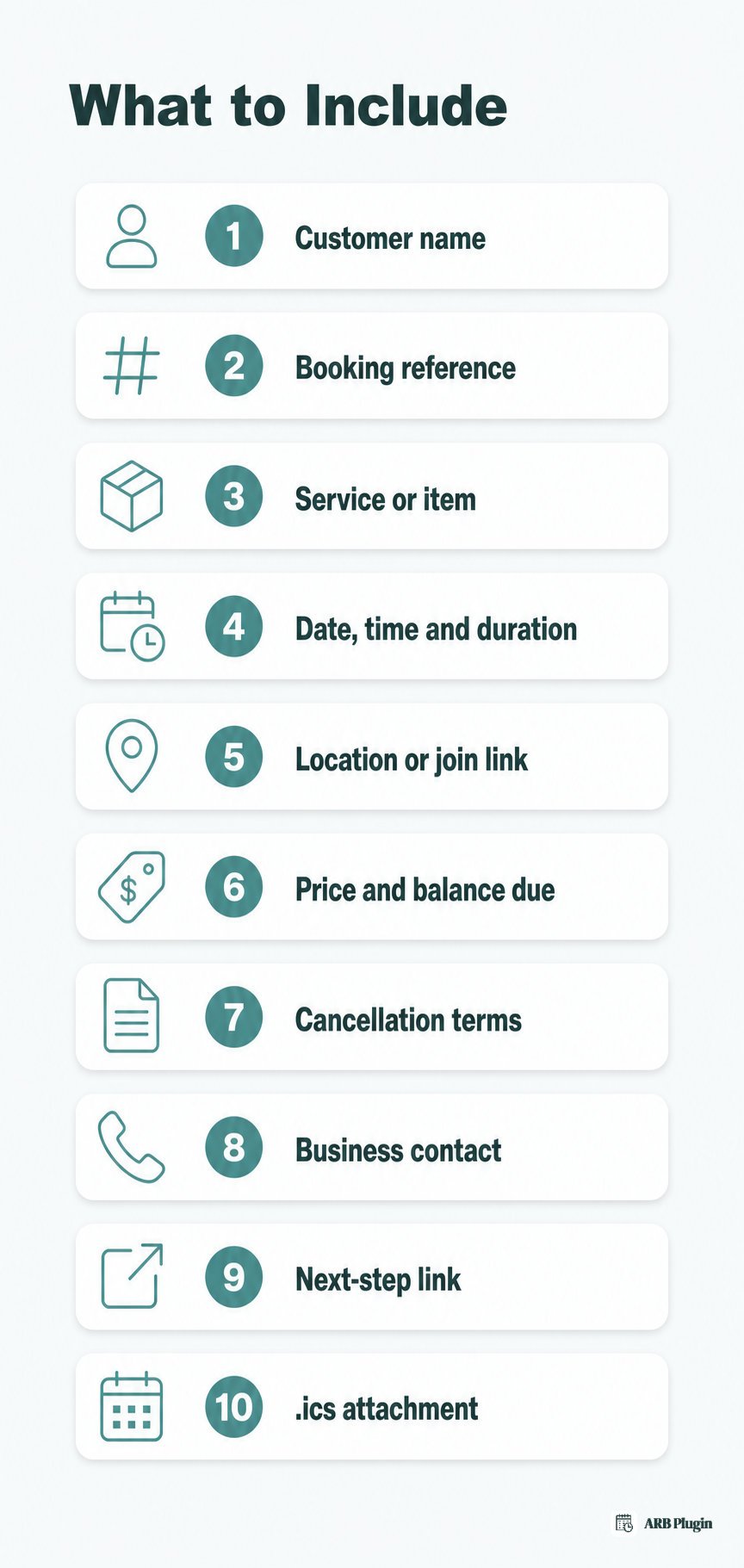
Inaccurate details in a confirmation email force the customer to double check by phone or email, which defeats the point of automating the send. Whether you run an appointment or reservation system, a complete booking confirmation email includes these elements, in the order they should appear.
- Customer name: in a direct greeting.
- Booking reference or confirmation number: ties the email to the exact order.
- Service, item, or room booked: what the customer paid for.
- Date, time, and duration: or check-in and check-out dates, or pickup and return times.
- Location or virtual-access details: an address and map link, or a join link for virtual bookings.
- Price paid and balance due: the total, what is already paid, and any booking deposit still owed.
- Cancellation and reschedule terms: state your cancellation policy in one plain sentence.
- Business name and contact details: how the customer reaches support.
- A clear next step: a manage-booking or cancel-booking link.
- An .ics calendar attachment (recommended): this .ics calendar file lets the customer add the booking to their calendar in one tap.
Booking confirmation email best practices (timing, subject lines, and reminders)
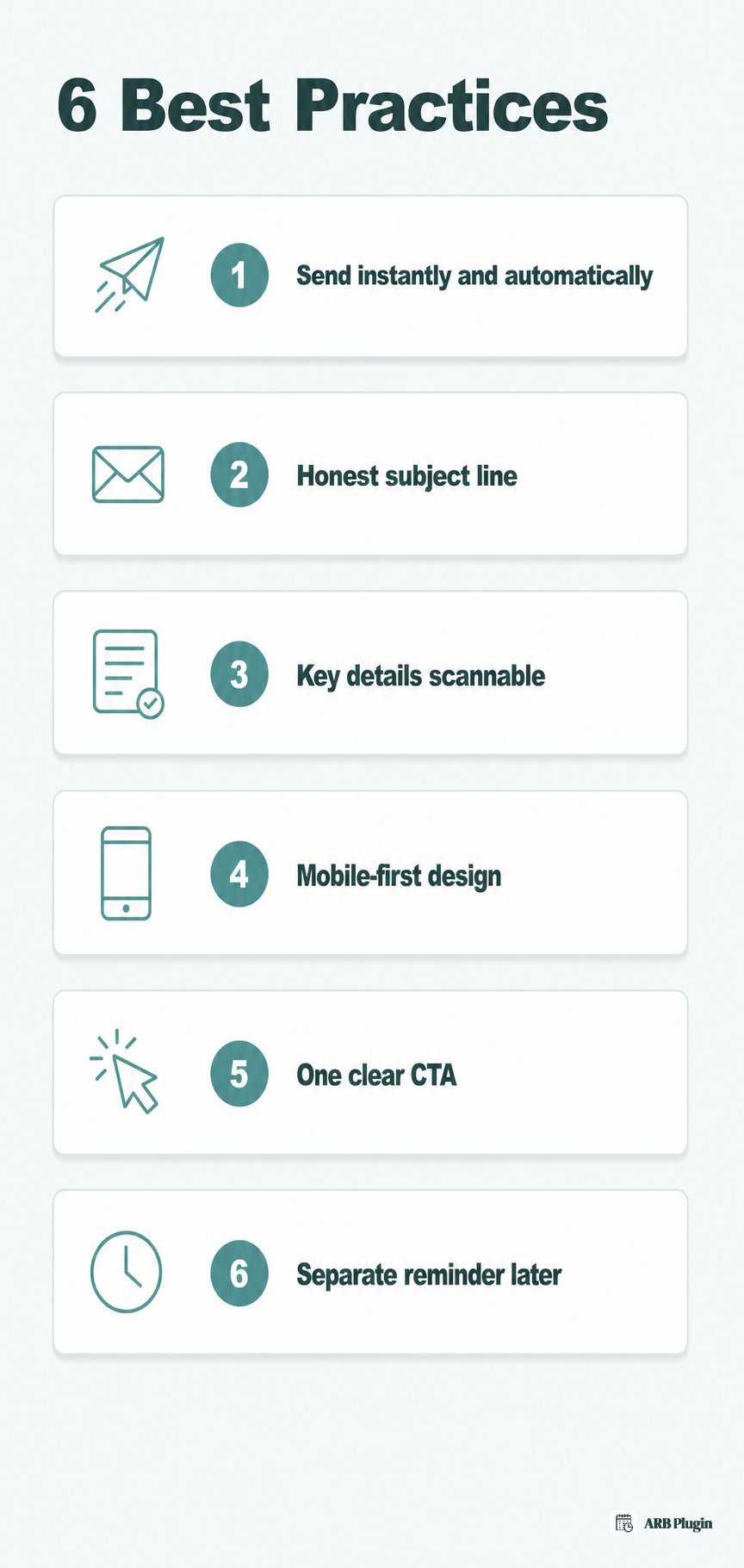
Six practices separate a confirmation email that works from one customers ignore.
- Send it immediately and automatically: the moment the booking completes, not hours later by hand. This also helps prevent double booking by confirming the slot before another customer can claim it.
- Write an accurate, non-deceptive subject line: name the booking and the business, for example "Your booking is confirmed: #12345." The FTC's CAN-SPAM guidance treats a booking confirmation as transactional email, not marketing. Even so, the subject line cannot mislead the recipient about the message's contents.
- Keep the key details scannable near the top: date, time, location, and price, not buried inside paragraph text.
- Design for mobile first: a single-column layout and large, tappable buttons, since most confirmation emails open on a phone.
- Include one obvious call to action: a manage-booking or cancel-booking link, not three competing buttons.
- Send a separate reminder closer to the date: a confirmation is not a reminder. Send a separate reminder email nearer the appointment to cut no-shows.
Booking confirmation email templates by scenario
Three scenarios cover most bookings: appointments, hotel and reservation stays, and rentals. The same structure adapts to flight, event, and restaurant confirmations, with different fields swapped in.
Appointment confirmation email template
This template fits salons, clinics, consultants, and coaches.
Subject: Your appointment with [Business name] is confirmed for [Date] at [Time] Hi [Customer name], Your appointment is confirmed. Here are the details: Service: [Service] Date and time: [Date] at [Time] ([Duration]) Provider: [Practitioner or resource] Location: [Location] Price: [Price] Need to change your booking? Reschedule or cancel here: [Manage booking link] Cancellations inside [Cancellation window] may be subject to our cancellation policy. [Business name]
Hotel and reservation confirmation email template
This template fits hotels, guesthouses, and vacation rental stays, and adapts easily to a restaurant table reservation.
Subject: Your stay at [Hotel name] is confirmed, confirmation number [Confirmation number] Hi [Guest name], Thank you for booking with us. Here are your stay details: Room type: [Room type] Check in: [Check-in date] at [Check-in time] Check out: [Check-out date] at [Check-out time] Number of guests: [Number of guests] Length of stay: [Number of nights] nights Total price: [Total price] Deposit or balance due: [Deposit or balance due] Cancellation policy: [Cancellation policy] Address: [Property address] We look forward to hosting you. [Hotel name]
Rental booking confirmation email template
This template fits equipment, vehicle, and gear rentals, with a pickup and return window instead of a single time slot.
Subject: Your rental is confirmed: [Item or equipment], [Pickup date] Hi [Customer name], Your rental booking is confirmed. Here are the details: Item: [Item, equipment, or vehicle] Pickup: [Pickup date] at [Pickup time] Return by: [Return date] at [Return time] Rental length: [Rental duration] Price paid: [Price], deposit: [Deposit] Pickup location: [Pickup location] Please bring: [What to bring] Reference: [Booking reference] [Business name]
How to automate booking confirmation emails in WordPress and WooCommerce
You automate booking confirmation emails through your booking system's built-in transactional email, not by writing each one by hand.
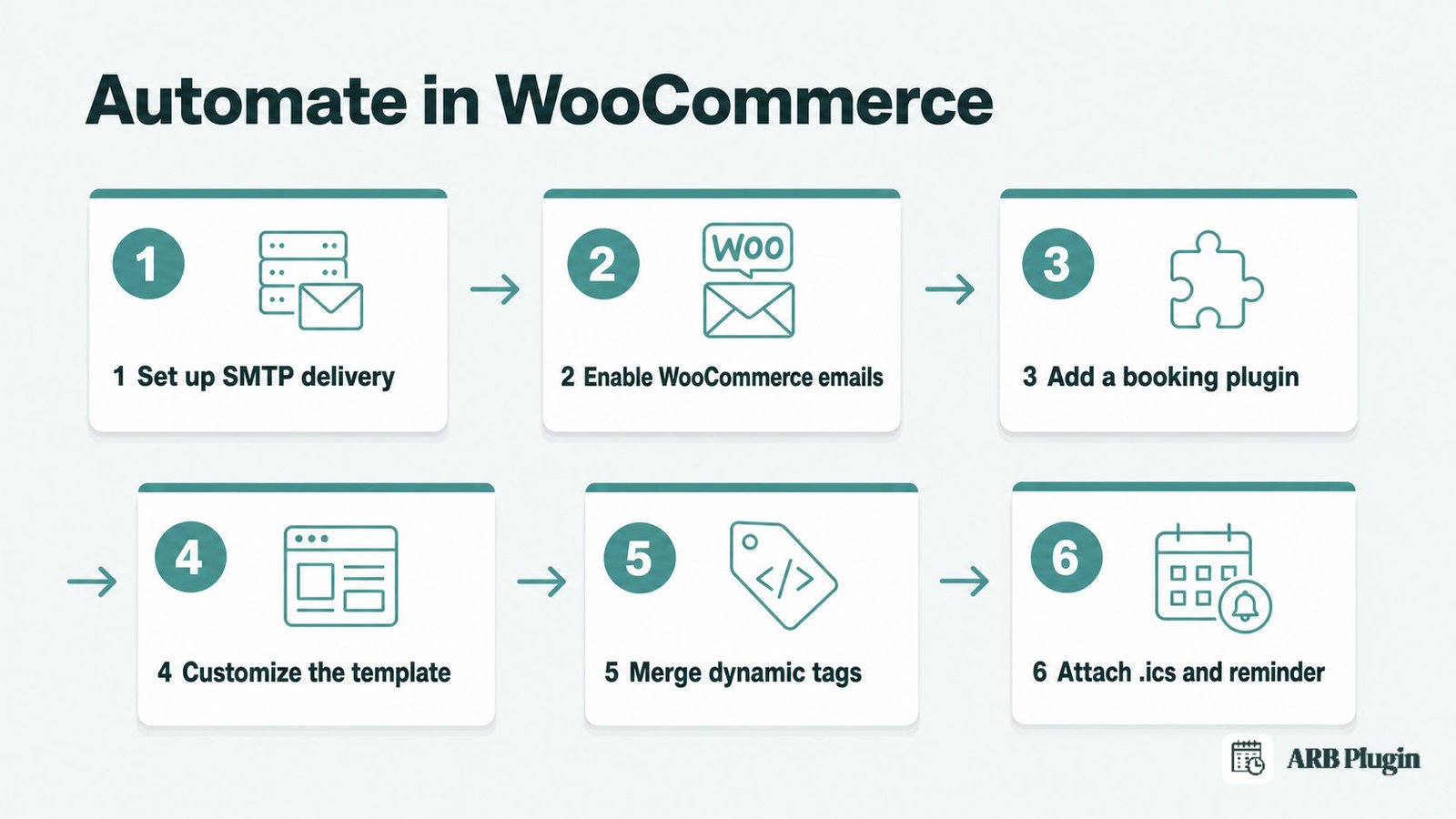
- Set up reliable email delivery first. WordPress's default mail function often gets flagged as spam by hosts. Route store email through a dedicated SMTP or transactional-email provider before configuring anything else.
- Turn on WooCommerce's transactional emails under WooCommerce, then Settings, then Emails.
- Add a booking plugin so it turns a WooCommerce item into a bookable product that triggers its own reservation-specific confirmation.
- Enable and customize the confirmation template inside the booking plugin's notification settings.
- Use dynamic tags to merge the customer's name, date, and booking details into the template automatically.
- Attach an .ics file and schedule a separate reminder email, both optional but recommended.
Once these pieces are in place, your online booking system sends the confirmation automatically, with no manual step required.
How ARB sends and customizes booking confirmation emails
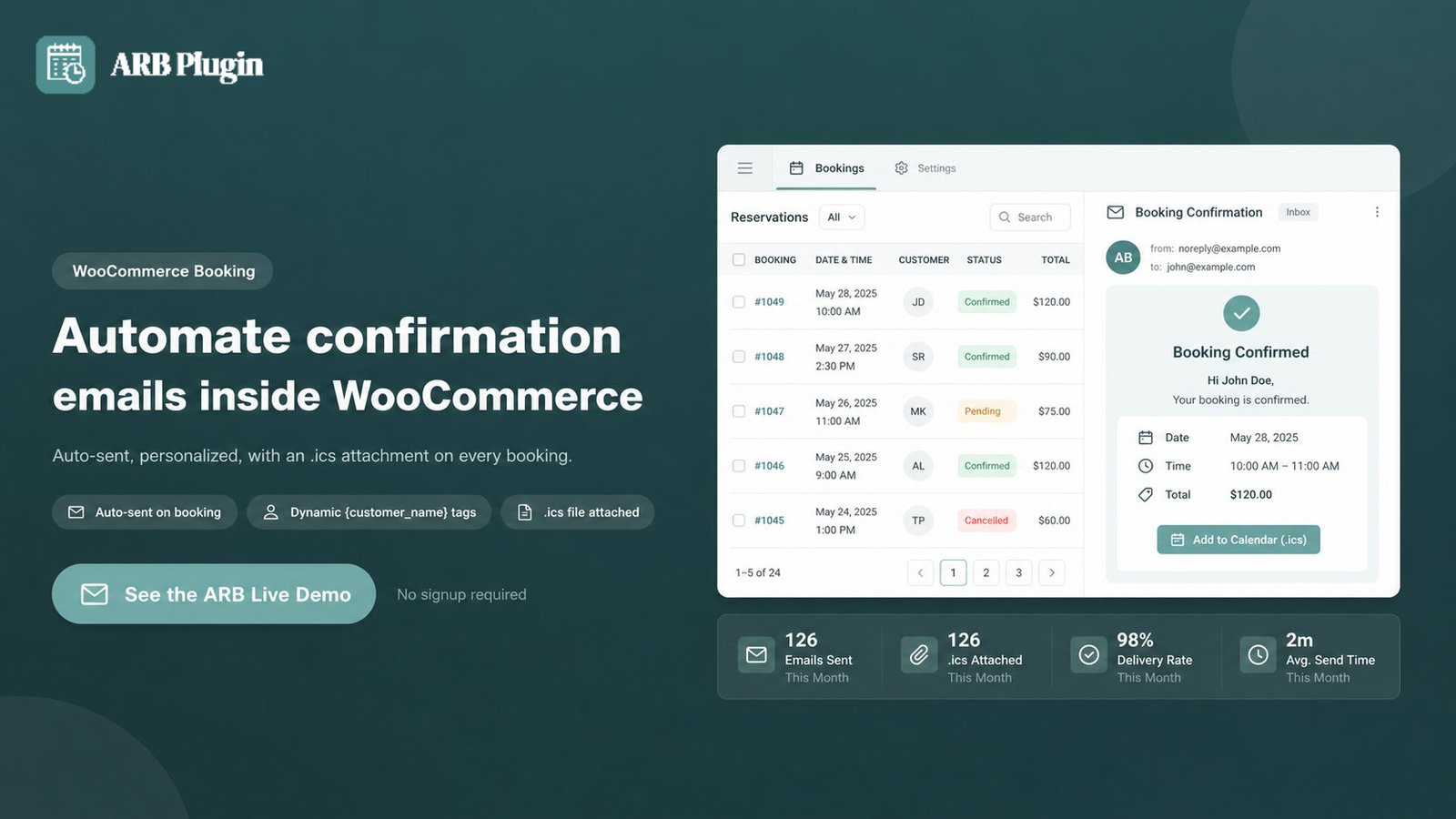
ARB automatically sends a customizable confirmation email inside WooCommerce the moment a reservation is placed, using the store's existing WooCommerce email system.
ARB sends booking confirmation and reminder emails automatically through WooCommerce's own Settings and Emails template. Confirmations behave like the rest of the store's transactional email, not a separate bolted-on system. ARB is a one-time WooCommerce-native license, not a subscription, so this notification system ships with the base plugin.
ARB's notification emails are customizable with dynamic tags such as {customer_name}, so each message is personalized without manual typing. Every notification also attaches an iCalendar (.ics) file automatically, and admins send manual or bulk reminders with centralized timezone handling.
Native Google Calendar sync is a separate paid add-on, and it runs one way only, from ARB to Google Calendar. The .ics export ships in core, so every store gets the calendar attachment without buying anything extra.
See this confirmation flow yourself in the ARB live demo.
FAQs
What is a booking confirmation email?
A booking confirmation email is the automated transactional message a business sends the moment a customer books. It confirms the reservation and its key details, such as service, date, time, location, and price.
How do you write a booking confirmation email?
Follow these steps to write one.
- State the booking in an accurate subject line
- Greet the customer by name
- List the service, date, time, location, and price
- State the cancellation terms and the next step
- Send it immediately and automatically
When should a booking confirmation email be sent?
Send it immediately, automatically, the moment the booking completes. A separate reminder email follows later, closer to the appointment or stay date.
How do I confirm a booking by email?
Automate it through your booking system so the confirmation sends the moment checkout completes. Confirming manually means replying with the exact date, time, location, price, and next step.
Is a booking confirmation email the same as a receipt?
No. A receipt proves payment; a confirmation proves the reservation and its details, such as date, time, and location. Many businesses combine both in one email.
What is the difference between a confirmation email and a reminder email?
A confirmation email fires the moment the booking completes. A reminder email fires later, closer to the appointment, specifically to cut no-shows.
Should a booking confirmation email include a calendar (.ics) file?
Yes. An .ics attachment lets the customer add the booking to their calendar in one tap. It is recommended, though not every business includes one.