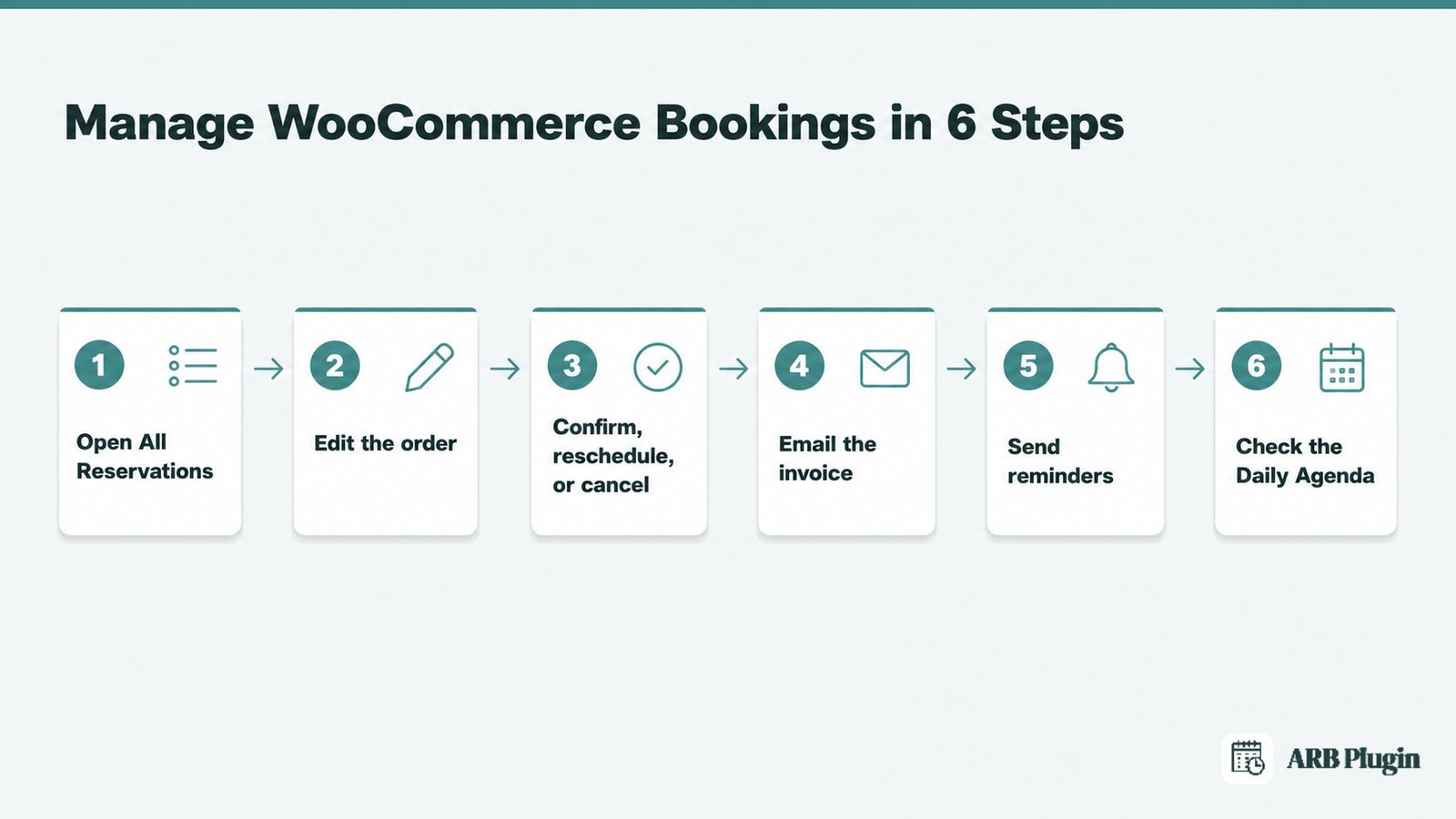
Managing WooCommerce bookings with ARB means viewing every reservation, confirming or editing it, and reminding the customer, all from one admin screen. Six steps cover the admin side: open All Reservations, edit an order, confirm or reschedule, email an invoice, send reminders, and check the Daily Agenda.
Below: the full admin workflow, how customers manage their own bookings from My Account, and tips for a busy booking calendar.
What Managing WooCommerce Bookings Involves
Managing WooCommerce bookings means viewing, confirming, editing, canceling, and reminding on reservation orders, plus letting customers handle their own. In ARB, all of this happens inside WooCommerce's native order flow, not a separate booking dashboard.
Every reservation a customer makes becomes a normal WooCommerce order tied to a Reservable Product. You work that order the same way you would any other: open it, check its status, change it, and email the customer. ARB adds a Reservations menu on top of that order flow for the list view, the confirm step, and bulk reminders.
If you have not set up online booking on WordPress yet, start there first. Here is how to do it in ARB.
Before You Begin in ARB
You need ARB installed and activated with its 9-digit token, at least one Reservable Product live, and bookings already coming in. Every management feature in this guide lives under the Reservations menu.
License required: ARB is a one-time CodeCanyon license, about 55 US dollars. Every feature in this guide, All Reservations, Send Notification, and the Daily Agenda, ships in that single license. There is no separate management tier to buy. Google Calendar sync ($19 one-time) and SMS reminders ($15 one-time) are the only two paid add-ons. Neither one is required to confirm, edit, or remind a customer about a booking.
Features you'll use:
- All Reservations for viewing, searching, and filtering every booking
- Send Notification for manual and bulk reminder emails
- Daily Agenda for a fast overview of today's reservations
- My Account on the customer side, for self-service viewing, paying, and canceling
Reminder emails use WooCommerce's own Emails template under WooCommerce > Settings > Emails, so you are editing a template you may already know.
Where to start: open WP-Admin, then Reservations.
You need at least one booking to manage, so add a booking to WooCommerce first if you have not already.
See ARB's booking management running on real reservations in the live demo before you touch your own store.
How to Manage Bookings in WooCommerce with ARB, Step by Step
Six steps take a full inbox of reservations to a confirmed, notified booking calendar. Start with the master list.
Step 1: Open All Reservations to see every booking
All Reservations is the master list of every booking your store has taken, searchable and filterable in one place.
Go to WP-Admin ��� Reservations ��� All Reservations. Filter the list by date or by reservable product, or use the search form to find one specific order.
[Screenshot needed: ARB's All Reservations list with the date and product filter and search box visible] Alt: ARB All Reservations admin screen showing bookings with a date filter, a product filter, and a search box above the results table.
Done looks like this: you can see and locate any booking without leaving the page.
���� Tip: filter by product before a busy day, so you only see that service's bookings.
Step 2: Open a reservation to view and edit its details
Opening one reservation lets you inspect and correct its details before you confirm or notify the customer.
Click the Search icon on the booking's row in All Reservations to open its order. On the Edit Order screen, change the resource, the start and end date and time, and the number of persons and person types. You can also update other field values and the cost. Add a private note for internal context that the customer never sees.
[Screenshot needed: an individual order view showing the private-note box, the Order Actions dropdown, and the Status field] Alt: ARB individual reservation order screen showing a private-note text box, an Order Actions dropdown menu, and a Status field set to Unpaid.
Done looks like this: the order's details are corrected and saved.
���� Tip: after you edit an order, resend the corrected invoice to the customer in one click from the same screen. You never need to ask them to rebook from scratch.
Step 3: Confirm, reschedule, or cancel a booking
Confirming, rescheduling, and canceling are three separate actions, and each one changes the order and notifies the customer differently.
| Action | Where | Result |
|---|---|---|
| Confirm | Edit Reservation ��� Status dropdown ��� Confirmed ��� Save Reservation | If the order was Unpaid, the customer gets an email with a payment link to My Account and completes on payment |
| Reschedule | Edit Reservation ��� change the start and end date and time, and the resource if needed | The booking moves to the new slot on the same order |
| Cancel | Edit Reservation ��� set the order status to Cancelled | The booking closes and the slot reopens for other customers |
If you require admin confirmation on a product, no payment method appears at checkout until you confirm. The customer pays afterward from their My Account page, not at checkout. Any refund runs through WooCommerce's own refund controls on the order. ARB adds no separate refund or deposit engine, because every booking is a native WooCommerce order. When rescheduling into a different time, make sure you open the right time slots first. For the full policy behind allowing or refusing a cancellation, see how to manage booking cancellations.
Done looks like this: the booking sits in the right status, and the customer has been notified.
Step 4: Email an invoice or order details to a customer
You can resend a customer's invoice or order details on demand, without waiting for an automated email to fire.
Open the individual order, click the Order Actions dropdown, choose Email invoice / order details to customer, then click Update.
Done looks like this: the customer has their invoice in their inbox.
If a confirmed booking still needs payment, here's how to accept payment for the booking.
Step 5: Send manual or bulk reminders with Send Notification
Send Notification reminds every customer booked for one product in a single action, instead of emailing each order by hand.
Go to WP-Admin ��� Reservations ��� Send Notification. Pick the reservable product, write a subject and message, and use dynamic tags such as {customer_name} to personalize it. Turn on Attach iCalendar to include an .ics file the customer can add to their own calendar. Click Send Notification.
[Screenshot needed: the Send Notification screen with the product selector, subject field, message with a customer_name tag, and the Attach iCalendar toggle] Alt: ARB Send Notification screen showing a product selector, a subject field, a message with the customer_name tag, and Attach iCalendar switched on.
Done looks like this: every customer with a future reservation for that product has been emailed. SMS reminders need the separate paid SMS add-on ($15 one-time). Core reminders are email plus the iCalendar attachment.
To move past manual sends and automate appointment reminders, see the full guide. See the ARB documentation for the complete field reference on every screen in this section.
Ready to run all of this on your own store? Get the ARB booking plugin and manage bookings the same way starting today.
Step 6: Run your day from the Daily Agenda
The Daily Agenda gives you a fast overview of the day's reservations, so nothing gets missed.
Go to WP-Admin ��� Reservations, then open the Daily Agenda view.
[Screenshot needed: the Daily Agenda view] Alt: ARB Daily Agenda admin screen listing the current day's reservations in a single scannable view.
Done looks like this: you can see today's bookings at a glance before your first appointment starts.
How Customers Manage Their Own Bookings in ARB
Customers manage their own reservations from the WooCommerce My Account area. They view upcoming and past bookings, pay a confirmed-but-unpaid booking through the payment link, and cancel before the appointment when the product allows it.
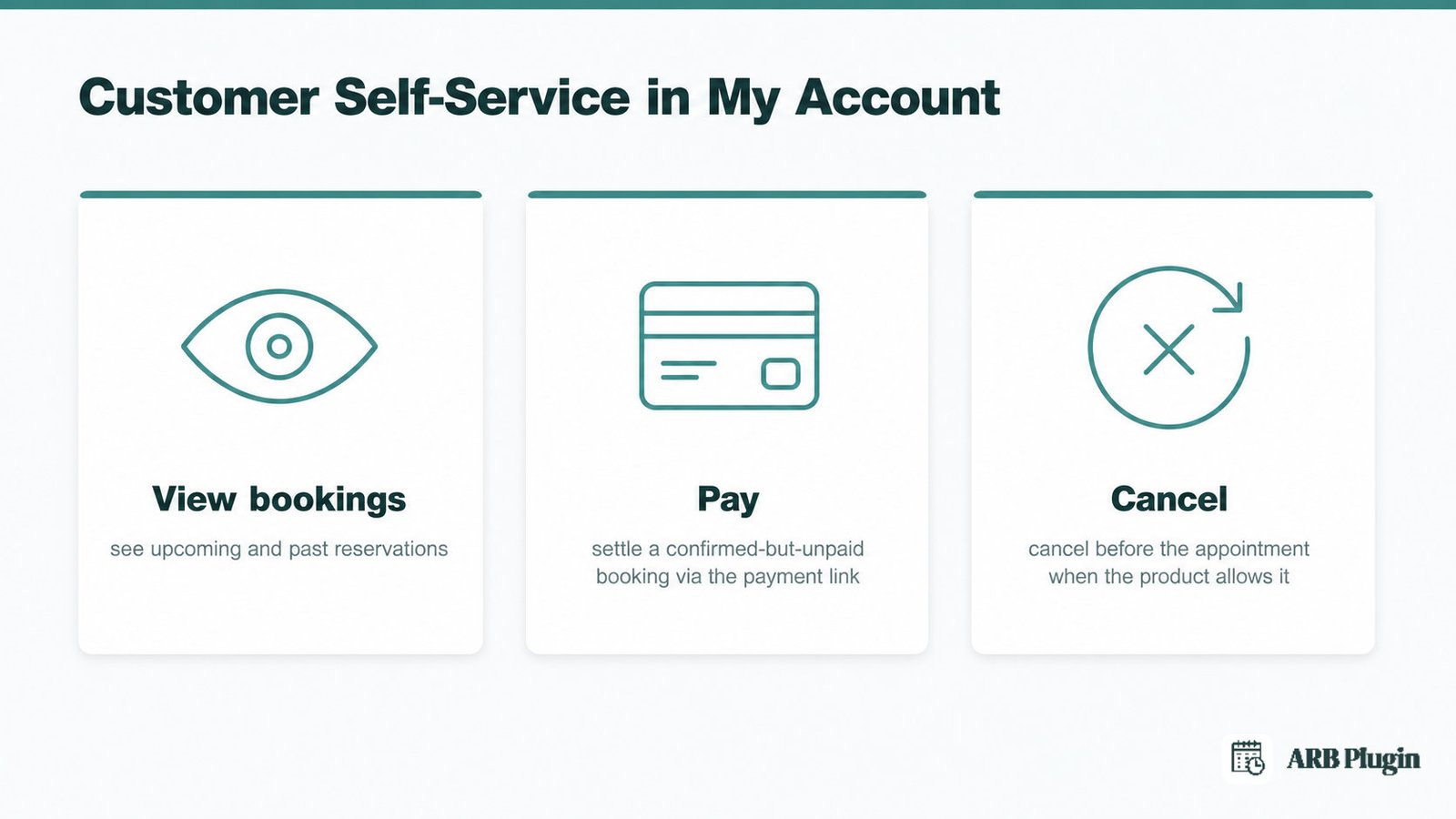
From My Account, a customer can:
- View every upcoming and past reservation tied to their account
- Pay a booking you confirmed but that was left unpaid, using the link in their confirmation email
- Cancel a reservation before the appointment, if the product's Can be cancelled option is enabled
A customer can only cancel when you have enabled cancellation on that specific reservable product. The payment link only appears on My Account after you confirm an unpaid order, not before. Self-service on My Account is what keeps this off your desk: customers rebook, pay, and cancel without an email back and forth.
ARB Tips for Managing Bookings Faster
Filtering All Reservations by product before a busy period is the single fastest way to triage a full booking calendar.
- Filter before peak periods. Use the product filter on All Reservations to see just one service's bookings before a busy day, instead of scrolling the full list.
- Edit instead of asking for a rebook. Change the resource, persons, or cost on an existing order, then resend the invoice in one click, rather than making the customer start over.
- Personalize bulk reminders. Use
{customer_name}and the Attach iCalendar toggle together in Send Notification, so reminders read as personal and add themselves to the customer's calendar. - Gate payment behind confirmation for quote-first work. Turn on confirmation-required mode for services you need to approve first, then let the customer pay from My Account once you confirm.
FAQs
Where do I find all my bookings in WooCommerce with ARB?
Go to WP-Admin ��� Reservations ��� All Reservations. Filter by date or by reservable product, or use the search form to find one order.
How do I confirm an unpaid booking so the customer pays?
Open the order's Edit Reservation screen, set Status to Confirmed, then click Save Reservation. The customer gets an email with a payment link to My Account and completes the order on payment.
Can I reschedule or edit a booking without asking the customer to rebook?
Yes. Change the date, time, resource, persons, or cost on the existing order in Edit Reservation, then resend the invoice to the customer in one click.
Can customers cancel or manage their own bookings?
Yes, from their My Account page. They can view past and upcoming bookings, pay a confirmed-but-unpaid booking, and cancel before the appointment if the product allows cancellation.
Is booking management part of the one-time ARB license, or an add-on?
It is part of the core one-time license. All Reservations, Send Notification, and the Daily Agenda cost nothing extra. Only Google Calendar sync ($19 one-time) and SMS reminders ($15 one-time) are separate paid add-ons.
How do I send a reminder to everyone booked for one product?
Go to Reservations ��� Send Notification, pick the product, write your message with a tag like {customer_name}, optionally attach an iCalendar file, then click Send Notification.
Why does a paid booking show Processing instead of Completed?
ARB marks an order Completed automatically only when the reservable product is virtual and downloadable. Physical or virtual-non-downloadable bookings go to Processing so you can still manage fulfillment.
Managing bookings in WooCommerce with ARB stays inside the store you already run, in one order flow, with one place to confirm, edit, and remind. Get ARB, a one-time license with no yearly fees, and start running your bookings this way today.