Managing booking cancellations means handling a customer's request to cancel or move a reservation without losing the slot, the payment, or the relationship. In your own WordPress and WooCommerce system, four parts drive it: your cancellation policy, self-service and admin cancellation, rescheduling, and the refund that follows.
This guide covers six steps, from writing the policy to freeing the slot. It also covers cutting cancellations before they happen and the mistakes that turn a routine cancellation into a chargeback dispute.
What Managing Booking Cancellations Actually Means
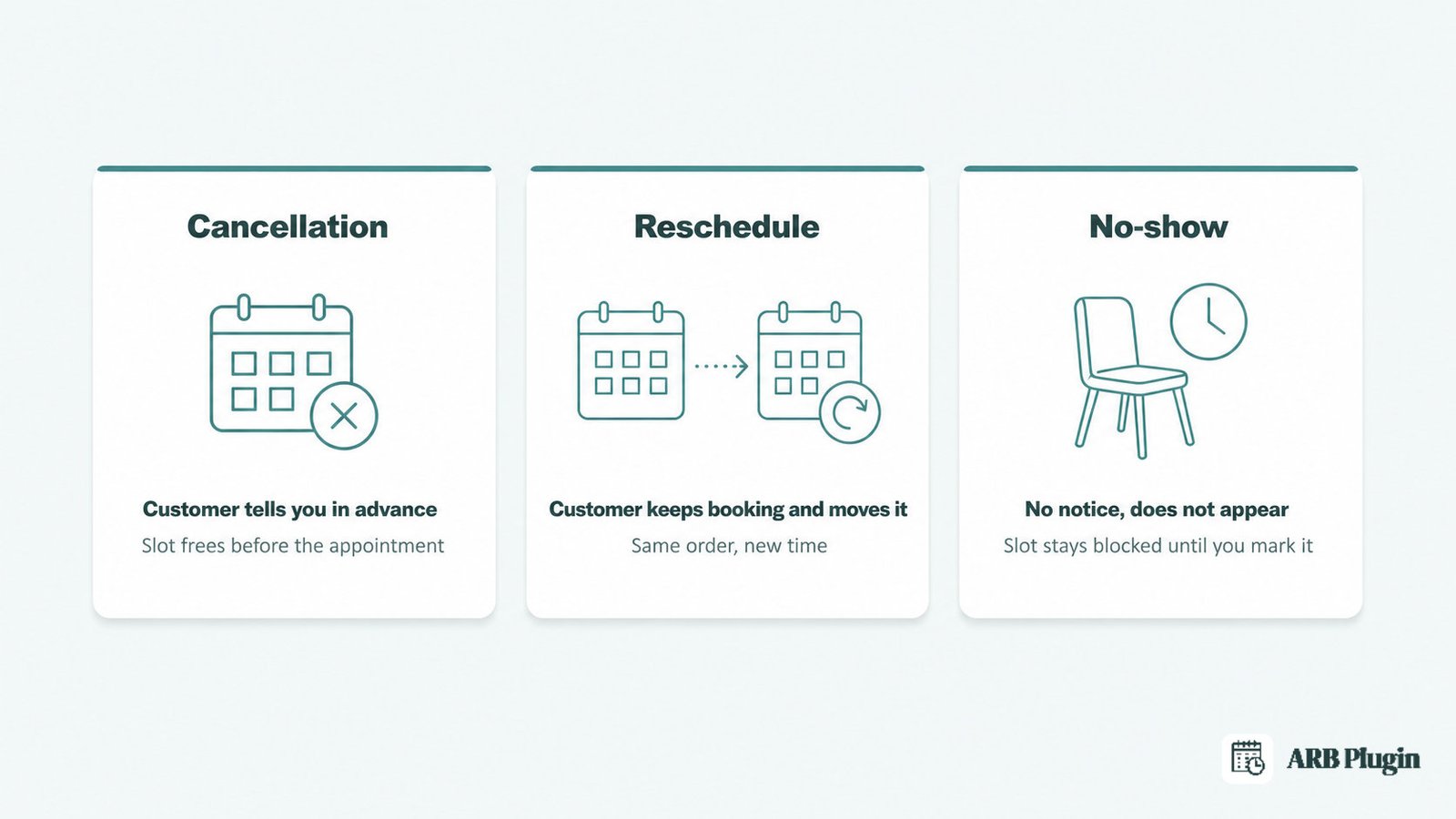
Managing booking cancellations is the operator's job of responding when a customer wants out of a reservation. Handle it well and you protect the slot, the payment, and the relationship. The job covers three distinct events, and confusing them causes most of the mistakes below.
- Cancellation: the customer tells you in advance they will not use the booking, and you release it before the appointment time.
- Reschedule: the customer keeps the booking but moves it to a different date, time, or resource.
- No-show: the customer does neither. They do not cancel, do not reschedule, and simply do not appear.
A cancellation frees the slot immediately once you act on it. A reschedule keeps the same order alive and just moves it. A no-show leaves the slot occupied on paper until you mark it, which is why the mistakes below repeat so often.
What You Need Before You Start
Before you touch a single reservation, gather five things so every cancellation follows the same rule instead of an improvised decision.
- Admin access to your WordPress site, so you can open reservations and change their status.
- A WooCommerce store with a booking or reservation plugin installed and taking live bookings.
- A written cancellation policy that sets your notice window and your refund or fee tiers.
- Your payment gateway's refund capability, since refunds run through the same processor that took the payment.
- A decision on whether customers may cancel their own bookings, and up to when.
If you have not set up booking yet, start with adding online booking to WordPress before working through this guide. This walkthrough assumes you already run WooCommerce appointment booking day to day.
How to Manage Booking Cancellations: Step by Step
Here is the repeatable workflow, from policy to freed slot.
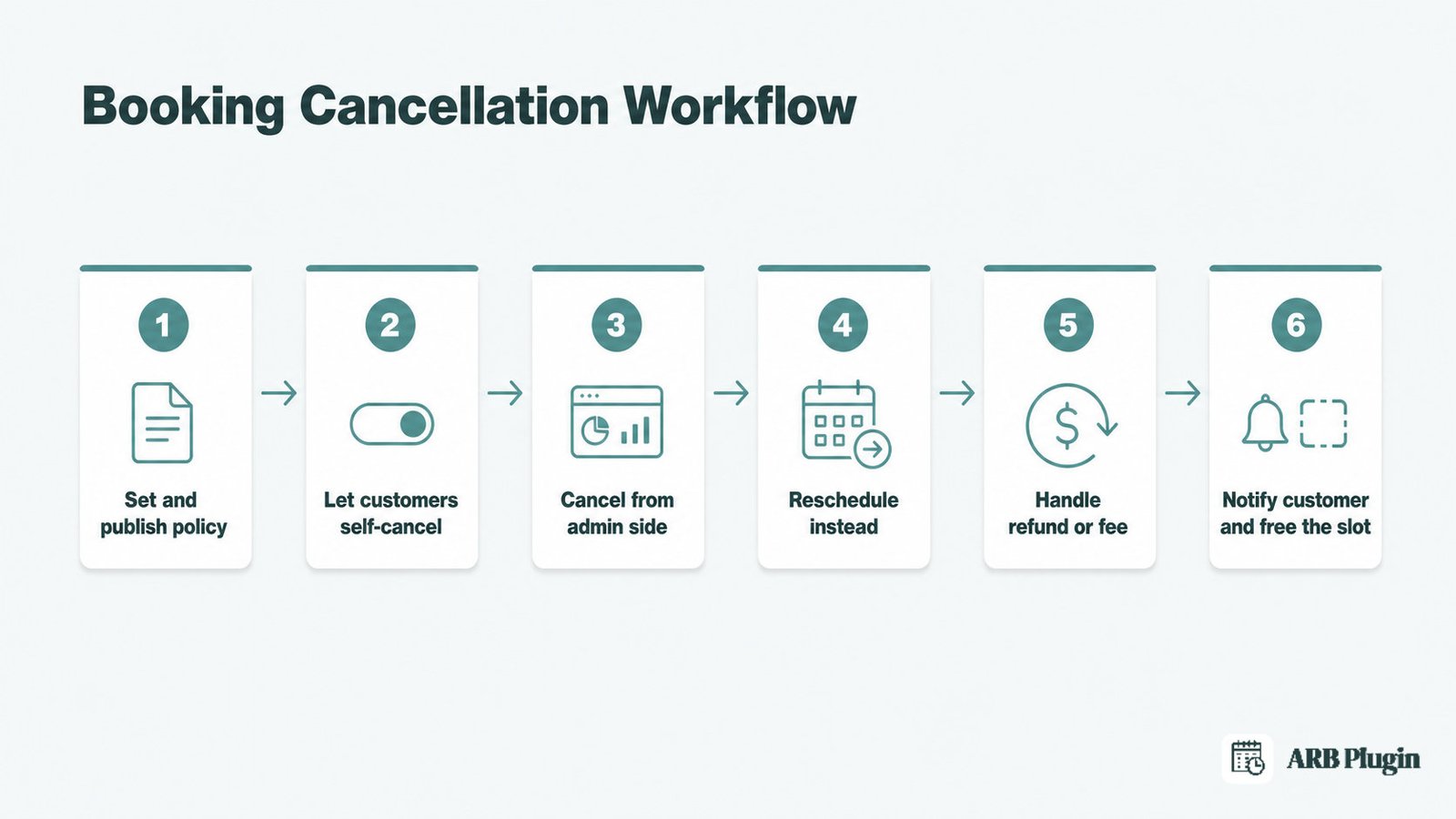
Step 1: Set and Publish Your Cancellation Policy
A cancellation policy decides three things before a customer asks: how much notice you require, what they get back, and how they request a change. Write it down and put it where customers see it before they book.
Set your notice window first, such as 24 or 48 hours before the appointment. Then set refund or fee tiers tied to that window. A full refund outside the window and a partial refund or fee inside it is a common split. State exactly how a customer requests a cancellation or a change, whether that is a form, an email address, or a self-service link.
Do not write this from scratch. Start from a clear booking cancellation policy or copy a cancellation policy template and adjust the numbers to your own business.
���� Using ARB? The per-product Can be cancelled setting, in the Reservable Product's General tab, is where this written policy becomes enforceable. Turn it on for products where customers may cancel themselves, and leave it off for products where every cancellation must route through you.
Done: Your policy states the notice window and the refund tiers. It appears at checkout or on the booking page, not just in a terms document nobody opens.
Step 2: Let Customers Cancel Their Own Bookings
Turn on self-service cancellation so a routine request never has to reach your inbox. The customer cancels the booking themselves, and you only step in for the exceptions your policy does not cover.
Self-service cancellation works best for low-risk, easily refillable slots, such as consultations or classes with open capacity. It works poorly for one-off resources with no waitlist, where a late self-cancel still leaves you scrambling to fill the gap.
In ARB, turn on Can be cancelled under the Reservable Product's General tab. Once it is on, the customer cancels their own reservation from their WooCommerce My Account, any time before the appointment begins. This is a binary allow-or-block toggle, not a configurable numeric cutoff field. The actual cancellation timing still lives in the written policy from Step 1.
Done: Can be cancelled is on for the products you want self-served. Your policy states the cutoff in writing, since the setting itself does not enforce a time limit.
Step 3: Cancel a Booking From the Admin Side
Phone and email cancellation requests still need you to act inside the system, not just reply to the customer. Cancelling anywhere else leaves the slot blocked and the booking record inconsistent.
Confirm the booking details with the customer before you touch the order. Check the date, the resource, and any add-ons so you cancel the right reservation the first time.
In ARB, open Reservations > All Reservations, find the order, and open it. Change the order Status to reflect the cancellation. Add a private note for your own records. Email the invoice or order details to the customer so they have a written record of what changed.
For the full admin workflow beyond cancellations, see how to manage bookings in WooCommerce.
Done: The order status reflects the cancellation. The customer has an emailed record of the change.
Step 4: Reschedule Instead of Cancelling
A reschedule keeps the booking alive and moves it, so treat it as an edit, not a cancel-and-rebook. Cancelling and creating a new order loses the original payment link and the booking history.
Ask the customer for their preferred new date, time, and resource before you edit anything. Confirm the new slot has capacity before you commit the change.
In ARB, open the reservation and use Edit/Update Reservation. Change the start and end date-time, the resource, the number of persons or person types, and the cost if the new slot is priced differently. One click resends the updated invoice email to the customer, so they get a fresh confirmation without a second checkout.
Done: The same order now reflects the new time. The customer has the updated invoice in hand.
Step 5: Handle the Refund or Cancellation Fee
Your policy decides whether the customer gets a full refund, a partial refund, or nothing back. The mechanics of actually returning the money happen at the store level, not inside a separate booking system.
Match the refund amount to the notice window your policy already set in Step 1. Keep the reasoning consistent from one customer to the next so no one has grounds to dispute it later.
ARB bookings are standard WooCommerce orders, so refunds are processed at WooCommerce > Orders, using the order's Refund action, exactly like refunding any other product. WooCommerce's own Refunding Orders documentation confirms this same order-level flow: open the order, go to the order summary, select Refund, and enter the amount.
���� Using ARB? ARB has no native deposit or partial-payment engine, so a cancellation fee is not a built-in field. Your policy might charge a fee. Calculate it manually and issue a partial refund at the WooCommerce order level for the portion the customer gets back.
Done: The order shows a refunded or partially refunded status. The amount matches your policy's fee tier for that notice window.
Step 6: Notify the Customer and Free the Slot
Cancelling in the booking system does two things automatically. It reopens the capacity for someone else to book, and it gives you a record to notify the customer from.
Confirm the cancellation or reschedule with the customer in writing, even for a phone request. That way there is no dispute later about whether it went through.
In ARB, cancelling an order frees the Max Reservations per Slot capacity for that time, so the slot becomes bookable again without any manual reset. Skipping the system and only telling the customer by phone leaves the slot showing as full.
���� Using ARB? Send the confirmation through Reservations > Send Notification, using dynamic tags like {customer_name}. The message stays personalized without writing it by hand for every cancellation.
Pair this with a reminder cadence so future no-shows drop too. See how to send appointment reminders for the full setup.
Done: The slot shows open capacity again. The customer has received a cancellation or reschedule confirmation.
How to Reduce Booking Cancellations
Cutting cancellations before they happen is cheaper than handling them well after the fact. Four levers do most of the work.
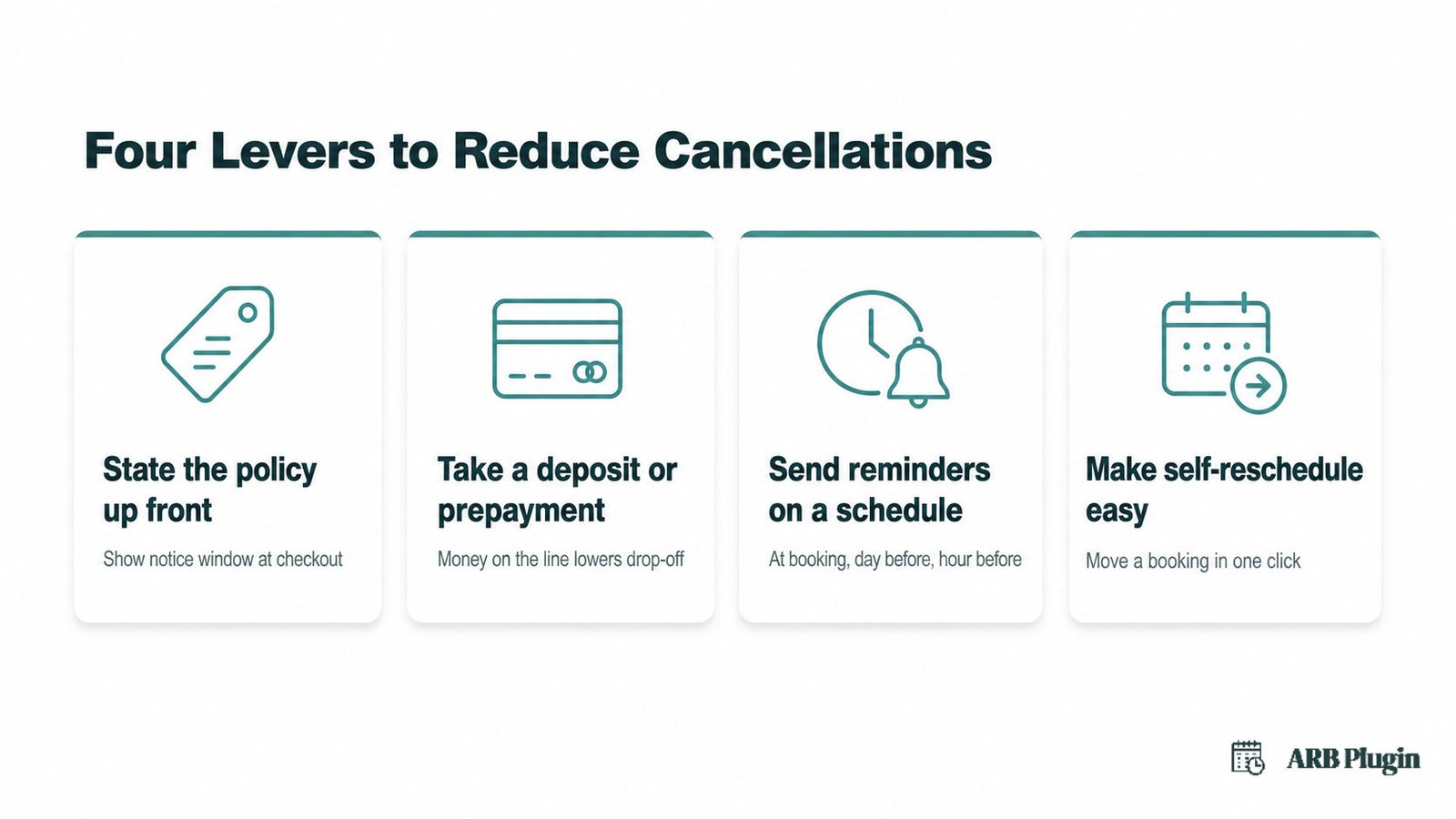
- State the policy up front: show the notice window and refund tiers at checkout, not buried in a terms page.
- Charge a deposit or require prepayment where it fits your business: ARB has no native deposit or partial-payment field, so this lever runs through your policy and your payment gateway's own tools, not a plugin setting.
- Send reminders on a schedule: a reminder at booking, one the day before, and one an hour before catches most people who would otherwise forget.
- Make self-reschedule easy: a customer who can move a booking in one click is less likely to cancel it outright.
For the deeper breakdown of stopping no-shows specifically, a related but distinct problem from cancellations, see how to reduce no-shows.
Common Booking-Cancellation Mistakes to Avoid
The most damaging mistake is running your business with no visible cancellation policy at all. Customers then dispute charges instead of following a rule they never saw, and card networks tend to side with them.
- No written or visible cancellation policy: customers dispute charges and file chargebacks because they never agreed to a rule in writing. Publish your policy and show it at checkout, not buried in a terms page.
- Admin-only cancellation, with no self-service option: every routine cancel becomes a phone call or an email in your inbox, and last-minute no-shows climb as customers wait instead of acting. Turn on customer self-cancellation for the requests that do not need your judgment.
- Cancelling outside the booking system, or forgetting to notify: the slot stays blocked even though the customer is gone, and the customer is left guessing whether the cancellation went through. Cancel inside the system so capacity frees automatically, then send the notification.
- No refund rule tied to the notice window: refunds become inconsistent from one customer to the next, and inconsistency is what triggers arguments and repeat disputes. Set refund and fee tiers by notice window in the written policy before the first request arrives.
- Treating a reschedule as a cancellation followed by a new booking: you lose the original order's payment link and booking history, and the customer re-enters details twice. Edit the existing reservation to move it instead of cancelling and rebuilding it.
FAQs
Can customers cancel a booking themselves?
Yes, once you turn on the Can be cancelled setting for that product. Customers then cancel their own reservation from their WooCommerce My Account, any time before the appointment begins.
How do I cancel a booking as the store owner?
Open Reservations > All Reservations, find the order, and open it. Change the order Status to reflect the cancellation, then email the invoice or order details to the customer.
How do I reschedule a booking instead of cancelling it?
Open the reservation and use Edit/Update Reservation to change the date, time, resource, or persons on the existing order. Resend the updated invoice to the customer in one click.
How do I refund a cancelled booking in WooCommerce?
Refund it at the WooCommerce order level: open the order, select Refund, and enter the amount. The refund follows your payment gateway's own processing timeline.
Is a 24-hour cancellation window standard?
A 24-hour window is common but not universal. Set the window that fits your business in your own written cancellation policy, rather than assuming one length fits every service.
Does cancelling a booking free up the time slot automatically?
Yes, once you cancel the booking inside the system. The slot's Max Reservations per Slot capacity reopens immediately, so it becomes bookable again without a manual reset.
Can I charge a cancellation fee?
Only per your own policy and payment gateway, since a booking plugin like ARB has no native fee or deposit engine. Calculate the fee manually and issue a partial refund for the remainder.
What is the difference between a cancellation and a no-show?
A cancellation is the customer telling you in advance they will not use the booking. A no-show is the customer simply not appearing, with no notice at all.
Should customers be able to cancel right up to the appointment?
That is your call to make in the policy. The Can be cancelled setting allows self-cancellation any time before the appointment begins, but your written policy can still set a stricter notice window.
Where should I show my cancellation policy?
Show it at checkout and on the booking page itself, not only in a general terms document. Customers who see the policy before they pay are far less likely to dispute it later.
Most of this workflow already runs inside the WooCommerce store you have. ARB adds self-service cancellation, admin reschedule and cancel, and automatic slot-freeing to every Reservable Product. Refunds stay in WooCommerce's own order system where you already work. Try the live ARB demo to walk through a booking and a cancellation before you buy.