Embedding a booking form on a WordPress page takes one WooCommerce shortcode. Paste it into a page, post, or builder block, and the form renders live wherever you place it. The same shortcode works in the block editor, Elementor, and WPBakery, with no separate embed code to manage.
This guide covers the three embed types, the exact WordPress steps, and the honest limits on popups and shared links. It closes with the five mistakes that break an embedded form and answers to the most common embedding questions.
What Does Embedding a Booking Form Mean?
Embedding a booking form means placing a working form directly on a page or post. It happens through a shortcode, embed code, or widget, so a visitor can book without ever leaving that page. The form itself already exists somewhere else; embedding only changes where it appears.
Site admins do this after the form already exists, usually on a plugin's default product or settings page. The embed step moves that same form onto a landing page, a service page, or the homepage instead.
Three mechanisms cover almost every case. A shortcode is a bracketed tag like [product_page id="123"]. A copy-paste embed code is a JavaScript or iframe snippet from a hosted tool. A page-builder widget wraps either one inside your builder's layout. WordPress never ships a booking form natively, so every method starts with a form built somewhere first.
Before you place one, it helps to be clear on what a booking form is and does.
The 3 Ways to Embed a Booking Form
Every booking form embed falls into one of three types, and each fits a different placement on your site.
| Embed type | What it is | Best for | How the visitor sees it |
|---|---|---|---|
| Inline embed | The form loads directly inside the page content, in the same spot every time. | A dedicated booking page or any page where booking is the main goal. | The form appears the moment the page loads, no click required. |
| Popup (modal) embed | A button or link opens the form in an overlay above the current page. | Pages where booking is secondary, like a blog post or an about page. | The visitor clicks a button, and the form opens on top of the page. |
| Shared link or button | A button links out to a standalone booking page instead of embedding anything. | Email signatures, social bios, or anywhere you cannot add embed code. | The visitor leaves the current page and lands on a dedicated booking page. |
WooCommerce store owners often prefer forms that stay inside the store, since checkout, coupons, and taxes already work there. That preference points straight at the inline method for a WooCommerce-based site.
What You Need Before You Start
The prerequisite most people overlook is that the form has to exist first. You cannot embed a form that does not exist yet. Build and test it before you try to place it anywhere.
- A WordPress site with edit access to pages and posts.
- The booking form itself, from a booking plugin or a hosted tool's embed code.
- The page or post where you want the form to appear.
- A page builder, only if your site already uses one.
For the full end-to-end setup, including choosing and installing the plugin itself, see add online booking to WordPress.
How to Embed a Booking Form in WordPress (Step by Step)
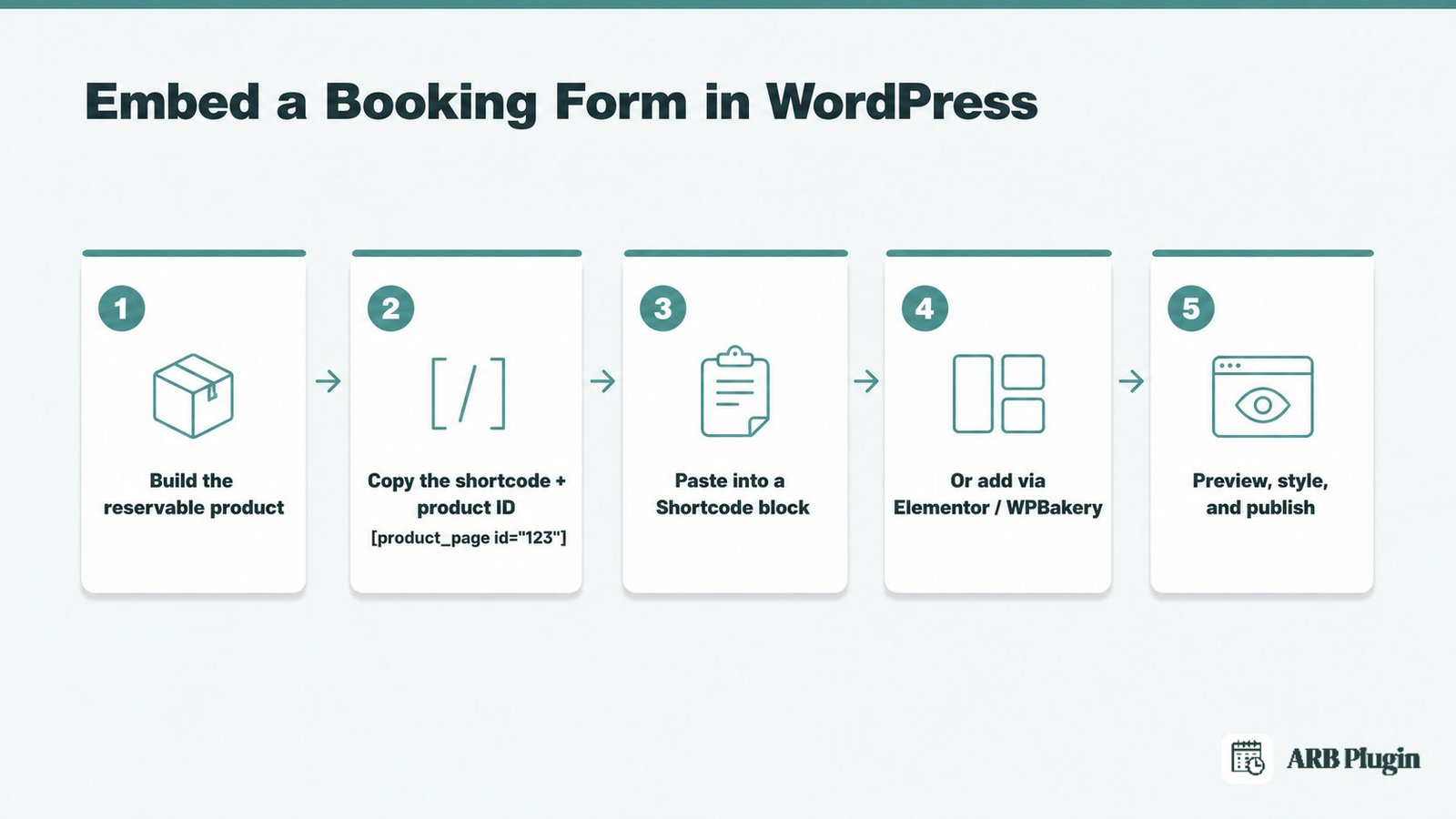
On WordPress, the most reliable way to embed a booking form is a shortcode you paste into any page, post, or builder block. A WooCommerce-native plugin like the ARB booking plugin renders the whole reservation form from that one shortcode, with no separate embed code to manage.
Step 1: Build the booking form you want to embed
You cannot embed a form that has not been built. In WooCommerce, you build the form by turning a product into a Reservable Product, which exposes the booking fields you configure.
Go to Products, then Add New, and set Product Data to Reservable Product. This single product type replaces a plain buy button with date pickers, resources, person types, and pricing rules, based on how you configure it. Skip this step, and the shortcode in Step 2 has nothing to render.
For the full field-by-field setup, see how to create a reservable product.
Done: your product's Product Data type is set to Reservable Product. It has at least one saved configuration tab.
Step 2: Find the form's shortcode and product ID
Every embeddable ARB form uses the same shortcode, [product_page id="your_product_id"], with your product's own ID in place of the placeholder.
Open Products in wp-admin and find your reservable product in the list. Hover over the product link, and its ID appears in the URL after post=. Copy that number, then write the shortcode as [product_page id="184"], using your own ID instead of 184.
Done: you have the exact shortcode string, with your real product ID. It is ready to paste.
Step 3: Paste the shortcode into any page or post
In the block editor, add a Shortcode block, paste [product_page id="..."], and the full form renders wherever you place that block.
Open the page or post where you want the form, not just the product's own page. Click the plus icon, search for Shortcode, and add a Shortcode block. Paste your exact string from Step 2 inside it. Classic Editor users paste the shortcode directly into the content area instead.
The Shortcode block is a core WordPress block, so it works on any theme without an extra plugin.
Done: the page shows the live reservation form, with its date picker, price, and booking button. It does not show raw shortcode text.
Step 4: Or embed it with Elementor or WPBakery
Elementor and WPBakery users paste the same shortcode inside their page builder instead of the block editor.
In Elementor, drag the Shortcode widget onto your layout and paste [product_page id="..."] into its field. WPBakery displays the same reservable product through its native shortcode support. Neither builder needs a special integration, since both simply display the same shortcode inside their own container.
For a full walkthrough with screenshots, see the Elementor booking form guide.
Done: the form renders inside your builder's layout, styled by your builder's columns and spacing. It no longer uses the theme's default page width alone.
Step 5: Preview, style, and publish
Preview the page, pick a date or resource, and confirm the price updates in real time before you publish.
Real-time AJAX pricing is the fastest way to catch a misconfigured product before a customer does. A price that does not change when you adjust the form points to a misconfigured Costs tab on the Reservable Product. Once the preview looks right, publish the page like any other.
ARB Settings includes color options and CSS controls, so the form can match your site's theme instead of a default style. A hide-calendar option is also available for forms that do not need a date picker, such as a fixed one-slot booking. Keep at least one resource or person-type dropdown active when you hide the calendar, or the AJAX price stops calculating.
Once the form is live, set up your booking availability so slots stay accurate. The embedded form runs on your normal WooCommerce checkout, so you can accept payments for appointments the same way you already process any order.
Done: the page is published, and the price updates live. A test booking completes through checkout.
How to Embed a Booking Form as a Popup or Shared Link
The shortcode method embeds a form inline, directly in the page. A popup or a shared link is a different pattern: the form opens in an overlay, or lives behind a standalone link instead.
This guide's shortcode method embeds inline only. It does not include a native popup or a hosted shared-booking link out of the box. Two generic workarounds cover both patterns:
- A popup plugin that wraps the same inline form or shortcode inside a modal window, so it opens on a button click instead of loading automatically.
- A button linking to the standalone product page URL, used as the shared link, since that page already contains the full form.
A hosted scheduling tool is built around a popup or a shared link as its default model. A WooCommerce-native plugin is built around the inline store flow instead, not a floating widget. Pick the tool class that matches what you actually need, inline on your own pages or a floating widget anyone can trigger from anywhere.
Common Mistakes When Embedding a Booking Form
The most common mistake is embedding a form before it exists, or pasting the wrong product ID. Either error makes the shortcode show nothing, or the wrong form entirely.
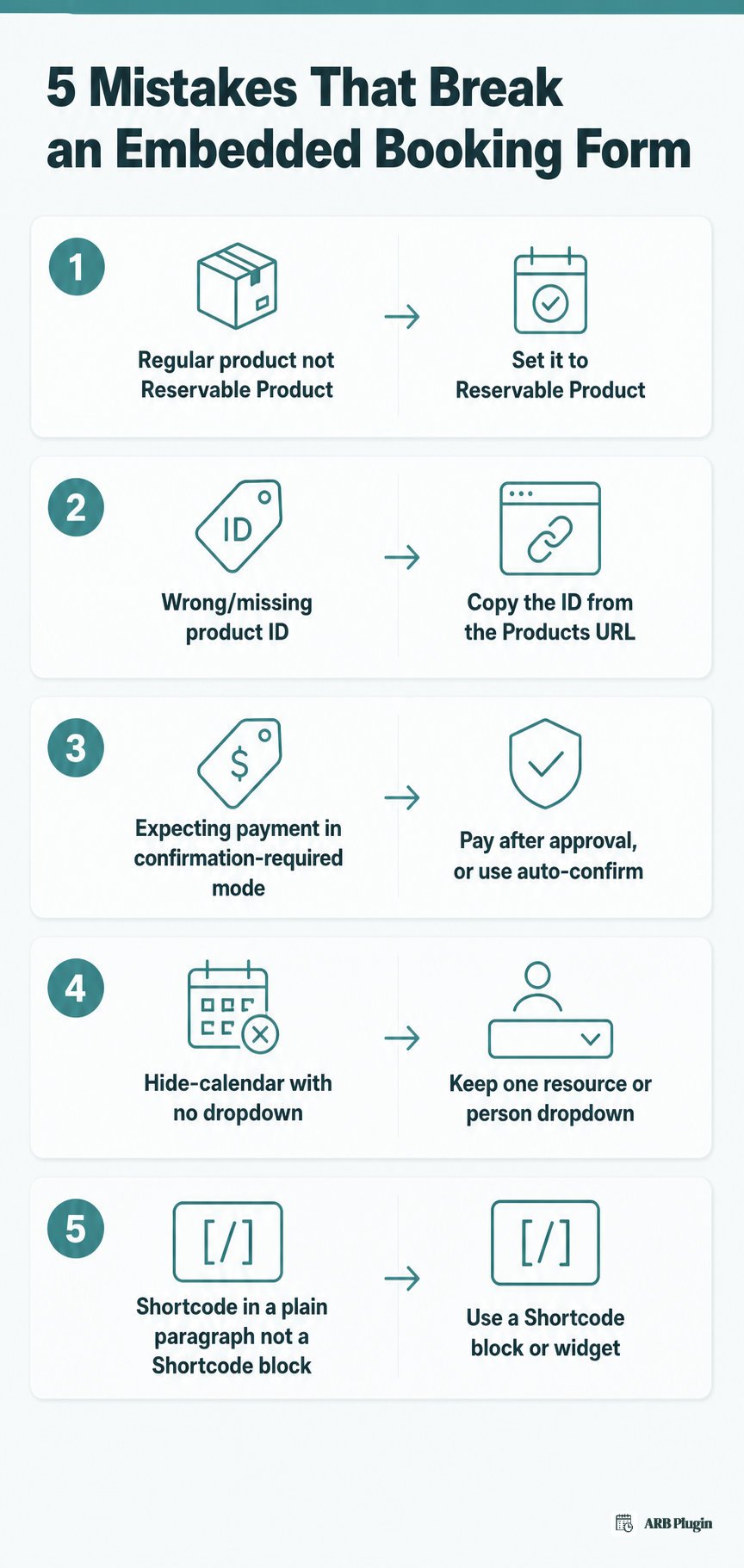
- Using a regular WooCommerce product, not a Reservable Product leaves the form with no booking fields, just a plain buy button. Set Product Data to Reservable Product before anything else.
- Pasting the wrong or missing product ID shows nothing, or renders a different product's form entirely. Copy the ID from the Products list URL, not from memory.
- Expecting a payment step in confirmation-required mode means no payment method appears at checkout, by design. Payment happens after approval, through My Account, or you switch the product to auto-confirm for instant payment.
- Turning on hide-calendar with no dropdown left stops the price from calculating. Keep at least one resource or person-type dropdown active.
- Pasting the shortcode into a plain paragraph instead of a Shortcode block shows raw text on the page instead of the form. Use the block editor's Shortcode block, or your builder's Shortcode widget.
Once bookings start coming in cleanly, send appointment reminders to cut down on no-shows.
FAQs
How do I add a booking form in WordPress?
Build the form first, a Reservable Product in WooCommerce, or any booking plugin's form. Then paste its shortcode or embed code into a Shortcode block on the page you want.
How do I embed a form on my website?
Copy the form's shortcode or embed code, then paste it into a block, widget, or code area on the page. Most page builders and the WordPress block editor both support this directly.
Can I embed a booking form without a plugin?
Only by hand-coding the form in HTML, which means building your own date logic and payment handling from scratch. Most sites use a plugin's shortcode or embed code instead, since it handles validation and checkout automatically.
How do I make a booking form open as a popup?
Use a popup plugin that wraps your existing form or shortcode inside a modal window, triggered by a button click. A WooCommerce-native shortcode does not open as a popup on its own.
Can I put the booking form on a page other than the product page?
Yes. The shortcode renders the same form on any page or post, not only the product's default page. Place it on a landing page, a service page, or the homepage instead.
Why isn't my embedded booking form showing?
Check three things:
- The shortcode sits inside a Shortcode block, not plain text.
- The product ID is correct.
- The product's type is set to Reservable Product.
Do I need WooCommerce to embed a booking form this way?
Yes, for the shortcode method in this guide, since the form is a WooCommerce product type. A hosted booking tool's embed code works on any WordPress site instead, WooCommerce or not.
How long does it take to embed a booking form?
Embedding an existing form takes about 10 minutes: find the shortcode, paste it into a Shortcode block, preview, and publish. Building the Reservable Product first, if it does not exist yet, takes longer depending on how many pricing rules you configure.
You've now embedded a booking form, styled it, and confirmed the price updates live. The ARB booking plugin builds that same flow from one WooCommerce shortcode, with Elementor and WPBakery support built in. It costs a one-time license instead of a subscription. Try the ARB booking demo to test the embedded form and checkout for yourself.