Here is how online booking works: a customer picks a service, chooses a date and time slot, and the system checks real-time availability. They then enter their details, pay or send a request, get an instant confirmation, and the business manages the booking afterward.
Below: each step in order, the components running behind the calendar, and a real-world booking example. Then the benefits for customers and businesses, and how to add online booking to a WordPress and WooCommerce store.
How Does Online Booking Work? (The Short Answer)
An online booking system works by letting a customer select a service and a time slot. It checks that slot's real-time availability against existing reservations, then confirms the booking instantly once payment clears or a request is submitted.
That availability check runs the instant a customer picks a slot, not after a delay. It compares the request against every existing reservation, then blocks a slot that is full or held inside a buffer.
The result is one continuous, automated exchange, not a set of separate steps handled by different people. The full online booking system definition covers every piece this process relies on.
The 7 Steps of How Online Booking Works
Online booking runs through seven distinct stages: the customer completes the first six, and the business handles the seventh once the booking lands.
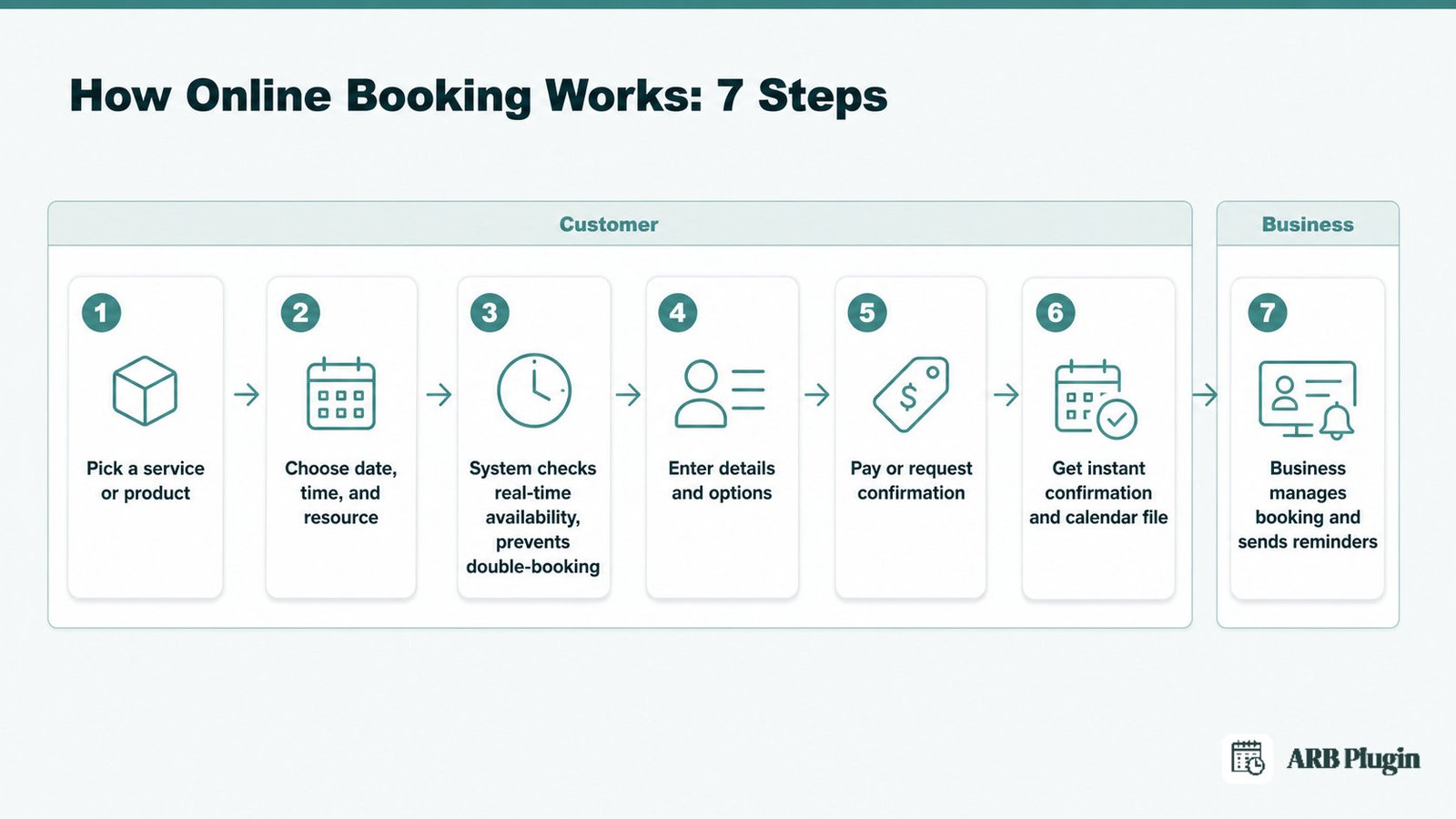
Step 1: The Customer Picks a Service or Product
Every booking starts when a customer picks what they want: a service, a class, a room, a piece of equipment, or a ticket. That choice happens on a booking form built into the business's own product or booking page.
The booking form only shows options the business has already configured: the services on offer and the base price. It also collects what the system needs next, such as date, resource, and person count.
A customer booking a 90-minute massage sees massage-length options only, not an unrelated haircut menu.
Step 2: They Choose a Date, Time, and Any Resource
After picking a service, the customer chooses a date and a time slot from a calendar. When the service needs one, they also pick a resource, such as a specific room, staff member, or piece of equipment.
The calendar only shows slots the business has made available for that service's duration and open hours. Picking a resource first, a specific stylist, for example, narrows the calendar further, since two resources rarely share identical schedules.
A customer booking a haircut might choose Saturday at 2:00 PM with a specific stylist. A customer renting equipment might instead choose a four-day date range and a specific van. Both choices run through the same time-slot logic.
Step 3: The System Checks Real-Time Availability and Prevents Double-Booking
The moment a customer selects a slot, the system checks it against every existing reservation for that resource and time. A slot that is already full, or one sitting inside a buffer period right after another booking, gets blocked immediately.
This check is what actually prevents a double booking. The moment two customers try to grab the same slot, only the first one to complete the check gets it. The second customer instead sees that slot marked unavailable, often next to a counter showing how many spots remain.
Buffers matter as much as raw capacity. A 20-minute buffer after a treatment blocks the next slot even though the calendar looks open, giving staff time to reset a room first. The real-time availability rules a business sets, capacity per slot, buffer length, and lead time, are what the calendar actually enforces.
Step 4: The Customer Enters Their Details and Options
Once a slot is confirmed as open, the customer enters their name and contact details. They also set the number of people or person types, such as adult, child, or ticket, and choose any add-ons.
The price recalculates live as these options change. Adding a second adult, an extra hour, or a premium add-on updates the total on screen before checkout. The customer never sees a surprise charge at payment.
Step 5: They Pay or Request Confirmation
Two flows are equally common at this stage. In one, the customer pays instantly through a checkout and payment gateway, and the booking confirms itself the moment payment clears.
In the other, the customer submits a quote request or an approval-first booking instead of paying immediately. The business reviews the request, sometimes sets a custom price, and confirms before any charge goes through.
Online booking does not always mean instant payment. Quote-first and approval-first bookings are just as legitimate. Businesses that need to review a request, custom-price a job, or confirm capacity before collecting money rely on this flow.
Step 6: The System Sends an Instant Confirmation and Calendar File
The moment a booking completes, whether by payment or approval, the system sends an automatic booking confirmation email to the customer. That email usually carries the date, time, resource, and total cost.
Most confirmation emails also attach a calendar file, an .ics file, that the customer can add directly to their own calendar app. That single click is what turns a booking into a reminder the customer set for themselves.
At this point the booking is recorded, not just requested. The business's own system already reflects the reservation, and the slot the customer took no longer shows as open to anyone else.
Step 7: The Business Manages the Booking and Sends Reminders
Once a booking lands, it appears in the business's admin dashboard or daily agenda, alongside every other reservation for that day. Staff can view, edit, reschedule, or cancel it from that single screen.
Automated reminders then go out before the appointment, usually by email, to cut the number of no-shows. A business can also send a manual reminder to a single customer or a bulk reminder to everyone booked for a given day or service.
This admin layer is what turns a stream of individual bookings into a manageable schedule. Without it, a business would still need to check a separate calendar or spreadsheet by hand to know what is coming up.
The Components Behind an Online Booking System
A visible calendar hides five components working together behind it.
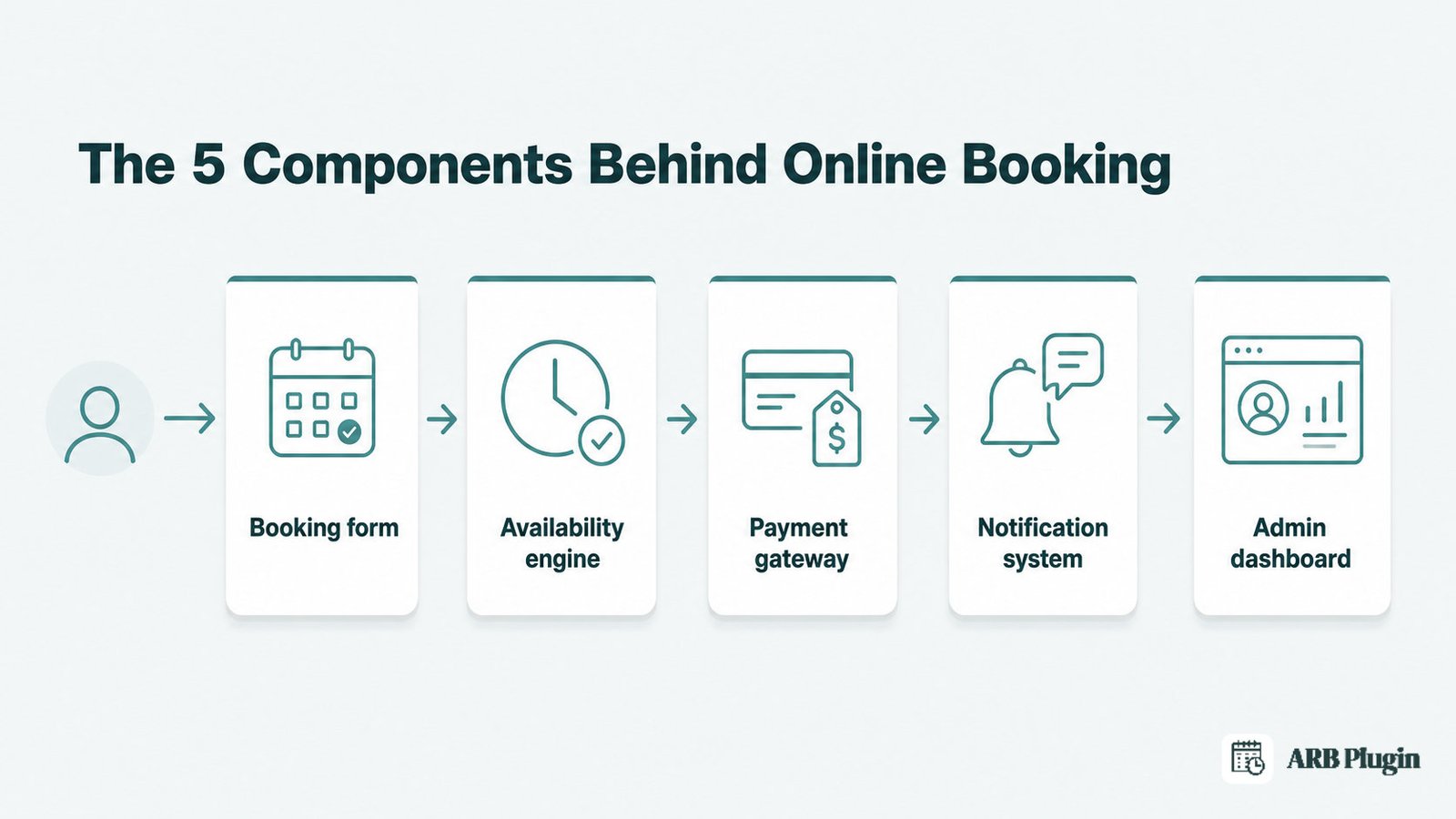
| Component | What It Does |
|---|---|
| Booking form | Collects the service, date, resource, and customer details the booking needs |
| Availability engine | Checks every request against existing reservations in real time and blocks conflicts |
| Payment gateway | Processes the charge, or holds the request for approval, at checkout |
| Notification system | Sends confirmation emails, calendar files, and reminders automatically |
| Admin dashboard | Lists every reservation so staff can view, edit, or cancel it |
A reservation system sits alongside these five components rather than replacing them. It focuses on holding and tracking a specific unit, a table, a room, a rental, after the booking is made. The five components above handle the transaction itself.
Online Booking in Practice: A Real-World Example
A two-person, 90-minute couples massage at a spa shows all seven steps running in sequence.
A customer opens the spa's website and picks Couples Massage from the service list. She selects Saturday at 2:00 PM, the only slot the calendar still shows as open for that treatment room.
The system checks that slot against every existing reservation for the treatment room. Only one spot remains: it shows "1 left" and blocks the 3:00 PM slot behind a 20-minute buffer the room needs to reset.
She enters two person types, since the treatment is priced per person. The price recalculates to include a weekend surcharge for the Saturday booking. She pays by card at checkout, and the system confirms the booking instantly.
A confirmation email arrives seconds later with an .ics file attached, so she can add the appointment straight to her own calendar.
On the spa's side, the booking appears immediately in the daily agenda, already marked as paid and confirmed. A reminder email sends automatically the morning of the appointment, and the front desk never has to call to confirm it.
The Benefits of Online Booking for Customers and Businesses
Real-time availability is what makes round-the-clock self-service safe, and it pays off differently for customers and for businesses.
For customers:
- Books any time, day or night, without waiting for a call back
- Sees real availability instantly, instead of guessing and waiting for a reply
- Gets an instant confirmation, so there is no uncertainty about whether the slot held
For businesses:
- Fewer double-bookings, since the availability check blocks conflicts automatically
- Fewer no-shows, since automated reminders go out before every appointment
- Less admin time, since staff stop trading calls and emails just to find an open slot
- Payment captured up front, or a request queued for approval, instead of chasing payment after the fact
None of this works without the availability check running first. That check is what lets a business open its calendar to anyone, at any hour, without staff manually approving every slot.
How to Set Up Online Booking on WordPress and WooCommerce
On WordPress, the common route is WooCommerce plus a booking plugin that adds a booking form to a product. Store owners already selling through WooCommerce consistently prefer a plugin that feels native to the platform, rather than a separate system bolted onto the site.
That plugin routes checkout through WooCommerce's existing cart, gateways, and taxes instead of a separate system. The setup itself follows a short, repeatable sequence.
- Install a WooCommerce-native booking plugin and activate it.
- Turn an existing product into a bookable product in WooCommerce, or create a new one.
- Set its availability, duration, and pricing rules.
- Let bookings run through WooCommerce's own checkout, gateways, and taxes.
ARB follows this exact pattern on WooCommerce. It turns any product into a Reservable Product and checks real-time availability the moment a customer picks a slot. It also supports two payment flows: automatic confirmation on successful payment, and a confirmation-required mode where the business approves the booking first. Every reservation then lands in an admin reservation manager alongside normal WooCommerce orders. For the full click-by-click walkthrough, see add online booking to WordPress.
FAQs
What is the disadvantage of online booking?
The main disadvantages are setup time, plugin or platform cost, and a dependence on customers being comfortable booking online instead of calling. Older or less tech-savvy customers can still be shut out if phone booking disappears entirely. These costs are usually smaller than the admin time online booking saves, but they are real.
How does online ticket booking work?
Ticket booking runs the same core loop as appointment booking. The resource, though, is inventory: a fixed number of seats or tickets instead of a time slot. It is usually instant-payment, since a ticket rarely needs approval, and the system simply decrements the ticket count as each one sells.
What is the difference between an online booking system and a reservation system?
The core difference is scope. Online booking centers on scheduling a service or appointment for a specific time. A reservation system centers on holding a specific unit, a table, a room, or a rental. The two terms overlap heavily and are often used interchangeably in practice.
What are some examples of online booking systems?
Common examples include appointment tools for salons and clinics, reservation systems for hotels and rentals, and ticketing platforms for events. WooCommerce and WordPress booking plugins for existing online stores are another common example.
Do you need WooCommerce to add online booking to a WordPress site?
No. Several plugin types add booking to a WordPress site without WooCommerce. A store that already sells through WooCommerce gains the most: a WooCommerce-native booking plugin reuses its existing checkout, gateways, and taxes. That avoids duplicating them in a separate system.
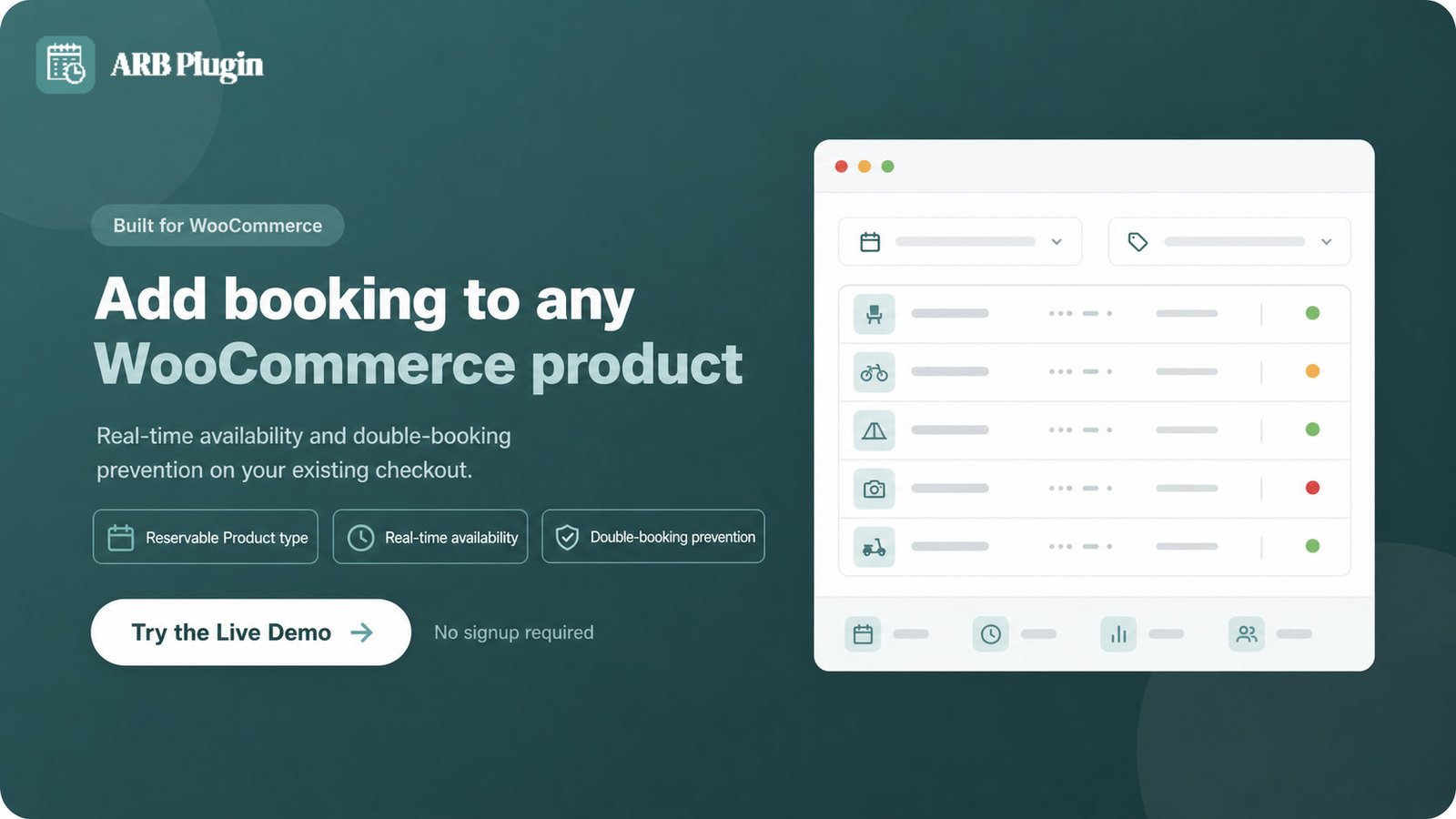
Understanding this flow makes it easier to judge any booking tool, including one built for WooCommerce specifically. ARB turns any WooCommerce product into a Reservable Product. Bookings then run through the store's existing checkout and land in an admin reservation manager alongside every other order. Try the ARB live demo to see the availability check, the confirmation flow, and the admin side in action.