ARB adds a gap between WooCommerce appointments using one field: the Availability tab's "Requires a vacant period of," set in minutes on any Reservable Product. Buffer time is a core feature, included in ARB's standard one-time license, no add-on required.
This guide covers what buffer time is, what you need before you start, and the four steps to set it in ARB. It also covers how the vacant period behaves once it is live, plus a few tips for getting it right.
What Is Buffer Time (and Why It Matters)?
Buffer time is a deliberate gap between two consecutive appointments, also called "padding," or "vacant period" in ARB. It stays open for cleanup, travel, prep, or a short reset. Without it, one booking's end time becomes the next one's start time, with no room in between.
That matters because a full calendar with no gaps runs the risk of appointments colliding the moment one session runs long. A buffer keeps consecutive bookings from sitting back-to-back and gives the person providing the service a breath between them.
Here's how to set it in ARB.
If you want the full breakdown of what buffer time is and where the concept comes from, read what buffer time is.
What You Need Before You Begin
You need an active WooCommerce store with ARB installed and at least one Reservable Product created. Buffer time is a core Availability-tab field, included in ARB's standard one-time license, not gated behind any add-on.
- License required: ARB's standard one-time license. Buffer time is not gated behind the Google Calendar or SMS add-ons.
- Feature you'll use: the Availability tab's "Requires a vacant period of" field, on a Reservable Product.
- Starting point: a Reservable Product under Products, in your WooCommerce store.
- Template: none needed. There is no separate buffer-time template to load.
If you have not yet set your booking hours or time slots, set up your booking availability first. This guide assumes you already have online booking added to WordPress with WooCommerce and ARB.
Not sure ARB can do this yet? Open the live ARB demo and watch the gap appear between two booked time slots before you commit to anything.
How to Set Buffer Time Between Bookings in ARB: Step by Step
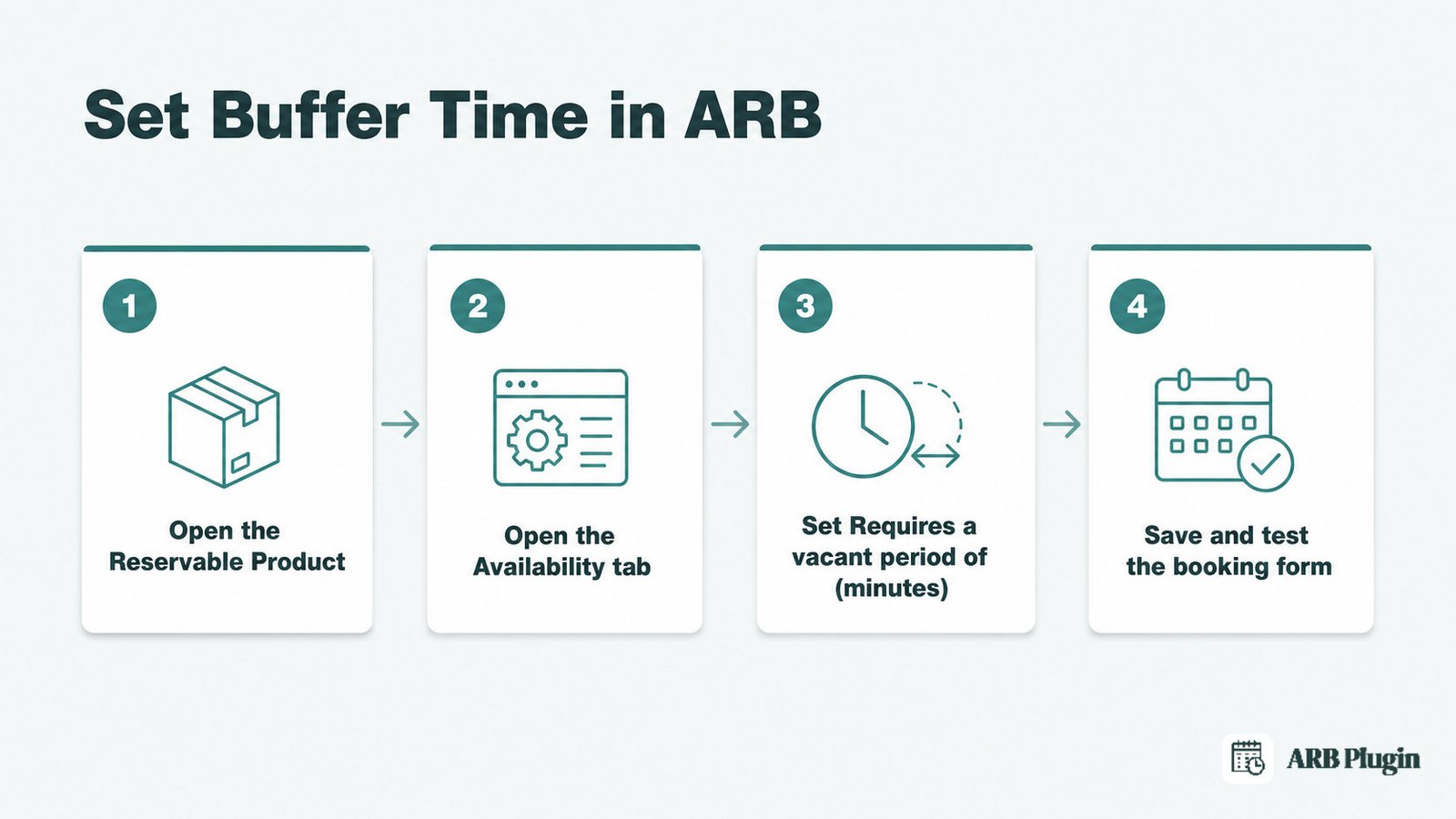
Setting a buffer takes four steps inside one Reservable Product's Availability tab.
Step 1: Open the Reservable Product you want to add a buffer to
Go to Products, then open the specific Reservable Product you want to pad. Or click Add New and choose Reservable Product from the Product Data dropdown.
[Screenshot needed: Product Data dropdown with "Reservable Product" selected] Alt: WooCommerce Product Data dropdown open, with "Reservable Product" selected from the product type list.
Buffers are set per product, so open the exact service you want the gap applied to, not a different one.
Done: the Product Data box shows five tabs, General, Availability, Costs, Persons, and Resources.
Step 2: Go to the Availability tab
Inside Product Data, click the Availability tab. Every timing and capacity rule for the product lives here.
- Max Reservations per Slot
- "A slot is reservable after minimum"
- "Requires a vacant period of"
- "1st slot starts at"
- Add Range
[Screenshot needed: the Availability tab showing its full field list] Alt: ARB Availability tab showing Max Reservations per Slot, the vacant period field, minimum lead time, and Add Range.
Done: the Availability tab is open and its fields are visible, with none of them filled in yet for this test.
Step 3: Set "Requires a vacant period of" to your buffer length
Enter your buffer length, in minutes, into Requires a vacant period of. A value here adds a gap after each booking, so the next slot cannot start until that many minutes have passed.
[Screenshot needed: the "Requires a vacant period of" field with 20 entered] Alt: ARB Availability tab "Requires a vacant period of" field with 20 entered as the buffer length in minutes.
A clinic that needs 30 minutes to reset between patients enters 30 here, and those 30-minute blocks simply disappear from the customer-facing calendar.
Done: the vacant period field holds your buffer value, in minutes, greater than zero.
Step 4: Save the product and test the booking form
Update or publish the product, then open its live front-end page and check the available time slots.
[Screenshot needed: front-end time-slot list showing spaced-out slots] Alt: Live ARB booking calendar showing available time slots spaced apart by the configured vacant period.
Done: the front-end slot grid shows a gap between one booking's end and the next slot's start, matching the minutes you entered.
ARB is the WooCommerce booking plugin used throughout this guide. See ARB for the full plugin, tested against every step above.
How ARB's Vacant Period Actually Behaves (Before, After, and Per Product)
ARB's "vacant period" is one value that opens a gap after each booking. ARB does not offer separate "before" and "after" buffer fields the way some competing WordPress booking plugins do. That is a real, specific limit worth stating plainly, not a footnote.
Here is the math. Say a customer books an 8:30 to 9:30 slot, and the vacant period is set to 20 minutes. The next slot cannot start until 09:50, twenty minutes after 9:30. A following 60-minute booking beginning at 09:50 runs to 10:50. Nothing shifts before 8:30, only after it.
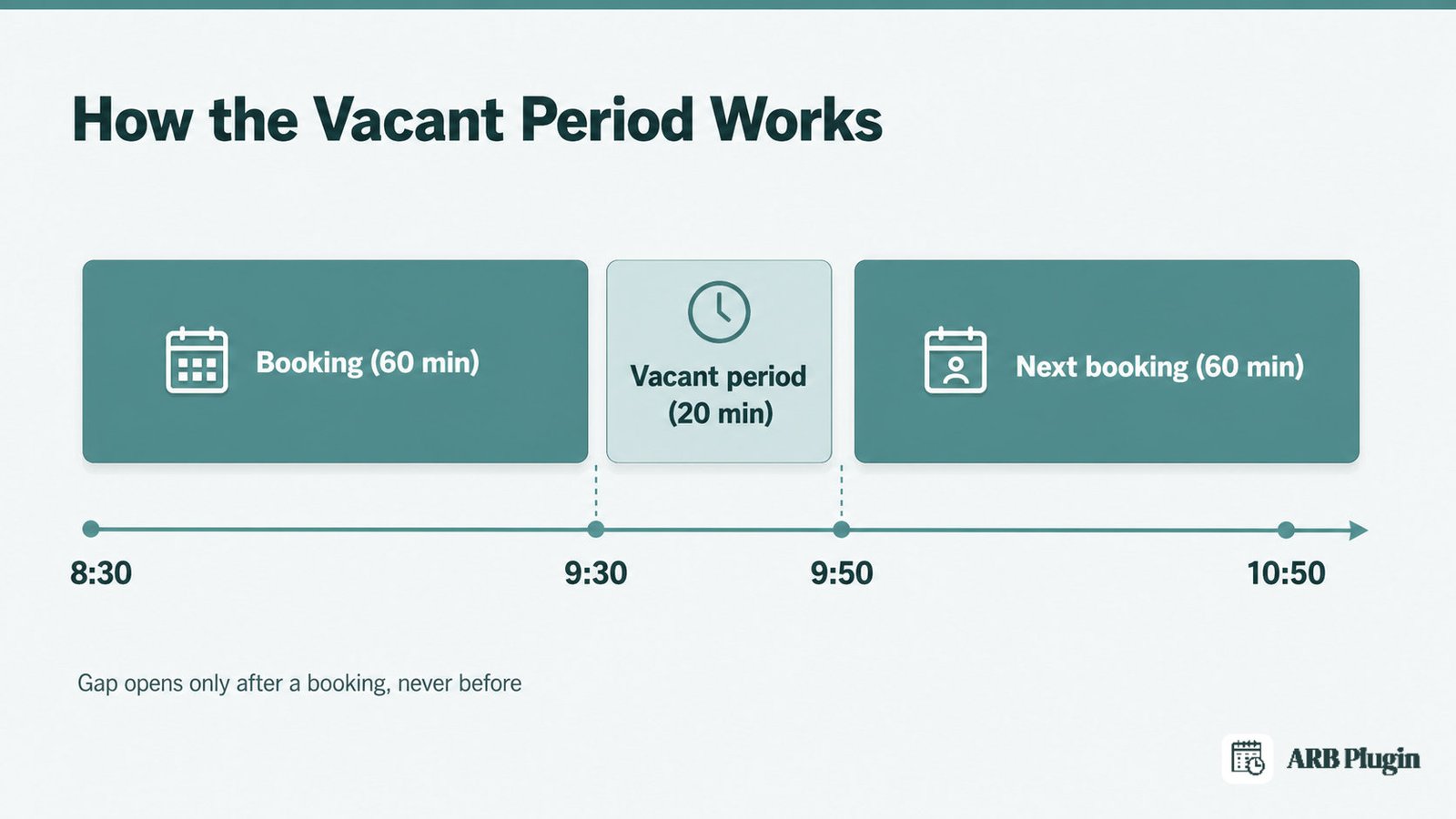
ARB's field only opens space after a booking. Some therapists need time to read notes before a session, and some technicians need time to set up gear. If you need that kind of room before an appointment too, add it into the same single value instead of expecting a separate "before" field. Some scheduling tools do let you set separate before and after buffers independently. ARB's is one number, applied one direction.
The vacant period also lives on each Reservable Product's Availability tab, not as one global account setting and not per resource within a product. Different services get different buffers only by being different Reservable Products, each with its own vacant-period value.
Last, the vacant period and Max Reservations per Slot solve different problems. The vacant period spaces bookable slots apart on the time grid. Max Reservations per Slot caps how many bookings one slot can hold before ARB blocks further reservations for it. A buffer with no capacity limit still allows several customers into the same slot; a capacity limit with no buffer still allows back-to-back slots. Microsoft's own Bookings documentation makes the same point about buffer time in general. It "does not fully prevent double booking" on its own, since it only reduces overlap risk instead of eliminating it. Set both fields if you need both effects.
Tips for Getting Buffer Time Right in ARB
A few adjustments make ARB's single-value buffer work harder for specific booking setups.
- Need space on both sides? Size the single value for the total gap. Since ARB only opens time after a booking, set the vacant period to the full amount of space you want between two appointments, not just the after-side portion.
- Give each service its own Reservable Product for its own buffer. A 30-minute buffer for a deep-tissue massage and a 10-minute buffer for a quick consult require two separate Reservable Products, each with its own vacant-period value.
- Pair the buffer with Max Reservations per Slot. The vacant period spaces slots apart; Max Reservations per Slot caps how many bookings share one slot. Set both if your business needs both a gap and a hard capacity limit.
- Use minimum lead time for a heads-up window, not the vacant period. "A slot is reservable after minimum" controls how far ahead a customer must book. The vacant period does not pad the start of the day; lead time does.
- Carve out a fixed block, like a lunch break, with a date range instead of stretching the buffer. Add a "Date Range with Time" range under Add Range for a recurring non-bookable window, rather than inflating the vacant period to cover it.
See ARB's availability and buffer settings for the full set of ranges and rules the Availability tab supports.
FAQs
Does ARB support separate before and after buffer times?
No. ARB uses one "vacant period" value, applied as a gap after each booking. To pad time before an appointment too, increase that single value to cover both sides.
Can I set a different buffer for each service or resource?
Yes, per Reservable Product. Each Reservable Product has its own Availability tab and its own vacant-period value. There is no per-resource buffer within one product, and no single global buffer that applies across all products.
Is buffer time available in the standard ARB license, or is it an add-on?
It is a core feature in ARB's standard one-time license. Buffer time is not gated behind the Google Calendar or SMS add-ons.
Does the vacant period block time before the first appointment of the day?
No. The vacant period only opens a gap after a booking ends. To hold time before the day's first slot, use "1st slot starts at" or the minimum lead time field instead.
What is the difference between buffer time and minimum lead time in ARB?
Buffer time (the vacant period) is the gap between two consecutive bookings. Minimum lead time ("A slot is reservable after minimum") is how far in advance a customer must book before a slot becomes reservable at all.
Does buffer time on its own prevent double-booking?
No. The vacant period spaces slots apart; it does not cap how many bookings one slot can hold. Set Max Reservations per Slot alongside it to actually stop double-booking within a slot.
Try the ARB booking flow before you buy: open the live ARB demo and set your own vacant period against a real time-slot grid. ARB is a one-time purchase, around $55, rated 4.81 out of 5 on CodeCanyon.