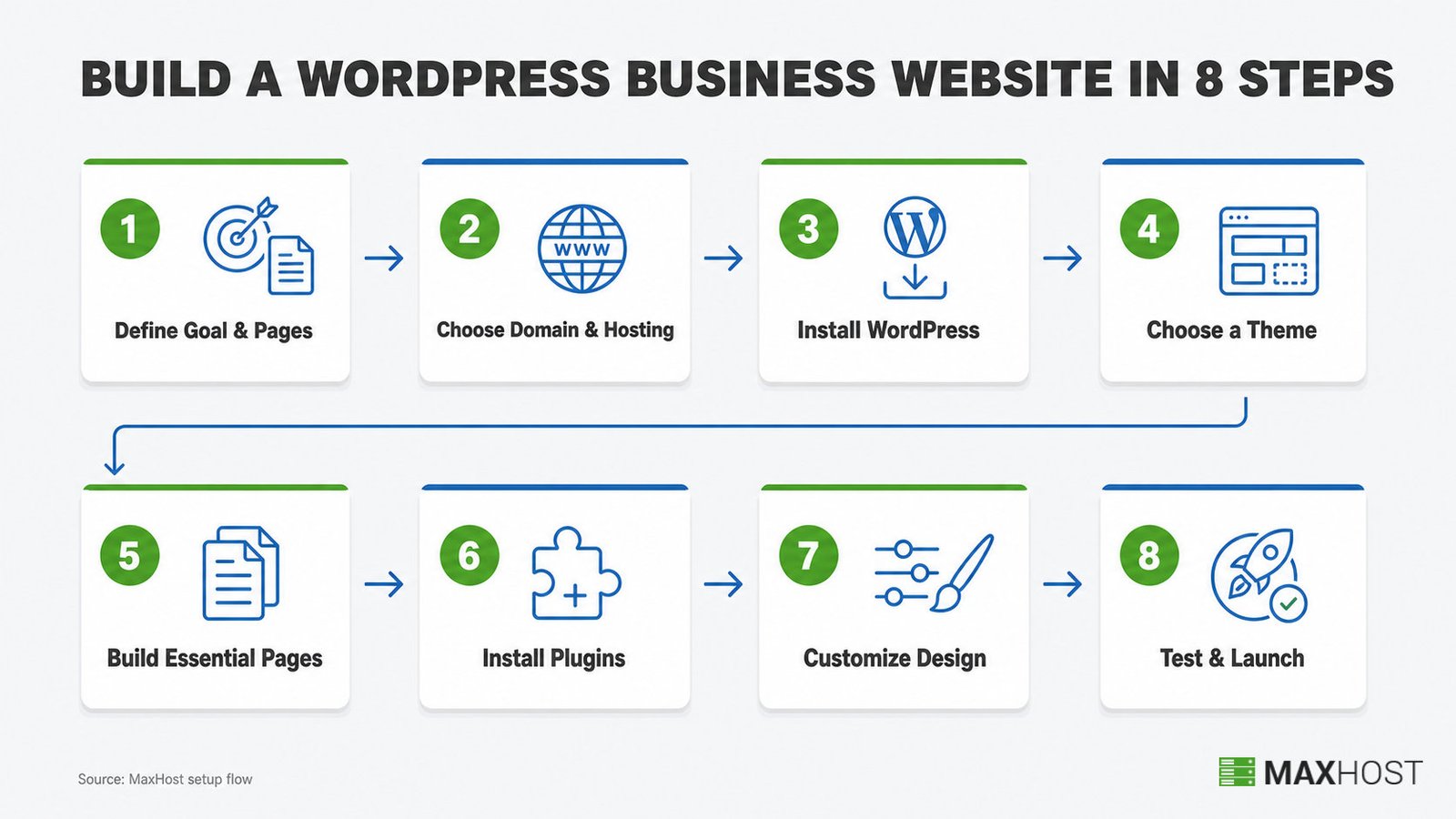
Building a business website with WordPress takes eight steps. You pick a domain and hosting, install WordPress, and choose a theme. Then you build core pages, add plugins, customize the design, and launch. The process works with any WordPress theme, not just one vendor's.
This guide walks through each step in order, what to configure, and the mistakes that make business sites look unfinished. Every step applies regardless of which theme or hosting provider you choose.
Making a Business Website With WordPress at a Glance
A WordPress business website is a self-hosted site built on the WordPress.org software that presents a company's services, credibility, and contact path to prospective customers. It runs on a domain you own, a hosting plan you control, and a theme that shapes the design. Most owners build one to generate leads, sell services, or simply look credible when a prospect searches the business name. The process below covers picking infrastructure, installing WordPress, choosing a theme, building pages, adding plugins, customizing the design, and launching.
What You Need Before You Start
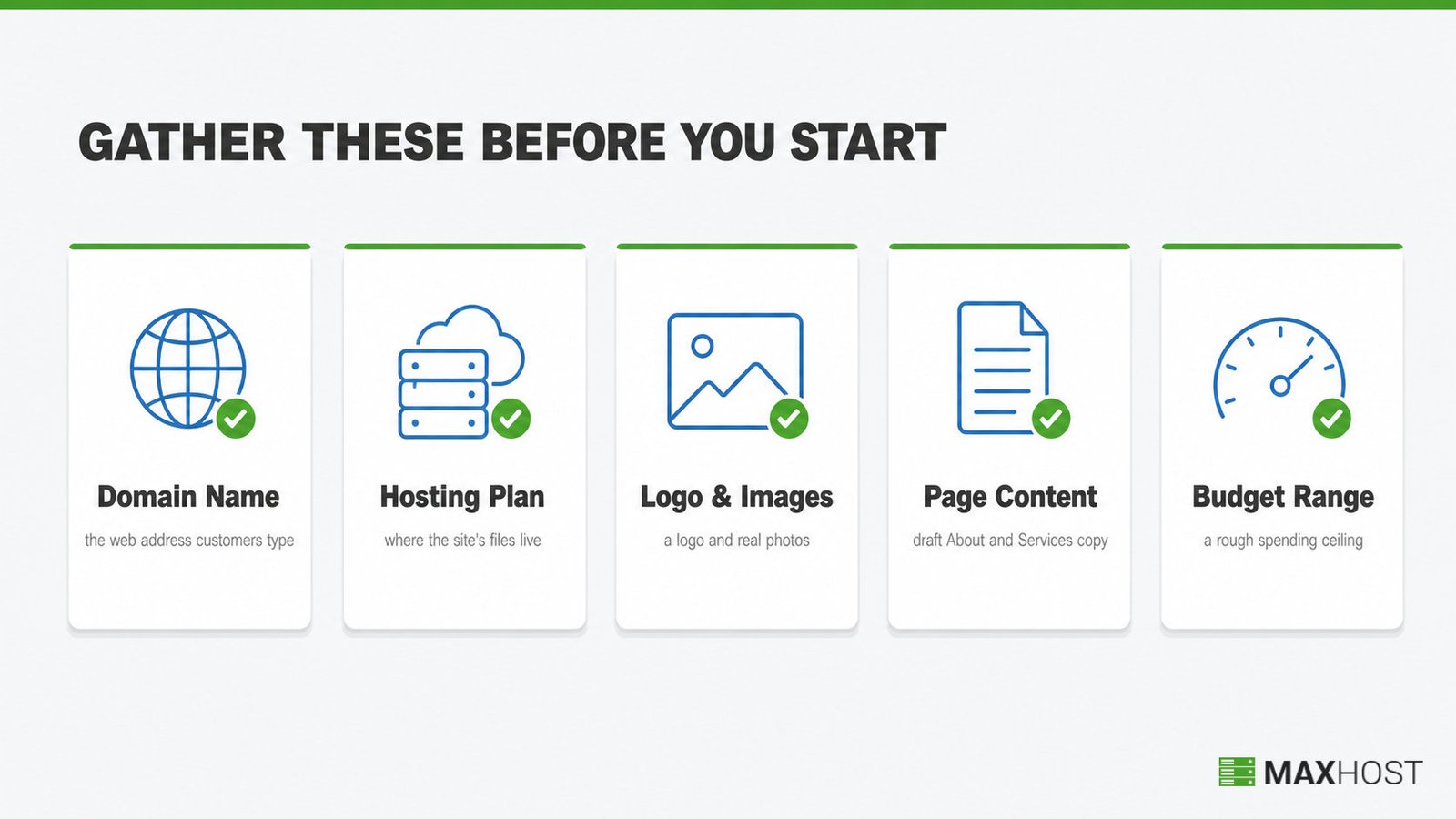
The prerequisite most first-time builders skip is having their page content ready before they open WordPress. Gather these before Step 1:
- Domain name. The web address customers will type or search for.
- Hosting plan. Where the site's files and database actually live.
- Business logo and images. At least a logo file and a few real photos, not placeholders.
- Page content. Draft copy for the About and Services pages, even if rough.
- Budget range. A rough ceiling, since costs range from under $200 to several thousand dollars depending on how much you build yourself.
Step 1: Define Your Business Website's Goal and Pages
Every business website needs one clear job before you touch WordPress. Decide whether the site informs visitors, captures leads through a form, or sells directly, because that choice shapes every page you build next.
Write down the primary job. Then list the pages that job requires.
- Inform: Home, About, Services, Contact.
- Capture leads: The same four pages, plus a dedicated landing page with one form.
- Sell: The same four pages, plus product or service pages with pricing and a checkout path.
Moving an existing site into WordPress is a different task. Migrating an existing site into WordPress covers preserving your content, links, and rankings during that move.
Step 2: Choose a Domain Name and Hosting
Two decisions drive this step: your domain name and registrar, and your hosting plan. Pick both together, since many hosts bundle a free domain into the first year of a hosting plan.
A .com domain typically runs $10 to $20 a year once any first-year discount ends. Shared hosting for a small business site runs roughly $3 to $15 a month at signup. Renewal rates often rise to $10 to $40 a month after the first term.
Web hosting is the service that stores your site's files and serves them to visitors. The plan tier you pick sets how much traffic and storage the site can handle before you upgrade.
Buy the domain and hosting plan together when the host offers a bundled discount. Confirm the plan includes a free SSL certificate before you check out.
Step 3: Install WordPress
Most hosts install WordPress automatically once you buy a plan. Log into your hosting account's control panel, find the one-click WordPress installer, and run it against your new domain.
The installer creates your WordPress admin login and database in a few minutes. Once it finishes, activate the free SSL certificate your host provides so the site loads over HTTPS instead of HTTP.
Confirm you can log into yourdomain.com/wp-admin with the credentials the installer generated. That login working is the sign this step is done.
Step 4: Choose a Business WordPress Theme
Weigh five things when picking a theme. Look at design fit for your industry, mobile-responsive layout, page-builder support, page-load performance, and update recency. A theme that has not shipped an update in two years is a maintenance risk. Preview the theme's demo on a phone before you commit.
Most business owners are better served by a general-purpose business theme paired with a page builder. That combination fits any industry without extra features you will never use.
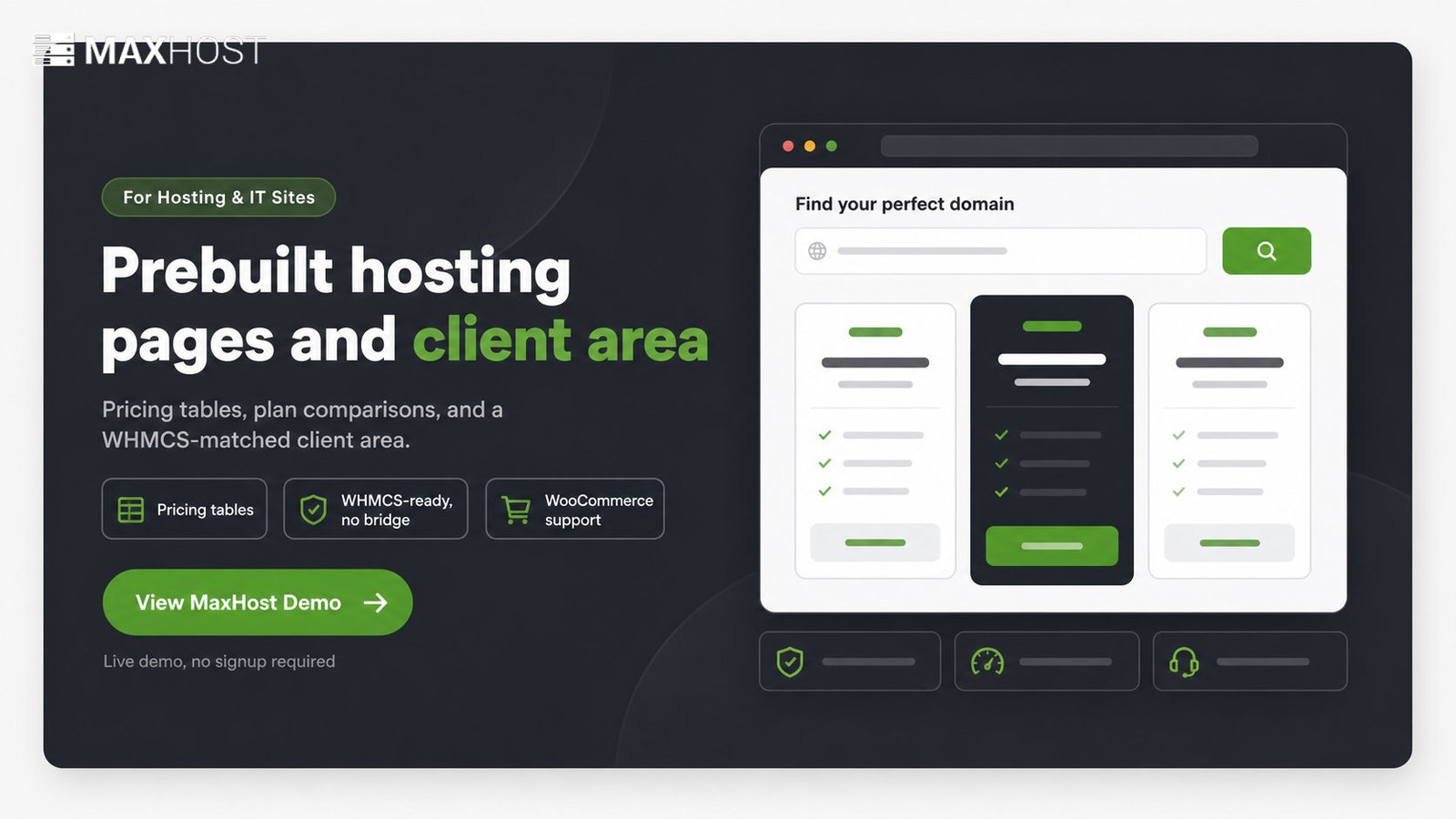
If your business is hosting, IT, or a corporate technology service: a general theme leaves you rebuilding pricing tables, plan comparisons, and a WHMCS-matched client area from scratch. MaxHost is built specifically for that narrow case: a corporate business and web hosting WordPress theme with WooCommerce support, not a general-purpose business theme. If your business sells a service unrelated to hosting or IT, skip it. See whether MaxHost fits a corporate business site before deciding.
Once you have picked a theme, installing it in WordPress takes a single upload-and-activate pass for most themes sold as a .zip file.
Step 5: Build Your Essential Pages
Five pages cover what nearly every business website needs. Build them in this order:
- Home. States what the business does and who it serves in the first screen.
- About. Explains the company's history, team, or credentials.
- Services (or Products). Lists offerings with a short description of each.
- Contact. Includes a form, phone number, and address if the business has one.
- Privacy Policy. A legal requirement in most regions once you collect any visitor data.
Many premium themes ship with a starter template or demo content you can import in one click. That gives you pre-built versions of these pages to edit, instead of building each from a blank canvas. Import it first, then swap the placeholder text and images for your own.
Publish these five before adding anything else. A blog, testimonials page, or FAQ page can wait until the core structure is live.
Step 6: Install Essential Plugins
Seven plugin categories cover what a business website needs on day one: SEO, security, forms, email delivery, backups, caching, and analytics. Install one plugin per category rather than stacking several that do the same job.
| Category | Example plugin | What it does |
|---|---|---|
| SEO | Yoast SEO or Rank Math | Sets page titles, meta descriptions, and an XML sitemap for search engines |
| Security | Wordfence or Sucuri | Blocks malicious login attempts and scans the site for malware |
| Forms | WPForms or Contact Form 7 | Captures leads through a contact, quote, or booking form |
| Email delivery | WP Mail SMTP | Routes form and system emails through a real SMTP service so they reach the inbox, not spam |
| Backup | UpdraftPlus | Stores automated backups off site, away from the live server |
| Caching | WP Rocket or WP Super Cache | Speeds up page loads by serving a cached version of each page |
| Analytics | MonsterInsights or Google Site Kit | Shows traffic and visitor behavior inside the WordPress dashboard |
If you plan to sell products or services directly on the site, add WooCommerce. It turns any of these pages into a store without changing the underlying theme.
Step 7: Customize Your Design and Branding
Four elements make a stock theme look like your business: logo, color palette, fonts, and header and footer layout. Set these before touching individual pages, since they apply site-wide.
Most WordPress themes work with a page builder such as Elementor, WPBakery, or the built-in Gutenberg block editor. You drag and drop sections instead of writing code.
Upload your logo in the customizer. Set two or three brand colors, and pick a font pairing: one for headings, one for body text.
Check the header and footer on mobile before moving on. A menu that collapses correctly on a phone screen is a sign the theme's responsive design is working.
Step 8: Test and Launch Your Site
Five checks catch most launch-day problems before customers see them. Run through this checklist before you make the site public.
- Mobile check. Load every page on a phone. More than half of web visits now happen on mobile.
- Broken-link check. Click every navigation link and button.
- Form test. Submit the contact form yourself and confirm the email arrives.
- Page-speed check. Run the homepage through a speed test and fix anything scoring poorly.
- Backup taken. Confirm your backup plugin has stored a copy off the live server.
Once every check passes, finish these launch settings before you go public.
- Set permalinks to Post name. Under Settings, then Permalinks, pick "Post name" for clean, readable URLs.
- Uncheck "Discourage search engines from indexing this site." Find it under Settings, then Reading. Leaving it on blocks Google from indexing you, a common launch-day mistake.
- Delete leftover demo content. Remove sample pages, posts, and placeholder images left by the theme or a starter template.
Then remove any "coming soon" mode and submit your sitemap to Google Search Console. That submission is what tells Google the site is ready to crawl and index.
Common Business Website Mistakes to Avoid
The single most common business website mistake is a site that fails on mobile. More than half of visitors arrive on a phone. A layout that breaks there loses most of your traffic before anyone reads a word. These mistakes recur most often.
- Not mobile-friendly. A layout that looks fine on a desktop can break on a phone, and most visitors are on phones. Test every page on a real device before launch, not just a browser preview.
- Slow loading speed. Pages that take more than a few seconds to open send impatient visitors back to the search results. Enable a caching plugin, compress your images, and run the homepage through a speed test before launch.
- A weak or missing call to action. Pages that end with no clear next step leave visitors unsure what to do. Give every key page one obvious action, such as "Get a quote" or "Book a call," above the fold.
- Confusing navigation. A cluttered menu with no hierarchy buries the pages that matter. Keep the main menu to five or six items, and put your most important page first.
- Hidden contact details and no trust signals. A business with no visible phone number, address, or proof of credibility reads as hard to reach or fake. Put contact details in the header or footer, and add testimonials or client logos.
- No SSL certificate or security hardening. A missing padlock, default admin usernames, and skipped updates leave a site exposed and flagged as "not secure." Activate the free SSL certificate, install a security plugin, and turn on automatic minor updates.
- Skipped SEO and analytics setup. A site with no sitemap and no traffic tracking launches invisible to both search engines and its own owner. Install an SEO plugin and an analytics plugin in Step 6, before launch, not after.
FAQs
Do I need coding skills to build a business website in WordPress?
No. A page builder like Elementor or the built-in Gutenberg editor lets you build every page in this guide without writing code. Coding skills help only for deep custom functionality beyond a standard business site.
How long does it take to build a business website in WordPress?
A simple DIY site with a pre-built theme takes 20 to 40 hours of work, usually finished within 1 to 2 weeks. A custom-designed site built by a freelancer or agency typically takes 6 to 12 weeks.
How much does a business website cost with WordPress?
A DIY build costs roughly $200 to $800 in the first year: domain, hosting, and a premium theme or plugins. A freelancer-built site runs $1,500 to $5,000, and an agency build often costs $4,000 to $15,000 or more.
What's the difference between WordPress.com and WordPress.org for a business site?
WordPress.org is free, self-hosted software that gives you full control over plugins, themes, and hosting. WordPress.com is a managed platform where WordPress.com hosts everything for you, with its Business plan starting around $150 a year. Most business sites use WordPress.org for the added flexibility.
Do I need a page builder to build a business website?
No, but most owners use one. The Gutenberg block editor built into WordPress handles a standard business site without a separate builder. A page builder like Elementor adds more layout flexibility for a non-technical owner.
Can I sell products or services on a WordPress business website?
Yes. Adding the WooCommerce plugin turns a standard WordPress site into a store, complete with product pages, a cart, and checkout, without changing the underlying theme.
Is there a single best WordPress theme for a business website?
No single theme fits every business. The right theme depends on your industry, your page-builder needs, and how it performs on real hosting. Weigh design fit and update history over any single "best" claim.
Do I need a professional business email address?
Yes, for credibility. A you@yourbusiness.com address reads as more trustworthy than a free @gmail.com or @yahoo.com one. Most hosting plans include a basic business inbox, and Google Workspace starts at $7 per user per month.
How many pages should a small business website have?
Most small business sites launch with 5 pages: Home, About, Services, Contact, and a Privacy Policy. Add a blog, testimonials, or FAQ page once the core structure is live, not before.
Is WordPress a good fit for a hosting or IT-services company's website?
Yes, and it is a narrower case than a typical business site. A hosting or IT-services company usually needs pricing tables, plan comparisons, and a client-area login alongside the marketing pages. That is exactly what a dedicated hosting theme is built for.
See how to build a web hosting website in WordPress and a roundup of WordPress hosting themes for that specific case.
Most business websites do not need a hosting or WHMCS-flavored theme. A general-purpose business theme serves them well.
Hosting companies, resellers, and IT or tech-services firms are the exception described in Step 4. MaxHost's corporate business and hosting demos already come with the pricing tables and client-area layouts that case needs.