
The image below is a sample Domain Search widget.

Option Fields of this Widget in Elementor :
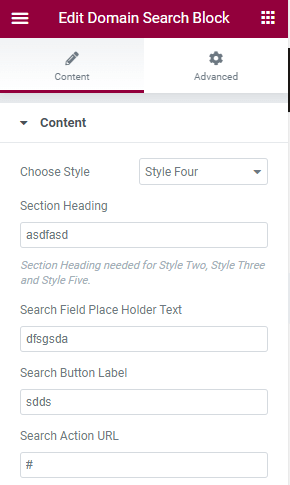
- Choose Style – Five different design available to choose from.
- Search Field Place Holder Text – Input the placeholder text here.
- Search Button Label– Insert the button name here.
- Search Action URL – Action URL can link up the Domain search result to your WHMCS, the description of the field will help you how to put the action URL correctly.
- Domain TLDs – Input each tld on new line. Keep this field empty if you are using Style Four.
- Enable Ajax Domain Search – It will show the Domain Search result below the Search Form.
- Ajax Search Purchase Button Label – You can input ‘Buy Now’ or something like that, to let your users purchase the domain if it is available.
>> Advanced
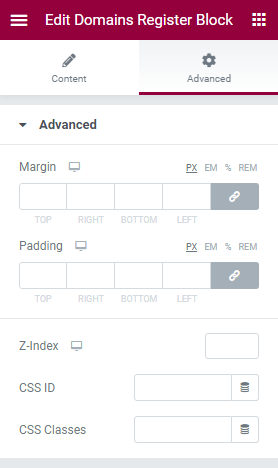
- Margin – input the values for the margins in the required fields.
- Padding – here you can set the preferable custom padding. Fill in the values for the top, bottom, right, and left padding in pixels or % to apply your custom padding.
- Z-Index ( optional ) – input the values for the z-index if you need to use this option.
- CSS ID ( optional ) – add your custom CSS ID in this field.
- CSS Classes ( optional ) – add your custom CSS Classes here without the dot (.).
>> Background
- Switch between Normal or Hover modes.
- Background Type – in this block you can choose, whether you want to use a background color or a background image for the section.
>> Positioning
- Width – here you can choose between Full width, Inline and Custom.
- Position – here you can choose between Absolute and Fixed position.
>> Responsive
You can choose any option from Hide on Desktop, Hide on Tablet or Hide on Mobile.